
How to install computer memory (RAM)
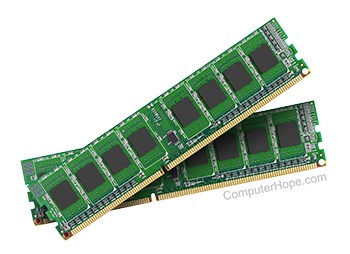
If you are installing a RAM (random-access memory) upgrade in your computer, or you are considering it, the following tips and information may help.
Memory buying tips
If you haven't purchased the memory yet, refer to our tips to finding the right RAM for your computer.
Before getting started
If you've purchased the RAM and you're ready to install it, run down this checklist before beginning the installation.
- Ensure you are familiar with ESD (electrostatic discharge) and its potential dangers.
- When installing the memory, make sure the computer is off and unplugged.
Locate memory slots and install memory
Follow these steps to safely install RAM modules in your computer's motherboard.
DIMM (DRAM, SDRAM, and DDR) memory installation steps
When handling memory, hold it by the sides at each end of the module. Be careful not to bend, flex, or drop the memory while handling it. When pushing the memory into the computer, do not apply an excessive amount of pressure. Doing so could cause damage to the memory module, and the slots on the motherboard. Finally, when installing the memory, distribute the pressure evenly by pressing on both corners of the memory module.
Once the memory is purchased, locate the memory slots on the computer motherboard. If no memory slots are available on the computer, one or more memory modules must be removed before the memory can be installed.
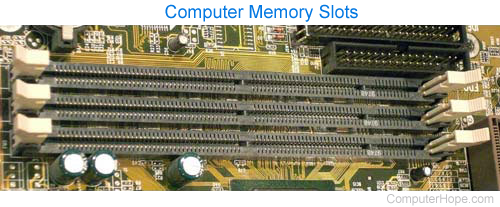
If the computer has a small form factor, it may be difficult to access the memory slots. You may have to temporarily remove cables or expansion cards before you can access them easily. When disconnecting anything from the computer, make sure you can remember where each cable and card goes.
Each slot on a motherboard that supports a DIMM (dual in-line memory module) is a bank; therefore the computer works if one memory module is purchased.
Examine the memory module before installing it into the computer. At the bottom of the memory module, you should notice one or more notches at the bottom of the card. These notches look like those shown in the picture below.
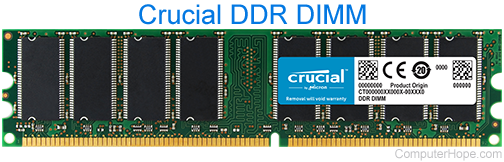
Make sure that the notches match up with the memory slot you are installing the memory into. These notches allow the memory to be installed only in one direction. If the memory is incompatible, it will not physically match with the slot.
After verifying the notches and direction, the memory needs to be installed, move each memory slot tab out or away from the memory module. These tabs will snap into place as the memory module is installed.
Once these tabs are moved out, gently and firmly push the memory module into the slot. As the memory module is being pushed, the two tabs should snap and hold the memory module into place.
After the memory is installed in the computer, plug the computer back in, and turn it back on. As the computer is booting, the memory should be automatically detected and set up. If you have any difficulties with the memory detected or set up, enter the BIOS setup, and verify the memory is correctly detected by the system.
RIMM memory installation steps
What makes RIMM memory modules different from DIMM memory modules is the C-RIMM (continuity RIMM) memory module. This module allows the computer to have a continuous flow of data. When installing a new RIMM, remove the C-RIMM. This module is a small circuit board and has only a few or no chips on it.
When the C-RIMM module is removed, and the two tabs are in the outward position, push the RIMM memory module to a vertical or 90-degree angle. As the memory module is being pushed, the two tabs should snap and hold the memory module into place.
Notebook (laptop) memory installation steps
Before the memory can be installed into a notebook, the memory slots must be located. If you are unfamiliar with where these slots are located, below is a listing of possible locations:
- On a compartment on the bottom of the laptop.
- Under the keyboard.
- In the computer.
If you cannot locate the slots after looking at each of the above recommendations, we recommend you contact the computer manufacturer for additional help and information.
Once the slots are located, the next step is to install the computer memory. Today, most laptops follow the same memory installation.
Because laptops are thin compared to a desktop computer, the memory banks are horizontal with the laptop. The memory must be inserted at an angle (approximately 75 degrees). Once it's in the slot, press down on the memory to snap it into place. The memory should also lay horizontally with the computer.
SIMM memory installation steps
30 and 72-pin SIMM (single inline memory module) memory modules must occupy a bank. Computers that use 72-pin SIMMs have two sockets as one bank. Therefore, two memory modules of equal value must be installed in pairs, unless instructed otherwise by the computer or motherboard manufacturer.
The installation of most SIMM memory is the same. The memory is placed into the slot at a 75-degree angle and while still in the memory slot, moved to a vertical (90-degree) angle. As the memory module is moved to a vertical position, it should snap into place. When installed, ensure that both sides of the memory module are snapped into place. If a memory module is not installed properly, it could cause damage to the computer.
We recommend the larger memory modules be installed in the lowest available banks. For example, if the computer has two 4 MB memory modules and you're installing two 32 MB memory modules, place the 32 MB memory modules either in banks 0 and 1, or 1 and 2.
Some computer manufacturers may require SIMM modules be installed in a certain order. So, if your new computer memory installation does not work, consider switching the location of the memory.
Set memory in BIOS
Once the memory appears is installed into the computer, test it. Put the case back on the computer. Connect the keyboard, monitor, and power to the computer. Turn on the computer.
We recommend you do not connect the rest of the cables yet. If you experience problems, you may have to disconnect all the cables again.
As the computer is booting, enter the BIOS setup, verify that the memory is detected, and if necessary, adjust the settings to match your memory specifications. When verification and configuration is complete, save the settings, exit BIOS, and reboot the computer.
Troubleshooting
If you encounter any problems when installing the RAM, refer to our Computer memory help and support.