
How to connect and install a computer mouse
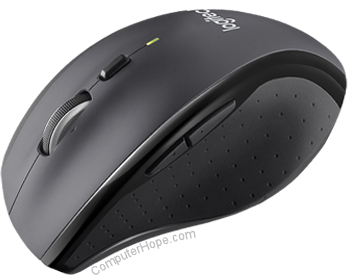
Today, the computer mouse utilizes both wired and wireless connections. Regardless of the transmission technology, nearly all mice utilize the USB (universal serial bus) interface to connect to a computer. However, older computers may still use PS/2 or serial ports.
If your mouse is wired, a cord (a few feet long) comes out the front with a connector at the end. Wireless mice communicate using RF (radio frequency) technology and Bluetooth. They all send their signals to a dongle, a small, included device inserted in a USB port on the computer.
To proceed, select your mouse type from the list below and follow the instructions.
To disconnect a mouse from a computer, perform the steps on this page in reverse order.
Connecting a wireless USB mouse
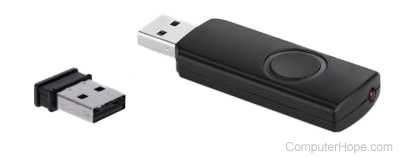
A cordless mouse has a small receiver used to communicate with a computer. This receiver connects to a USB port, allowing the mouse to tell the computer its position and clicking based on the user's actions.
To connect a wireless USB mouse to a computer, you must have the USB receiver that comes with it. Without the receiver, there is no way to connect the wireless USB mouse to a computer. Furthermore, you can't use an old receiver with a new device as their frequencies differ.
- Locate an available USB port on the back or side of your computer and plug in the receiver.
- Once the wireless receiver is connected to the computer, Windows or macOS should automatically find and install the appropriate drivers. Depending on the mouse brand, your computer may need to connect to the Internet to install the drivers automatically.
- Ensure there are batteries in the mouse or the internal battery is charged.
- Nearly all wireless mice have an on/off switch on the bottom of them. Make sure the power switch is in the On position.
To customize the functions of your mouse buttons, additional software may need to be installed. If the mouse is not functioning, see our mouse troubleshooting section.
Connecting a wired USB mouse
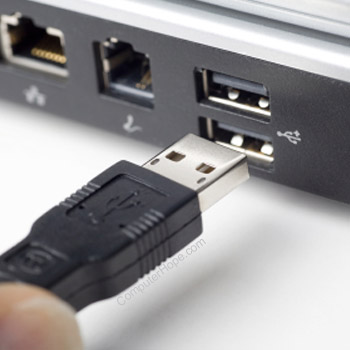
Connect the mouse USB to one of the USB ports (shown right) on the back or side of your computer. If you are using a USB port hub, connect the mouse cable to that hub.
After connecting the mouse, the computer should automatically install the drivers and provide basic functionality. If not, see: How to install and update a computer driver.
To change how any special buttons work on your mouse, additional software may need to be installed. If the mouse is not functioning, see our mouse troubleshooting section.
Connecting a Bluetooth mouse

Some mice connect via a wireless Bluetooth signal. To connect a Bluetooth mouse, a computer must have a built-in Bluetooth receiver or a Bluetooth adapter plugged into it. Below are general instructions on connecting a Bluetooth mouse. If you are still struggling to connect your mouse after reviewing them, see our Bluetooth help links at the end of this section.
- Open the Bluetooth utility on the computer and make sure Bluetooth is enabled. The Bluetooth utility, if enabled, is in the notification area, with an icon that looks like the Bluetooth symbol.
- Ensure the mouse is turned on by toggling the on/off switch to the On position.
- Check the Bluetooth utility to see if it detects the Bluetooth mouse.
- When the utility finds the mouse, select it from the device list and click the Pair or Connect button.
If the Bluetooth utility does not detect the Bluetooth mouse, check the bottom of the mouse or inside the battery compartment for a small button. If found, press the button, as the computer may require the mouse to be discoverable. If no button is found and the mouse comes with a software installation disc, install the mouse software on the computer. After installing, check the Bluetooth utility to see if it detects the Bluetooth mouse.
Bluetooth help
The following pages contain additional information on installing and setting up Bluetooth devices in Windows and macOS.
- How to install, enable, and troubleshoot Bluetooth in Windows.
- How to enable, disable, and connect to Bluetooth on a Mac.
Connecting a PS/2 mouse
Before connecting or disconnecting the PS/2 mouse, turn the computer off.
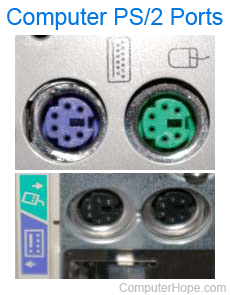
Connect the mouse cable to the green-colored PS/2 port (shown right) on the back of the computer. If your PS/2 ports are not color-coded, use the PS/2 port furthest from the left side of the computer chassis (when viewed from the back).
After connecting the mouse, the computer should automatically install the drivers and provide basic functionality. To change how any special buttons work on your mouse, additional software may need to be installed. If the mouse is not functioning, see our mouse troubleshooting section.
If you have a newer computer, you may need a PS/2-to-USB adapter to connect a PS/2 mouse to your computer's USB port.
Connecting a serial mouse
When connecting or disconnecting a serial mouse, make sure the computer is powered down.
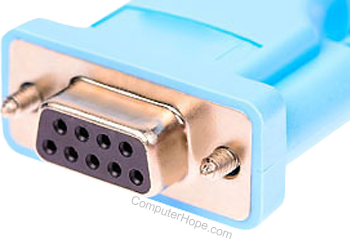
Connect the mouse to the serial port on the back of the computer. If you have more than one serial port on the computer, use the first port. Once connected, depending on your computer setup, you may need to configure the mouse COM ports in the BIOS setup.
Today, most computers no longer have serial ports. Most serial mice are specialized, so you must install the software included with the mouse or from the mouse manufacturer's website.
If you're having problems connecting a serial mouse because the computer has no serial port or the port is not working, consider using a serial to USB adapter.
BIOS setup
If using an older computer (2005 or earlier) with a serial or USB mouse, it may be necessary to configure the ports in the BIOS setup. If you have a newer computer, this section can be disregarded.
Older computers with serial mice
If you're using a serial mouse and it's not detected, verify the serial ports or COM ports are enabled and assigned correctly in BIOS.
Older computers with USB
If the mouse connects via USB, ensure USB is enabled and that USB legacy support is enabled if available. USB legacy support allows the mouse to work in legacy mode, for example, DOS.
Mouse troubleshooting
If your mouse is not working after following the steps above, additional troubleshooting help is available on the following pages.