
How to choose which items show in the notification area
The notification area (also called the system tray) contains icons that provide information to users about various aspects of their operating system. Examples include the date and time, Internet connection status, and background programs that are currently running. To customize the information and icons displayed in the notification area, choose your version of Windows below and follow the instructions.
Change notification area items in Windows 11
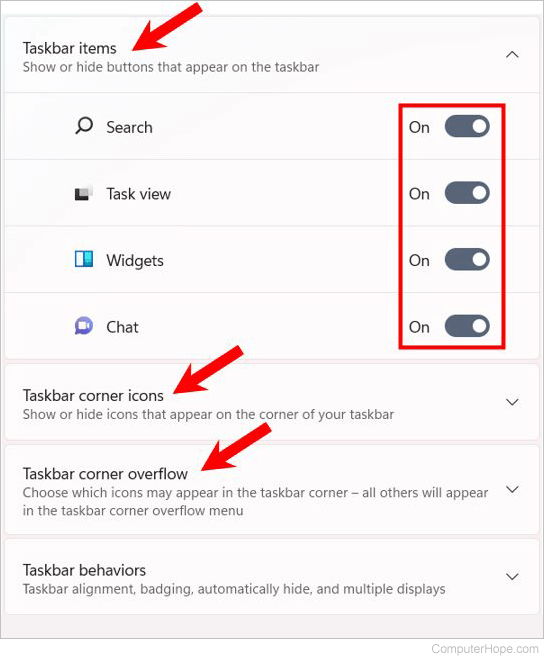
- Press the Windows key, type "taskbar settings", then press Enter.
Or, right-click the taskbar, and choose Taskbar settings. - Click each taskbar setting option to expand them, then click the toggles to the On
 or Off
  position for each taskbar item and icon, depending on your preferences.
Change notification area items in Windows 10
- Press the Windows key, type "taskbar settings", then press Enter.
Or, right-click the taskbar, and choose Taskbar settings. - In the window, scroll down to the Notification area section.
- From here, you can choose Select which icons appear on the taskbar or Turn system icons on or off.
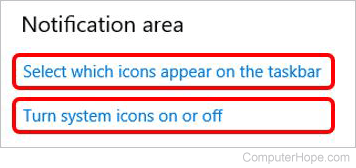
- Enter either menu and set the toggle switches to the On
 or Off
  position, depending on your preferences.
Change notification area items in Windows 8
- Press the Windows key, type "taskbar settings", then press Enter.
- In the search results list, click the Show or hide the notification area on the taskbar entry.
- In the Notification Area Icons window that opens, you may choose the icons to show in the Windows notification area using the drop-down menu next to each item (1). You may also enable and disable system icons by clicking the Turn system icons on or off link (2).
To show all icons, check Always show all icons and notifications on the taskbar option at the bottom of the Notification Area Icons window.
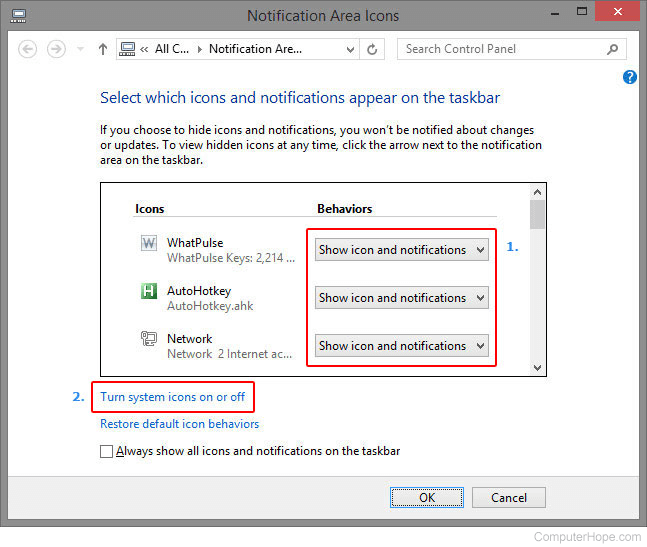
- When you are finished making your changes, click the OK button.
Change notification area items in Windows 7 and Vista
- From the Windows desktop, right-click the taskbar and select Properties.
- In the Taskbar Properties window, next to the Notification area, click the Customize button.
- In the Notification Area Icons window that opens, you may choose the icons to show in the Windows notification area using the drop-down menu next to each item (1). You may also enable and disable system icons by clicking the Turn system icons on or off link (2).
To show every icon, check Always show all icons and notifications on the taskbar option at the bottom of the Notification Area Icons window.
- When you are finished making your changes, click the OK button.
Change notification area items in Windows XP
- Right-click the taskbar and select Properties from the drop-down menu.
- In the Taskbar and Start Menu Properties window, click the Customize button in the window's lower-right corner.
- In the new window, click the down arrow next to each item and select Hide when inactive, Always hide, or Always show.
- When you're done, click Apply, then click OK.
Change notification area items in Windows 95, 98, Me, NT, and 2000
Users running these older versions of Microsoft Windows do not have an option to customize the systray icons. If your notification area is becoming cluttered, we suggest you disable the systray icon for one or more of your programs.
You can disable the systray icon in many programs by doing the following.
- Right-click the icon in the systray.
- Select Properties or Preferences from the drop-down menu.
- Uncheck any systray icon option. Unfortunately, each program is different, so you may have to do a little hunting for this option, if available at all.
Alternatively, you can disable the program from even starting up each time the computer boots.
How do I view hidden Windows notification icons?
Windows Vista, 7, 8, 10, and 11
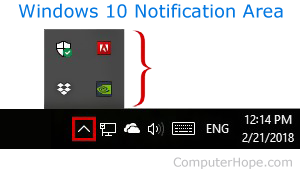
In Windows Vista, 7, 8, 10, and 11, hidden icons can be viewed by clicking the small up arrow on the left side of the notification area. The picture is an example.
Windows XP
- Right-click the taskbar and select Properties from the drop-down menu.
- In the Taskbar and Start Menu Properties window, click the Customize button in the window's lower-right corner.
- In the window that opens, check the box next to Hide inactive icons.
- Once this feature is enabled in Microsoft Windows XP, two chevrons on the far left side of the systray (shown below) can be clicked to display all hidden systray icons. If they are not visible, there are no hidden icons.

Windows 95, 98, Me, NT, and 2000
If you're running Microsoft Windows 95, Windows 98, Windows Me, Windows NT, or Windows 2000 and the systray section isn't visible, you're likely encountering one of the situations below.
- The program is not open. Unless the program or a portion of the program is loaded, it is not visible in the systray.
- The program is open but not minimized. Some programs, when opened, remove their associated icon to help manage your systray.
- The program is open, but the systray icon feature is disabled.
- The program does not have a Windows Notification icon.