
How do I change my IP address?
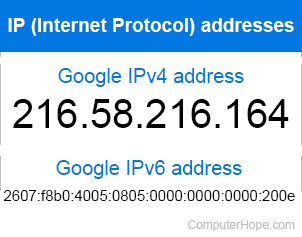
On the Internet, your IP address is similar to your physical address in real life. It uniquely identifies where you are so that information can be sent to you. Like your current location, your IP address can change in certain situations. To change your IP address, follow the instructions on this page.
The network basics
Before reading any of the below information, be aware of the following network basics.
- Know the difference between a static IP address and a dynamic IP address. See each link for additional information about these terms.
- When on the Internet, it is up to your ISP (Internet service provider) to assign and give you your network address seen by the Internet. When on a LAN (local area network) or WAN (wide area network), the home or corporate router assigns the IP addresses.
- If you plan on designating or using a static IP address, be aware of how IP address ranges are handled and be familiar with the netmask. See each of these links for additional information.
Changing your Internet IP address
Dial-up modem users
When connecting to the Internet over a dial-up modem, your ISP assigns your computer a different IP address each time you connect. To change your IP address, try disconnecting and reconnecting. If you're assigned the same address, disconnect for a few minutes and reconnect.
Broadband users
Broadband service providers assign your computer or home network a static IP address. If you're connected to a broadband network and need to change your IP address, follow the steps below.
Disconnect power to the broadband modem
Getting a new IP address may be as simple as disconnecting the power to your broadband modem. Disconnect the power from the modem and leave it disconnected for a few minutes. If you have a network router connected to the modem, disconnect its power as well to reset the IP.
Release the IP address assigned to the router
If disconnecting the power to the modem and router did not work, it may still be saved in your router configuration. Try releasing and renewing the IP address for the router. Steps on how to do this can vary depending on the router. However, it's often done through the Status or set up in the router setup.
Leave it disconnected overnight
If the above suggestions don't work, disconnect the modem and router (if applicable) power and leave it disconnected overnight. Leaving it disconnected may indicate to the ISP that the IP is no longer in use and assign it to a different customer.
Contact the ISP
If none of the above suggestions help, your ISP may prevent a new IP address from being assigned unless it's abandoned for days. In this situation, it's usually easiest to contact the ISP to get the IP address changed.
Changing your home network IP address
To change or specify the IP address of your computer as it appears on your LAN (local area network), follow the steps below. Realize if you're connecting to the Internet with a broadband connection, adjusting your network settings may cause issues with your broadband connection. Finally, if your home network uses a router, it could be assigning your computer dynamic IP addresses, and specifying a static IP address may cause issues.
Windows Vista and later
- Open the Control Panel.
- Click the Network and Sharing Center icon.
- In the View your active networks section, click the Local Area Connection or Ethernet link, or click the Internet connection name next to Connections.
- On the Local Area Connection or Ethernet Status window, click the Properties button.
- In the Properties window, select the Internet Protocol version 6 (TCP/IPv6) or Internet Protocol version 4 (TCP/IPv4) connection and click the Properties button. The connection you select depends on the type of Internet protocol used for your Internet or network connection.
- In the Internet Protocol Properties window, select the Use the following IP address option if not already selected. Specify the new IP address you want to use. Also, specify the subnet mask and default gateway.
Windows XP and earlier
- Open the Control Panel.
- Right-click My Network Places or Network Neighborhood, and select Properties.
- Right-click Local Area Connection and select Properties.
- Click Internet Protocol (TCP/IP) and click the Properties button. If this is not present, install the Internet Protocol (TCP/IP) protocol.
- In the Internet Protocol (TCP/IP) Properties window, select the Use the following IP address option if not already selected and specify the new IP address you want to use. Also, specify the subnet mask and default gateway.
Windows command prompt
You can change a computer's IP address through the command prompt by following the steps below.
- Open the Windows command prompt.
- Type netsh to start the netsh utility.
- To change the IP address, specify the new IP address, subnet mask and the default gateway. Use the command structure below.
interface ip set address name="[connection name]" static [IP address] [Subnet Mask] [Default Gateway]
In the above command structure, replace [connection name] with the name of the network connection that you want to set the new IP address. The most common network connection names are "Local Area Connection" or "Wi-Fi." Replace [IP address] with the new IP address you want to use, then replace [Subnet Mask] with the correct subnet mask address and [Default Gateway] with the correct default gateway address.
interface ip set address name="Local Area Connection" static 192.168.110.235 255.255.255.0 192.168.0.1
The above example command would change the IP address of the Local Area Connection network connection to 192.168.110.235. It would also set the Subnet Mask to 255.255.255.0 and the Default Gateway to 192.168.0.1.
Linux users
The below information is for how to specify and adjust your network settings through the command prompt. Changing your network settings requires root access.
- Get to the shell.
- Move to the /etc/sysconfig/network directory.
- Edit the interfaces file and adjust your network settings in this file.
Can someone else change my IP address?
Someone outside your home network who cannot access your router can't change your IP address. Do not be concerned about your computer's security if your IP address changes. It's more likely that it's normal behavior than an attack.