
How to insert and display a page number on a document
Updated: 07/13/2023 by Computer Hope
When creating a document in a word processor, you may want the page number to appear on each page. To do this, click the link for the word processor you are using and follow the steps provided.
Microsoft Word
Word Online (web version)
- Access the Microsoft Word Online program on the Internet and create a new document or open an existing document.
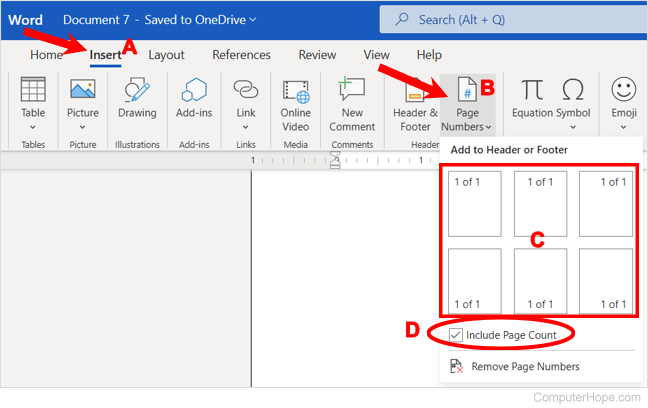
- Click the Insert tab (A) in the Ribbon.
- Click the Page Number option (B) in the Header & Footer group and select where to insert the page number (C).
- To see the total page count with the numbering, check the box for the Include Page Count option (D). You need to check that box before selecting the location where you insert the page number.
Word 2007 to Word 365
- Open Microsoft Word.
- Click the Insert tab in the Ribbon.
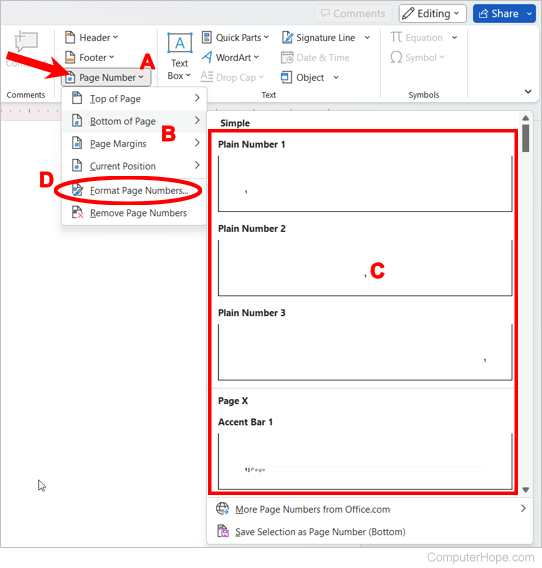
- Click the Page Number option (A).
- Select where you want the page number inserted (B), like Top, Bottom, Page Margins, or Current Position.
- Select the specific location you want the page number to be inserted and the style of page number to use (C). Options include showing only the page number, like "Page 1," or showing the page number and total page count, like "Page 1 of 4."
- To change the format of the page numbers, select the Format Page Numbers option (D).

Word 2003 and earlier
- Open Microsoft Word.
- Click Insert and select Page Numbers.
- In the Page Numbers box, specify the position where you want the page numbers to appear. For example, the bottom-right or top-right of the page.
- To change the format of how the numbers are displayed, such as displaying Roman numeral numbers, click the Format button.
- Once you've finished adjusting the settings, click OK.
Google Docs
- Open Google Docs.
- Click Insert.
- Under Page Number, select the position you want the page number to appear.
OpenOffice Writer
- Open OpenOffice Writer.
- Click Insert, Fields, and then Page Number.
The steps above only insert the page number where the cursor is currently positioned. If you want the page number to be on each of your pages, follow the steps below.
- Open OpenOffice Writer.
- Click Insert, Header or Footer. Select Header if you want the page number at the top (header) of each page. Select Footer if you want the page number at the bottom (footer) of each page.
- Click Default for the header or footer you want.
- Move the cursor to the header or footer box on the first page and follow the above steps to insert a page number.