
Audacity error while opening sound device when recording
This issue usually occurs when there are no recording devices available. For example, if you click Edit, Preferences, and under Devices, there would be no options available to select in the Recording Device drop-down list.
The error may also occur when Audacity is configured to use a sample rate for recording that the sound card in your computer does not support. Audacity may also be trying to record more channels than the sound card can support.
To fix this error, try the steps below in order.
Windows 10 users
If you have a computers with Windows 10, you may need to change the privacy settings to allow software to access and use the microphone on your computer.
- Click Start, type privacy and press Enter to access Privacy settings.
- In the Settings window, in the left navigation pane, under App permissions, click the Microphone option.
- Under Allow apps to access your microphone, click the toggle switch to On.
- Under Choose which apps can access your microphone, find Audacity and click the toggle switch to On, to allow Audacity to use the microphone on your computer.
After following the steps above, try recording in Audacity to see if the problem is resolved.
If the problem persists, move to the next troubleshooting section below.
Check for disabled devices
Sometimes sound devices can be disabled accidentally or due to a problem in Windows. Checking for disabled sound devices and enabling any disabled devices can resolve the problem in Audacity.
These steps are for the Microsoft Windows operating system only.
- Close the Audacity program.
- Open the Control Panel.
- Open the Sound option.
- Click the Recording tab.
- Right-click anywhere in the box where the devices are listed and select the Show Disabled Devices option, so that it has a check mark.
- This displays any device that is disabled on the computer. If no new devices are found, it's likely there is something wrong with the sound card or sound card drivers. We'd suggest reinstalling your sound card drivers or downloading and installing the latest drivers for your sound card.
- If a new device is displayed, right-click the new device(s) and select Properties.
- In the Device usage drop-down menu, select the Use this device (enable) option.
- Click OK until all other windows are closed.
After following the steps above, try recording in Audacity to see if the problem is resolved.
If the problem persists, move to the next troubleshooting section below.
Additional troubleshooting options
If you still receive an error, try the following troubleshooting options in order.
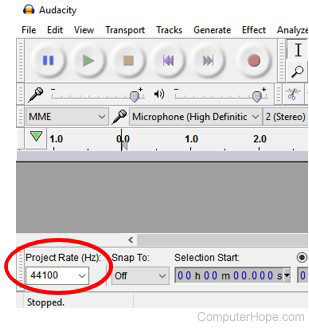
- In Audacity, check the sample rate. It is displayed at the bottom left of the Audacity program window, labeled as "Project Rate (Hz)." 44100 Hz and 48000 Hz are the two most commonly used sample rates and supported by most sound cards. If a different sample rate is used, try changing to 44100 or 48000 to test if that works for recording.
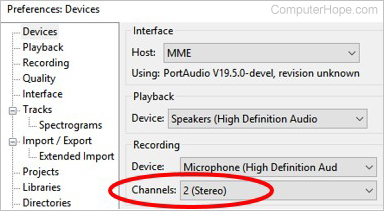
- Most standard sound cards support 1 or 2 channels for audio. If Audacity is trying to record more channels, it can cause an error to occur. In the Audacity menu bar at the top, click Edit > Preferences, and under the Devices section, verify the Channels option is set to 1 or 2.
- The sound card in your computer may not be functioning properly or Audacity is not able to detect it. Try removing the sound card and installing it again in the computer, restarting the computer after removing it and after installing it. Test with Audacity after reinstalling the sound card to see if the error is resolved or if it persists.
- Try uninstalling Audacity, then download and install the latest version of Audacity, to fix possible corruption or bugs with the Audacity software currently on your computer.
- Replace the sound card with a new one. If the sound card is integrated into the motherboard (onboard sound card), you must install a new sound card and disable the onboard sound card by opening BIOS setup.