
How to create a line in Microsoft Word and LibreOffice Writer
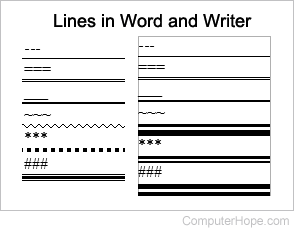
To create a horizontal line in Microsoft Word or LibreOffice Writer, use the AutoFormat feature. AutoFormat adds formatting to your text when you type certain symbols more than once and press Enter. For example, typing three consecutive hyphens ("---") and pressing Enter creates a solid horizontal line.
AutoFormat line examples
Below are symbols that create different types of lines. The image above shows how each type of formatting appears in Microsoft Word (on the left) and LibreOffice Writer (on the right).
The options below for creating different types of lines in Microsoft Word only work for the Word desktop application. These options do not work in Word Online (the web version).
- Single line - Type three hyphens (---) and press Enter.
- Bold single line - Type three underscores (___) and press Enter.
- Plain double lines - Type three equal signs (===) and press Enter.
- Dotted line - Type three asterisks (***) and press Enter.
- Wavy line - Type three tildes (~~~) and press Enter.
- Triple line - Type three pounds (###) and press Enter.
The last three options above result in variations of double lines in LibreOffice Writer. Creating a dotted line, wavy line, and triple line in Writer is not supported with AutoFormat capabilities.
If it's not working, enable AutoFormat
If typing three characters and pressing Enter does not change the characters to a line, AutoFormat is likely not enabled. To enable AutoFormat, follow the steps below.
Microsoft Word 2007 to Word 365
- In Microsoft Word, click the File tab.
- Click Options in the left navigation menu.
- In the Word Options window, click the Proofing option.
- Click the AutoCorrect Options button.
- In the AutoCorrect window, click the AutoFormat as you type tab.
- In the Apply as you type section, check the Border lines box, and click OK.
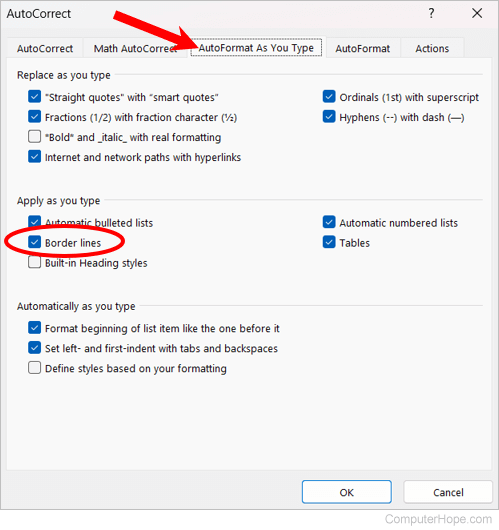
The Border lines option is not available in Microsoft Word Online (the web version).
LibreOffice Writer
- In LibreOffice Writer, click Tools in the menu bar.
- In the drop-down menu, select AutoCorrect, and then AutoCorrect Options.
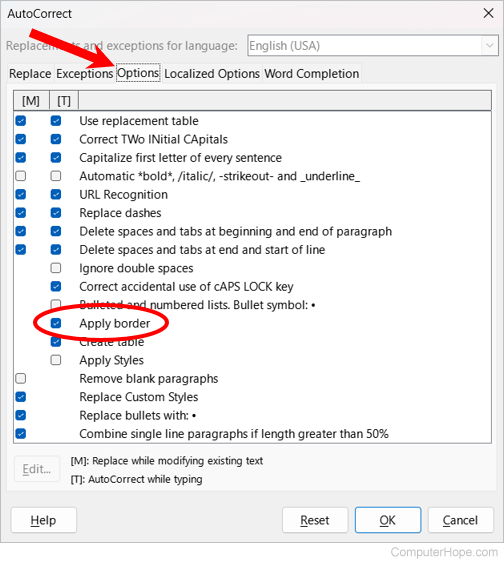
- In the AutoCorrect window, click the Options tab.
- Check the Apply border box, and click OK.
Add a horizontal line from the Home tab
In addition to using the AutoFormat feature mentioned above, you can insert a line using the Horizontal Line tool in the Home tab (shown in the picture).
Adding a horizontal line in Microsoft Word only works for the Word desktop application. It is not currently possible in Word Online (the web version).
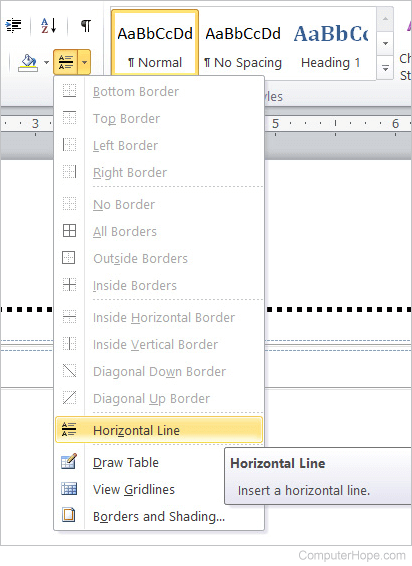
After adding a line using the Horizontal Line tool, you can double-click it to change the line's appearance. For example, you could change its width, height, and color.