
How to determine how much memory a program is using
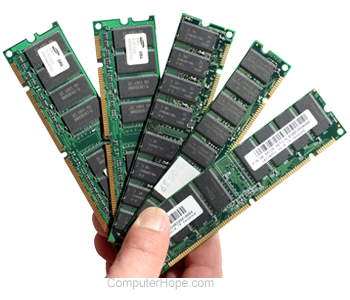
Each program on a computer uses different amounts of memory when it's actively running or idle. The packaging or website for software provides system requirements about the minimum and recommended memory a computer should have to run the program. However, the exact memory the program uses depends on how it's being used. To determine how much memory a program is using, follow the steps below.
Microsoft Windows users
- Press Ctrl+Shift+Esc on the keyboard to open the Windows Task Manager.
- In the Task Manager window, click the Processes tab, if not already selected.
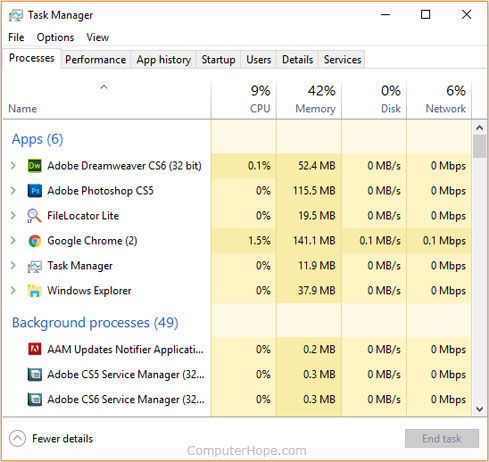
- As shown in the image above, in the Processes tab, each running application (under Apps) and how much memory they are using is displayed. For example, the first entry, Adobe Dreamweaver, is using a total of 52.4 megabytes of memory.
Click the  arrow to the left of any Apps entry to expand it. Doing so displays a list of the program's separate processes and how much memory they're using individually.
Clicking the Memory column title lets you sort the programs by how much memory they're using. In the example above, we sorted the programs from the most used memory to the least used memory.
Linux users
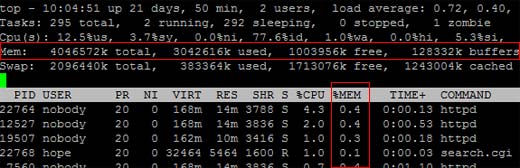
Linux users can utilize the top command to display their current total, used, and free memory. It can also list each PID (process identifier) and the amount of memory used by it.
macOS users
Users on a MacBook or iMac can see how much memory a program is using in the Activity Monitor. Follow the steps below to access the Activity Monitor in macOS.

- On the left side of the screen, under the Favorites section, click the
 selector.
 - In the list of applications, double-click the Utilities app.
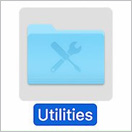
- In the Utilities folder, double-click the Activity Monitor icon.
- In the Activity Monitor utility, click the Memory tab at the top of the screen. Under the Memory column, the currently used memory is displayed for each process.
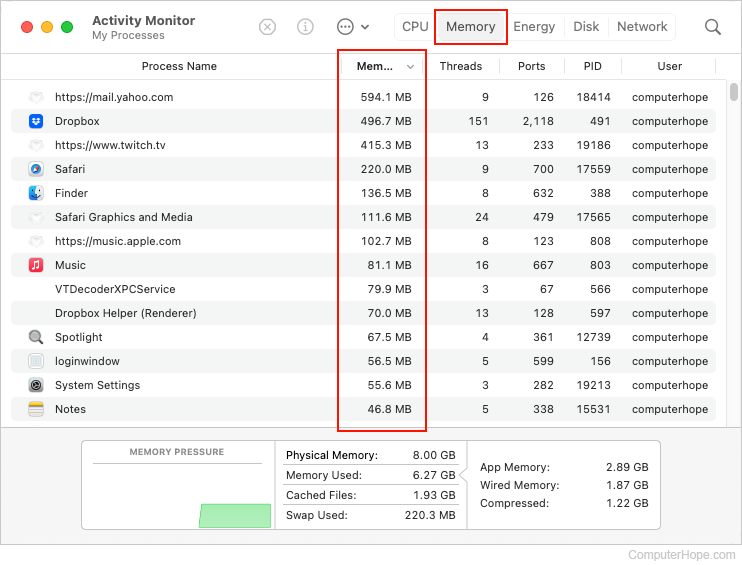
Sort the Memory column in ascending or descending order by clicking the arrow  on the right side of the heading.