
Bookmarklet
Alternatively known as favelets, bookmarklets are interactive bookmarks that contain JavaScript code that allows the bookmark or favorite to perform additional features. For example, Facebook has a share bookmarklet for sharing any web page without having to do it through Facebook or the web page.
How do I add a bookmarklet?
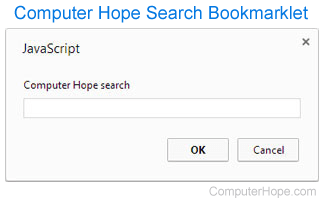
Each browser has its own method of adding a bookmarklet to your bookmarks or favorites. Below are the steps to do this for each of the major browsers. In these examples, the Computer Hope search bookmarklet is used for an example. This bookmarklet lets you search Computer Hope from your browser.
Mozilla Firefox and Chrome users
- Click-and-drag this example bookmarklet (Computer Hope search) to your browser's bookmark bar.
- After releasing the mouse button, the bookmarklet entitled "Computer Hope search" should be listed.
Microsoft Internet Explorer users
- Right-click this example bookmarklet link: Computer Hope search.
- Click Add to Favorites.
- Because a bookmarklet uses JavaScript, you get a warning. Click Yes to continue.
- If desired, change the name and change the "Create in" location to Favorites Bar.
- Click Add.
What is the code for the above bookmarklet?
Below is the HTML (hypertext markup language) and JavaScript used for the above bookmarklet. To create a bookmarklet for your site or another website, feel free to modify this code.
<a href="javascript:function se(d) {return d.selection ? d.selection.createRange().text : d.getSelection()} s = se(document); for (i=0; i<frames.length && !s; i++) s = se(frames[i].document); if (!s || s=='') s = prompt('Computer%20Hope%20search',''); open('https://www.computerhope.com/' + (s ? 'cgi-bin/search.cgi?q=' + encodeURIComponent(s) : '')).focus();">Computer Hope Search</a>