
Formatting marks
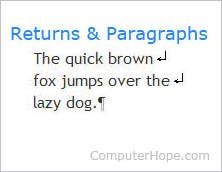
Alternatively called editing marks, formatting marks are special marks hidden by default that affect how text or objects are displayed in a document. For example, with formatting marks enabled, soft and hard returns are visible (shown right). The example image shows a soft return as an arrow pointing down and to the left and a hard return as a paragraph mark.
Why are formatting marks used?
Formatting marks help troubleshoot a document's layout, appearance and printing problems, and can be turned on or off, depending on your preference.
Enabling or disabling formatting marks
In Microsoft programs that support formatting marks, press Ctrl+* (Ctrl+Shift+8) keyboard shortcut to turn on and off formatting marks.
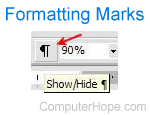
The formatting marks feature can also be turned on or off by clicking the paragraph symbol in the toolbar, as shown in the picture. If the formatting marks button is not visible in your toolbar, you can change this setting. Check the View drop-down menu (Microsoft Word 2003 and earlier) or the Home tab (Microsoft Word 2007 and later) for an option to display the formatting marks button.
Types of formatting marks
Below are all the formatting marks you may see in Microsoft Word when set to be displayed, along with a brief description of each.
If you see an icon or object in your Microsoft Word document that is not shown below, it is not a formatting mark.
Conditional hyphen
 Any hyphen not manually entered is shown as a conditional, optional, or a hyphen mark. These look like a dash with a small line extending down on the right side (shown left).
Field code
 A field code is a command or code that instructs Microsoft Word to insert special items, such as the current date, current page number, or custom graphics. For example, to display the updated current date in a document, use the {date} field code.
To create a new field code, press Ctrl+F9, and to toggle the display of field codes, press Alt+F9. If a document has any field codes, they are identified by text in curly brackets.
Use the shortcut Alt+Shift+D to insert the date and Alt+Shift+T to insert the time.
Hidden text
 Text set as hidden in a document has a dotted underline to indicate it is hidden. When text is set as hidden, it is displayed in the document only if formatting marks are displayed. Hidden text is not printed unless the option to print hidden text is enabled in Microsoft Word.
Line breaks
 A line break is a discontinuity in the current line of text that doesn't start a new paragraph and is often created using the shortcut Shift+Enter. The image to the left shows that the line break resembles a symbol of an arrow pointing down and to the left. The same symbol is on the Enter key on many computer keyboards.
Object anchors
 An object anchor indicates the sentence, paragraph, image, or another object is linked to and its rough location in the document. For example, an inserted image with text wrapped around it, the image is anchored to that text. If the anchored sentence or paragraph is moved to another page, the image moves with it.
Pagination breaks
A page break that is inserted manually in a document is shown when formatting marks are enabled. Below is an example of a page break mark. There is also a column and section break. To delete pagination breaks, move your cursor before the page break mark and press Del.

Paragraph marks
 The paragraph mark or pilcrow follows any new paragraph in a document. By default, when pressing the Enter key, Microsoft Word and most other programs create a new paragraph. The paragraph continues until Enter is pressed again. To drop down a line but not end a paragraph, press Shift+Enter to create a line break.
If you see a  formatting mark in your document, it is a pilcrow or paragraph mark with a different font type applied, like the Consolas font.
Space character
 The space character is the most common formatting mark and is represented as a single dot in place of each space in a document. These marks help identify two spaces instead of one, and a tab created using spaces instead of a tab. The picture shows a single space between the 'A' and 'B' characters.
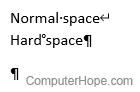
A hard space is shown as a small superscript "o" character. As illustrated to the right, it looks like a degree symbol.
Tab
 Any tab in a document is represented by an arrow pointing to the right (tab marker), as shown in the picture. If there are multiple tabs, there are multiple arrows displayed. If spaces are used instead of a tab to format the text, you see the space characters, mentioned above.
End mark, Hard return, Paragraph, Soft return, Word processor terms