
Packard Bell Navigator
Overview
Navigator, not to be confused with Netscape Navigator, is a program that was shipped with Packard Bell computers. This utility provided an easy to use interface for users who were not familiar with the computer or who were intimidated by Windows. Using Navigator, you can manipulate files, run programs, install programs and get familiar with the computer before utilizing Windows.
Screenshot
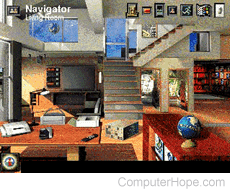
Navigator 3.9
The above illustration is a picture of Navigator 3.9, one of the later revisions of Navigator released. Each of the Navigators shipped with Packard Bell computers differed in functionality and appearance.
Technical support
Disabling Navigator
The steps to disable Navigator is dependent upon which version of Navigator you have. However, here are the three ways to disable it. One of the below methods disable and stop Navigator from automatically loading.
- Ensure that Navigator is not in the Startup folder. You can check this by clicking Start, Programs, and then Startup. If you do not see Navigator listed under Startup, skip to #2. If you do see Navigator listed, right-click the Navigator entry and select Delete.
- If Navigator is not in the Startup folder, click the Start button and select Run. Type win.ini to open that file. Look for a run= line, which is often the 2,3,4 lines. See if there is a run line referencing C:\NAV\NAV.EXE. If you do not see this, skip to step #3. If you see this, delete the C:\NAV\NAV.EXE part and that should stop Navigator from loading up at startup. If it doesn't, edit the win.ini file again and put a ; (semicolon) in front of the RUN= line to remark that line.
- Usually, if the first two options above do not stop Navigator from loading, you have one of the newest versions, such as version 3.9. To disable it, click the Start button and select Run. Type system.ini and search for startnav.dll or something similar in the file. It should be related to nav and usually will be on the drivers= line in the [boot] section.