
What version of Windows do I have?

Due to there being numerous versions of Windows, you may want to know what version you're running. The following sections show you which version of Windows is currently installed on your computer (e.g., Windows Vista or Windows 10) and the specific version and build numbers.
You must be logged in to Windows to utilize any of the methods listed below.
See our Windows definition for more information about Microsoft Windows, including its versions and history.
Determine the version of Windows
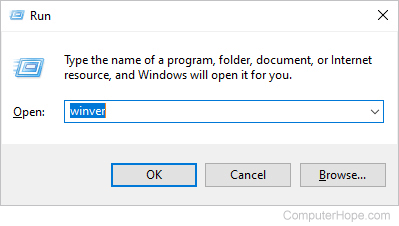
- Press the Windows key+R to bring up the Run window.
- Type winver in the text field and press Enter.
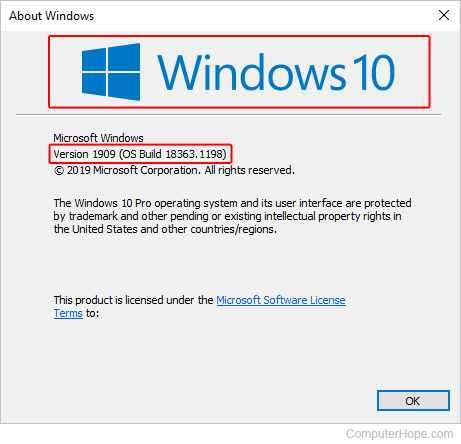
- A new window shows the version of Windows you're running at the top and the version and build numbers in the below section.
If you're curious about whether it's 32-bit or 64-bit, see: How to determine if you have a 32-bit or 64-bit CPU.
Alternative methods
Some administrators restrict access to the run prompt. In this case, you can find Windows version info using the alternative methods below.
Find version in System
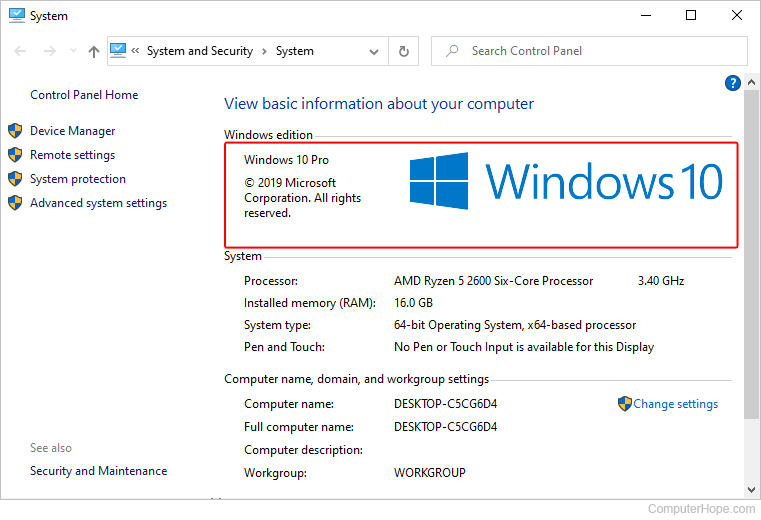
Open the System window by pressing the Windows key+Pause key at the same time. The version is listed on the right side under the Windows edition section.
Find version in System Information
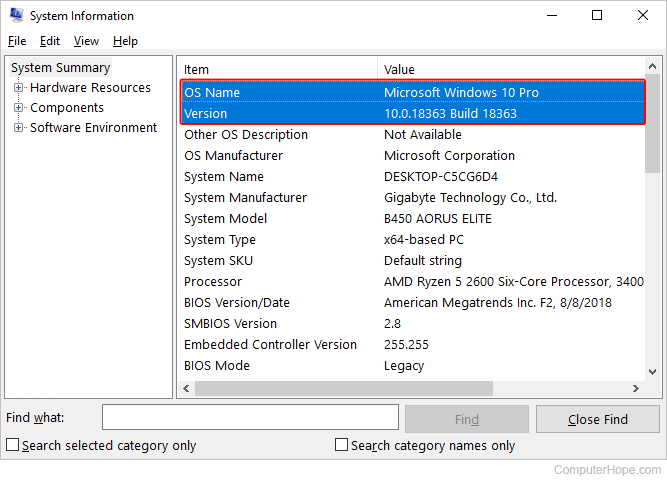
Press the Windows key, type System Information, and press Enter. The Windows version and its build number can be found by clicking System Summary on the left side of the window. In the following example you can see the OS Name is "Microsoft Windows 10 Pro" and the Version is "10.0.18363 Build 18363."
Find version using the Command Prompt
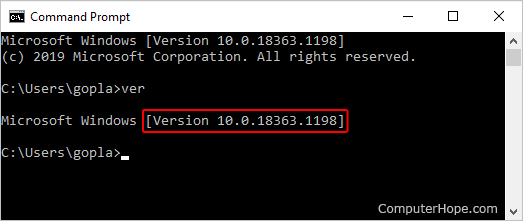
- Press the Windows key, type cmd, and press Enter.
- Type ver and press Enter.
- The version of Windows is displayed on the next line.
Determine Windows version on mobile devices
If you're running Windows CE on a mobile device, such as a cell phone or PDA (personal digital assistant), you can determine the version by following the steps below.
- Click Start, Settings, and then Control Panel.
- Click the Systems icon.
- In the System Properties window, you'll see the version and build number of Windows CE.