
How to get old MS-DOS games to run in Windows
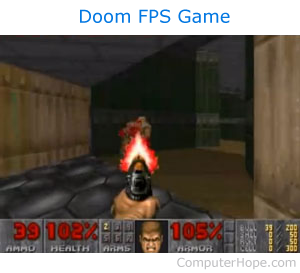
As Microsoft Windows progresses not all older games and programs are going to work or work properly. Below are recommendations for getting older games working in your version of Windows and issues you may encounter.
Unable to install or run game
Install from command line
When running the game, make sure you are running the game through an MS-DOS window or command line. If the game reports any errors, they are not seen since Windows closes the command line window after the program has completed.
Use 8.3 format
Make sure the name of the directory or subdirectory of where the game is being installed is no longer than eight characters. Although Windows supports longer file names and directories, older MS-DOS games do not. For example, do not install older games in the "Program Files" directory and instead, create a new "Games" directory.
Check for patches
If the game developer is still in business, check for patches or updates that may help resolve issues you're encountering.
Change compatibility
If you are running Windows 95, 98, Me, or XP, change the compatibility of the program by right-clicking the shortcut, selecting Properties, and clicking the Compatibility tab.
Use a boot diskette
If your computer uses FAT16 or FAT32 and not NTFS create a boot disk and boot from that diskette to run the game.
Memory related issues
If you are encountering memory errors, such as not enough EMS (expanded memory specification), XMS (extended memory specification), or conventional memory, when attempting to run the program, follow the following steps.
- Right-click the shortcut for the program and select Properties.
- Click the Memory tab. If you do not see a Memory tab, skip this section.
- On the Memory tab, you can adjust the amount of memory as needed for that program. Unless you know how much memory the program needs, try setting these values to Auto.
By default, many of these settings are set to 1024. Users should also set the initial environment value to the highest value of 4096.
Sound related issues
Specify sound settings in game
Some older MS-DOS games do not auto-detect your sound card and use the sound card settings from the autoexec.bat and config.sys. If the game lets you specify the sound settings in the game, use the common settings: INTERRUPT=220 IRQ=5 or 7 DMA=1.
Remark sound settings in autoexec.bat
If you're running Microsoft Windows 95 or 98 and are encountering sound issues, edit the autoexec.bat and rem out any line that begins with BLASTER=. If you changed anything, save the files and try to run the game again.
Configuring sound in autoexec.bat
If you're still having issues and you are running Windows 95 and 98, try changing the sound settings by adding the following line in the autoexec.bat.
SET BLASTER=A220 I5 D1 H5
If you are running a game that requires an autoexec.bat or config.sys file, these files can be created in the root directory with the sound settings.
Determining your sound card settings
Users can view their sound card resources by viewing the properties of the sound card in Device Manager. Users running Windows 98 can also check their sound card settings through the System Information program by following the following steps.
- Click Start > Programs > Accessories
- Click System Tools
- Click System Information
or
- Click Start > Run
- Type msinfo32
Sound emulators
If you cannot get the sound to work in DOS, companies also provide software sound emulators that in some cases can enable your sound card to work through MS-DOS. A great example of a free sound emulator is VDMSound.
Video related issues
Not all video cards, even the latest & greatest video cards, support all VESA modes. Before continuing, make sure your video card has the latest video drivers.
Other recommendations
If, after following the recommendations above, you're still unable to get your MS-DOS game working properly, try the following recommendations.
- Consider trying an emulator program, such as DOSBox.
- If the game is an older version of a Windows program, run PE Explorer to adjust the SizeOfImage value to a value compatible with Windows 2000 and Windows NT. You can download this program from Heaventools Software.
- Create a dual boot with Windows and MS-DOS.
- If your computer uses FAT16 or FAT32 and not NTFS (NTFS file system), create a boot disk and boot from that diskette to run the game.
- Consider purchasing an older computer dedicated to playing older games.