
Why does Windows system CPU usage stay at 100%?
Determining what's utilizing the CPU
Each process running in Windows, as well the CPU (central processing unit) resources each uses, can be viewed in the Task Manager. To view this information, press the Windows key, type Task Manager, and press Enter. In the new window, click the Processes tab, as shown in the image below.
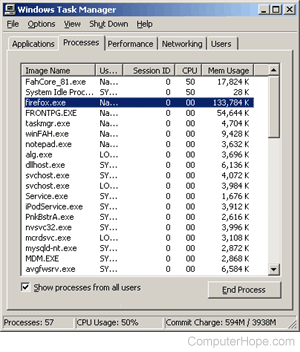
Once this tab is open, click the CPU column heading above the list of programs twice to organize the programs CPU usage from highest to lowest.
If you do not see the Processes tab, you're running an older version of Windows that does not have this feature.
In the example above, there are two processes running that are each taking up 50% of the CPU resources: FahCore_81.exe and System Idle Process. It is normal for a Windows computer to have a high System Idle Process.
However, in this example, the "FahCore_81.exe" process is using a lot of the available CPU resources and may be of concern. In this case, we know that this process is associated with Folding@Home, a distributed systems project. However, if you are not familiar with what the process is, search the web for additional information on the file.
If you need to regain CPU resources temporarily, you can select the processes utilizing high resource percentages and click the End Process button. However, often after rebooting the computer, these processes will reappear in the Task Manager.
Permanently keeping the TSR disabled
If you "End Task" the program, but it is still running when you start up the computer, disable that program from starting automatically.
If you cannot navigate in normal Windows or performing the above steps does not reduce the percentage of system resources being utilized, try restarting Windows in Safe Mode.
Computer trojan, virus, worm, spyware or other malicious program
Computer trojans, viruses, worms, spyware, and other malicious programs can use up some of your system resources. These malicious programs can tie up valuable computer memory and CPU resources, potentially resulting in slow computer performance or other issues.
Unfortunately, these malicious programs may not always show up in Task Manager on the Process tab. They can be hidden and difficult to identify as the source of computer performance issues.
If you suspect this might be an issue on your computer, we recommend running an antivirus scan to find and remove any potentially malicious programs. If possible, running this scan while in Windows Safe Mode can often improve the detection and removal process as well.
Make sure you have a spyware program installed on your computer and that it is up-to-date. If you do not have a spyware program installed on the computer, we recommend you install one now.