
How to compress or make files into one file

When making personal backups or packaging many files, like documents and photos to share with someone else by e-mail, it's useful to create a compressed archive or zip file. To compress multiple files into a single one, select your operating system from the list below and follow the provided instructions.
Microsoft Windows XP and later users
Users of Microsoft Windows XP or later operating systems can compress files with the included compression utility by following the steps below.
- Select each of the files and folders you want to add to combine.
- Right-click one of the selected files or folders.
- In Windows 11, select Compress to ZIP file in the pop-up menu.
In Windows XP to Windows 10, select Send to and select Compressed (zipped) folder in the pop-up menu.
We suggest always compressing the zip file as a .zip for compatibility.
The computer should create a .zip file with the name of the file or folder you right-clicked. For example, if you selected a file named todo.txt, the resulting compressed file becomes todo.zip, located in the same directory.
Microsoft Windows 98 and earlier users
Because other versions of Microsoft Windows do not come pre-bundled with a compression utility, it is up to the users to install a third-party one themselves.
Once one of the compression utilities is installed, you can use it to compress and combine multiple files into one compressed version. Here's how:
Select each of the files and folders you want to compress. Then, right-click one of the selected files or folders and click the compression utility quick link. For example, with WinRAR, click the Add to archive or Add to <name of file> option. With WinZip, click the Add to Zip option.
Often, users can also open the program through Start/Programs and add the files manually.
Linux users
Unlike other operating systems, almost all variants of Linux and Unix come with a command capable of compressing and uncompressing files. Linux and Unix users are likely to be dealing with file extensions, such as .TAR, .TGZ, .Z or .TAR.GZ. See the pages below for additional information on how to use these commands to compress and uncompress files.
macOS users
macOS users can use the Linux commands listed above in their Terminal app or use Finder to compress files. To use Finder, follow the steps below.
- Open the Finder app by clicking its icon on the Dock.

- Navigate to and select all of the files and folders you want to combine.
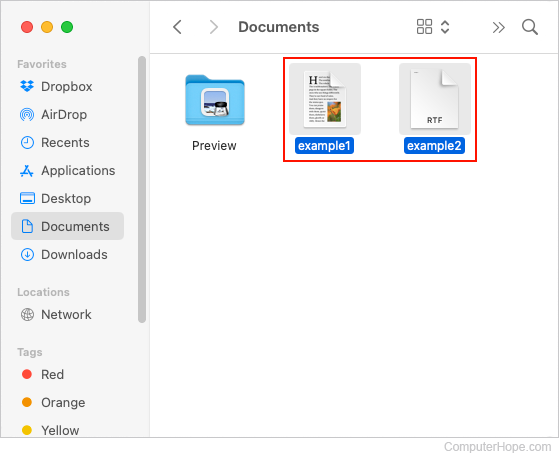
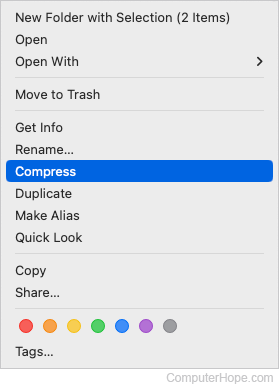
- Right-click or tap the selected files with two fingers simultaneously, and then choose Compress from the drop-down menu.
- The computer should create a .zip file named Archive.zip.
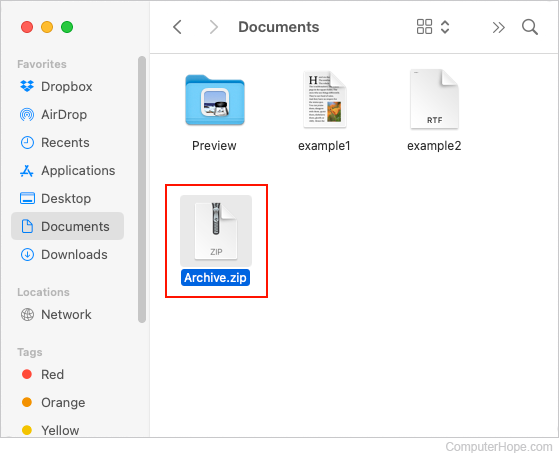
You can then rename the file to reflect its contents. See our page: How to change or rename a file, folder, or directory.