
How to change or rename a file, folder, or directory

The following sections contain steps to rename a file, folder, directory, or shortcut. Select your operating system from the list below and follow the instructions.
You must have write or modify permissions to a file, folder, or directory to rename it. Sometimes, you may need administrator privileges in the operating system to rename.
How to rename in Microsoft Windows
Windows users can rename files, directories, and shortcuts using several methods. The following sections contain recommendations for what we believe to be the easiest methods. Before proceeding, it should be noted that renaming a folder containing files may cause problems if those files are required by a program. For example, if the program is looking for a folder named "data" and you rename it to "other," the program would no longer know where data files are located.
If you need assistance locating a file, we suggest using File Explorer. This utility is opened by using the keyboard shortcut Windows key+E.
These methods also work for removing spaces in a file name.
Selecting a file
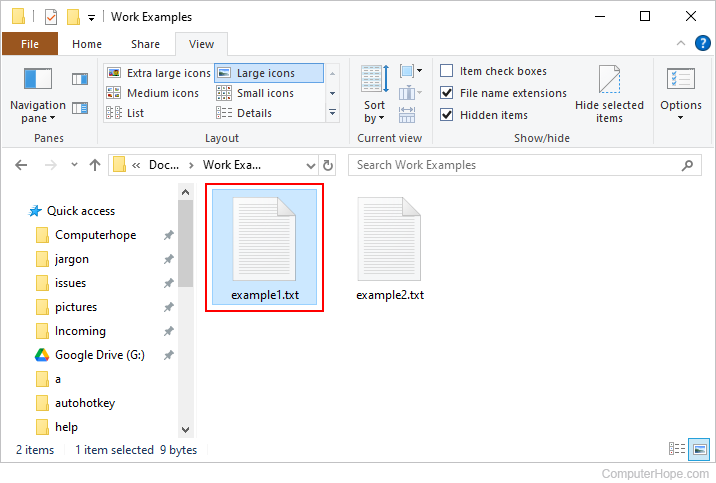
Before any file, folder, or shortcut can be renamed, it must first be selected. To do so, click any of these objects once with the left mouse button.
Right-click method
After you've selected the object, right-click it with your mouse and select Rename from the drop-down menu. Type a name and press Enter.
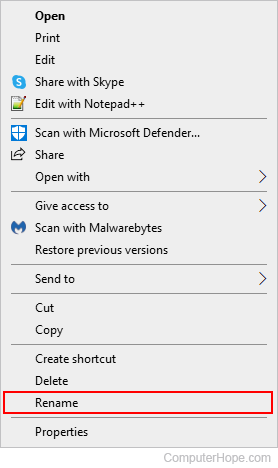
In Windows 11, select Show more options in the right-click menu to see the Rename option.
F2 method
After you've selected the object, press F2 on the keyboard. Type a name and press Enter.
Delayed click method
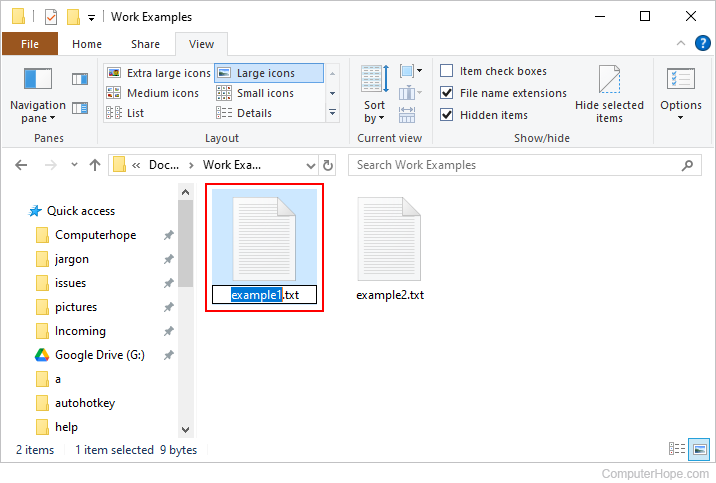
Click the file, folder, or shortcut you want to rename. Wait about one second, and click the current file name. A box appears around the name, allowing you to change it. Type a name and press the Enter key.
If you don't wait long enough and click the file or folder too fast, it can open it rather than allow you to rename it.
Rename button method
If you're working in File Explorer, under the Home tab, click the Rename button near the middle of the toolbar. Type a name and press the Enter key.
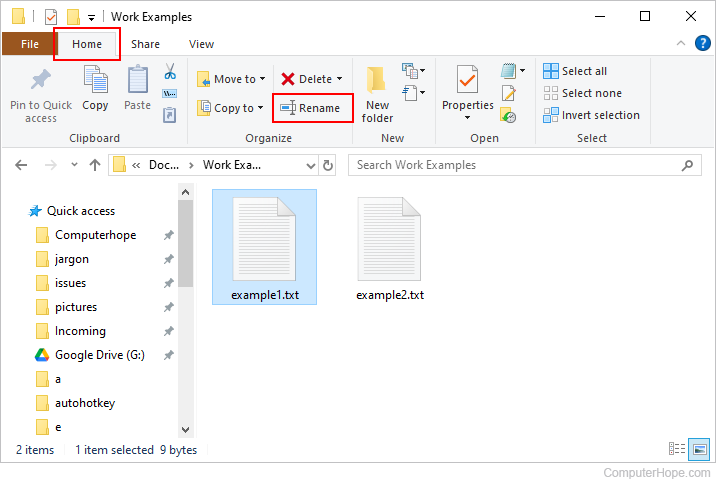
File Explorer in Windows 11 does not have a file menu like previous versions of Windows. Instead, click the Rename  icon in the menu bar at the top.
Renaming multiple files or folders at once
- Open File Explorer by pressing the keyboard shortcut Windows key+E.
- In Explorer, select all the files you want to rename.
- Once the files are selected, press F2 to edit the file name and type the new name for the files. For example, typing "test" renames the files to test, test(1), test(2), test(3), etc. If you have file extensions displayed, make sure to also type the name of the file extension.
How to rename in MS-DOS and the Windows command line

MS-DOS and Windows command (CMD) line users can change the name of a file or directory using the ren or rename command. Below are examples of how this command is used. Additional information about these commands is available by clicking the command links above.
Renaming a file
The following example renames the file test.txt to hope.txt.
rename test.txt hope.txt
If the test.txt file is not located in your current directory, you must specify the file's path as a prefix to the file name. For example, if the file is in the "computer" directory, type a command similar to the following example.
rename c:\computer\test.txt hope.txt
Renaming a file with a space
If a file or directory has a space, it must be surrounded with quotes. Otherwise, you get a "The syntax of the command is incorrect" error. To rename the file "computer hope.txt" to "example file.txt", your command would resemble the following example.
rename "computer hope.txt" "example file.txt"
Renaming multiple files with one command
To rename multiple files at once, you must utilize some form of wild character. Below are examples of how this could be done.
The following example renames all files in the current directory that end with .rtf to .txt files.
rename *.rtf *.txt
In this next example, the command renames a file with an unknown character in the file name to something that can be read. The "?" used in the following example is the wild character for an unknown character.
rename h?pe.txt hope.txt
Renaming a directory
Renaming a directory in MS-DOS is much like renaming a file. Use the ren or rename command to rename the directory. Because you cannot have a file and directory of the same name, you don't need to worry about mistakenly renaming a file instead of a directory. The only exception is if you're using wild characters.
Renaming a directory containing files may cause problems if that directory contains files required by a program. For example, if the program is looking for a directory named "data" and you rename it to "other," the program would no longer know where data files are located.
The following example renames the computer directory to hope.
rename computer hope
Rename the directory "computer hope" to "example directory". Whenever dealing with a file or directory with a space, it must be surrounded with quotes. Otherwise, you get a "The syntax of the command is incorrect" error.
rename "computer hope" "example directory"
Rename in a batch file
To rename files in a batch file, you can use any of the rename commands or examples shown in the MS-DOS and Windows command line sections.
How to rename in macOS
Those using an Apple computer or laptop, such as an iMac or MacBook, can rename their files and directories by utilizing either of the following methods.
Using the Finder

- Navigate to and select a file by clicking it once.
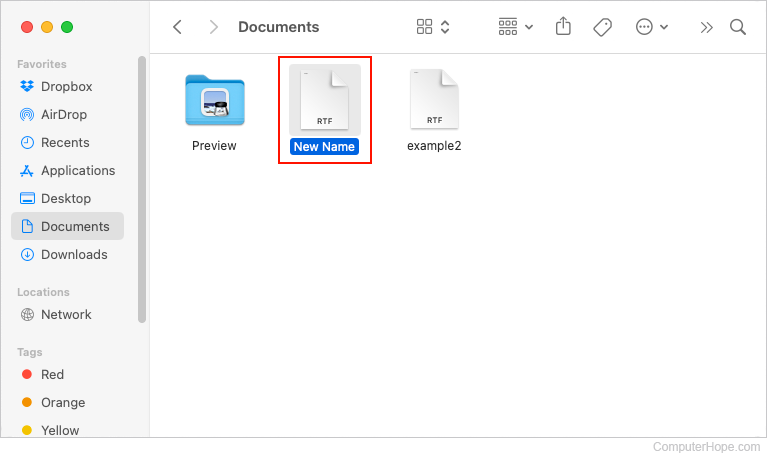
- Press return on the keyboard. You should see a blinking blue text cursor indicating that you can type.
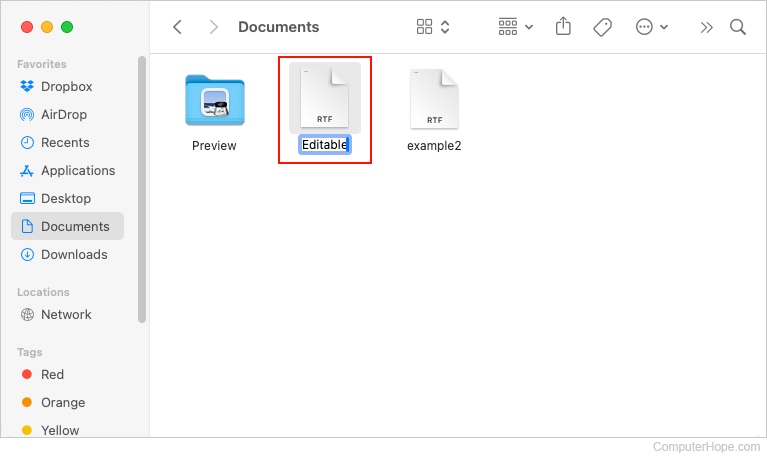
Users can also edit a file or folder name by clicking the object once to select it, wait about one second, and click a second time.
Users can also rename a file or folder by right-clicking it, and selecting "Rename" from the context menu.
- Enter a new name for the file, and press return.
Using Terminal
Apple macOS users can also edit the name of a file or folder by utilizing the Terminal. See our Linux and Unix users section for steps on renaming a file using the mv command.
How to rename in the Linux and Unix command line
For detailed information about renaming files in Linux, see the Linux mv command.
How to rename in Google ChromeOS
With the Google ChromeOS (operating system) on a Chromebook, rename your files and directories using one of the following methods. We've listed the following recommendations in what we believe to be the easiest methods of renaming a file.
First recommendation
Highlight the file by clicking the file once. Press Ctrl+Enter on the keyboard and then type the new name of the file.
Second recommendation
Right-click the file by pressing two fingers on the touchpad at the same time. In the right-click menu, click Rename, and then type the new file name.