
DxDiag

Short for DirectX diagnostics, DxDiag is a tool from Microsoft included with DirectX to view system information and DirectX information relating to your video card and sound card. It is helpful when you must troubleshoot driver-related issues encountered by DirectX.
DxDiag overview
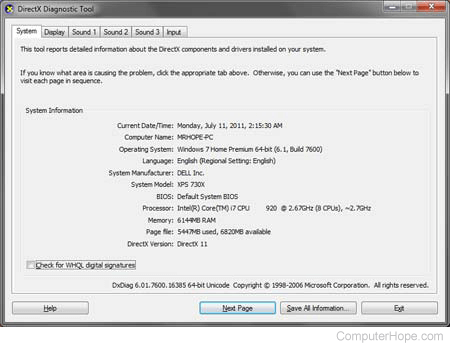
Below is a picture of the DirectX Diagnostic Tool window. As seen in the picture, DxDiag has System, Display, Sound, and Input information tabs. These tabs allow you to save all DirectX information to a text file by clicking the Save All Information button at the bottom of the window.
How to run DxDiag
To run DxDiag, press the Windows key, type dxdiag, and press Enter.
DxDiag commands
The dxdiag also has a few command options, as shown in the syntax below.
dxdiag [/dontskip] [/whql:on] [/whql:off] [/64bit] [/x outfile] [/t outfile]
| Option | Description |
|---|---|
| /x outfile | Silently save XML (extensible markup language) information to <outfile> and quit. |
| /t outfile | Silently save txt information to <outfile> and quit. |
| /dontskip | Don't bypass any diagnostics due to previous crashes in DxDiag. |
| /whql:on | Allow dxdiag to check for WHQL (Windows Hardware Quality Labs) digital signatures. |
| /whql:off | Do not allow dxdiag to check for WHQL digital signatures. Note: Checking for WHQL digital signatures may connect via Internet to update WHQL certificates. |
| /64bit | Launch 64-bit dxdiag. |
Example of dxdiag command
dxdiag /t dxdiag_output.txt
In the example above, DxDiag would save the output to the Users folder.
How to create a DxDiag report
Creating a DxDiag report helps troubleshoot problems with a game. In fact, it may be necessary to find a solution to a problem. To create a DxDiag report, follow the steps below.
- Press the Windows key or click Start.
- Type run and press Enter to open the Run window.
- In the Run window, type dxdiag and press Enter.
- Wait until all information is gathered. A small green progress bar is displayed in the lower-left corner to indicate the progress.
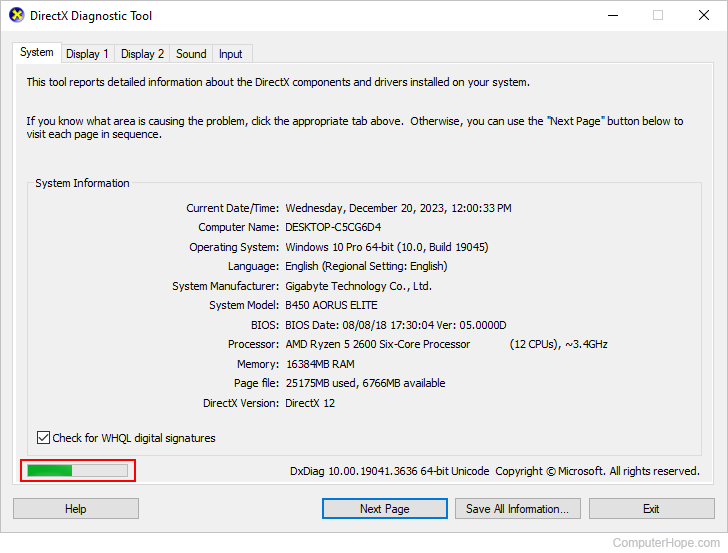
- Once everything is gathered, click the
 button.
 - Choose where to save the file (e.g., your desktop) and click the
 button.
 - Once saved, the report can be attached to an e-mail or support ticket, allowing the viewer to get a better understanding of your computer's specifications.
Example download of a DxDiag.txt report
If desired, download an example of the DxDiag.txt that was generated using the steps above.