
Run
Run may refer to any of the following:
1. In general, run is also describes starting software or executing a script. For example, your computer is running an Internet browser to view this web page.
How do I find what's running?
To determine what is running in Windows, use the Windows Task Manager.
2. The Windows Run box is a feature introduced in Microsoft Windows 95 and included in all later versions of Windows. The Run box allows users to open a program by name (if in the Windows directory) or launch any file by typing the full file path. The picture below shows an example of what the Run box looks like in Microsoft Windows 10.
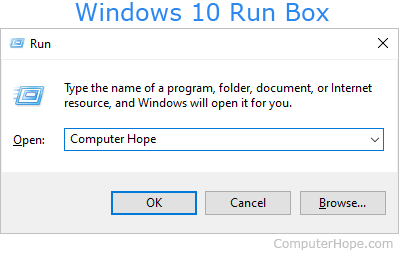
Press Windows key+R on the keyboard at any time to open the Run box in any version of Windows.
Enter an environment variable in the Run box to open a specific Windows folder.
Opening the Run box
Windows 10 and 11 users
The Run box was moved to the Power User Task menu in Windows 10 and Windows 11. To access it, use the keyboard shortcut Windows key+X. In the menu, select the Run option. You can also press the keyboard shortcut Windows key+R to open the Run box.
Windows 8 users
Windows 8 introduced the Windows Start Screen and still supports the ability to run a program. To run a program, start typing while on the Start Screen. You can also use the keyboard shortcut Windows key+R to open the Run box.
Windows Vista and Windows 7 users
Windows Vista introduced the Windows Search Box, which enabled users to search for files and run programs at the same time. With the introduction of this feature, the Run box is no longer located in the Start menu. However, if you still want to use the Run box in Vista or Windows 7, type Run in the Search box, and press Enter, or press the keyboard shortcut Windows key+R.
Windows 95, 98, Me, and XP users
All early versions of Windows include the Run box in the Windows Start menu. Also, pressing the keyboard shortcut Windows key+R opens the Run box at any time.
How to use the Run box
Any executable file that is located in the C:\Windows directory can be run by name. For example, the executable for Microsoft Calculator is calc.exe. To open the calculator from the Run box, type calc and press Enter.
How to run a file using the full file path
Executables can also be run by typing the full file path. For example, you can open the Microsoft Calculator by typing c:\windows\calc.exe and pressing Enter. By default, Windows parses the Windows directory, so typing calc.exe opens the Calculator, as well.
How to open Control Panel items from the Run box
Any of the associated Control Panel icons can also be started from the Run box. For example, in the Run box, typing appwiz.cpl and pressing Enter opens the Add/Remove Programs feature found through the Control Panel. See the link below for a full list of Control Panel files.
Alternatives to Windows Run
For users that may need more options when using the Windows Run, consider the free Run-Command Windows program from SoftwareOK.
Autorun, Execute, Go, Open, Overrun, Software terms, Windows Accessories, Windows Search Box