
What hardware device drivers should be updated?
This page contains steps on updating drivers and not Windows Updates. For help with Windows updates, see: How to update a Microsoft Windows computer.
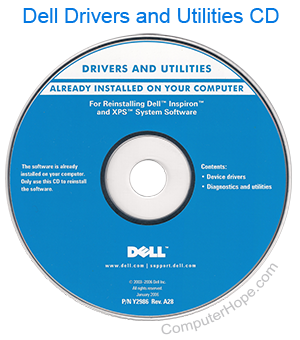
Below is a listing of our recommended hardware devices to update. Updating your computer's drivers and other updates can resolve problems, improve the performance, and increase the stability of your computer.
BIOS updates
Computer BIOS updates should only be done when you are having compatibility issues with your hardware, or you feel your computer hardware is not performing as it should. Visiting your computer manufacturer or motherboard manufacturer page lets you see if any BIOS updates are available for your motherboard and what they fix.
CD or DVD drive drivers and firmware
Updating the drivers for your optical drive (i.e, CD-ROM, CD-R, CD-RW, DVD) may improve its performance. We recommend you visit our CD drivers page for a listing of manufacturers and their driver update pages to obtain the latest drivers.
Some manufacturers may also have firmware updates available for their CD drives. Firmware updates resolve hardware related issues you may be experiencing with the CD drive, such as being unable to read some CDs or may update the region code on your DVD drive. Unlike a driver update, these updates should only be performed for users who are experiencing hardware related issues with their drives. Most firmware updates are accessible through the manufacturer's CD driver page, see the CD drivers page for a listing of these links.
Controllers
Updating to the latest drivers for your computer controllers help with their reliability and the drives connected to them. If you're using a device separate from your computer motherboard, see the controller drivers page for a listing of manufacturers and drivers. If you are not using a separate component, the controller card may be updated by installing the latest drivers for your motherboard. These drivers can be obtained from your motherboard or OEM (original equipment manufacturer) manufacturer. See the motherboard drivers page for additional information.
Display drivers
Unlike other hardware devices, display devices such as a computer monitor or flat-panel displays are often automatically detected and set up by the operating system.
If you are looking for a video driver, see the below video card drivers section.
Keyboard drivers
Unless your computer keyboard contains special keys, your keyboard should not require any drivers and should be set up by the operating system.
Users using a USB (universal serial bus) or FireWire keyboard may need drivers for their operating system to support the keyboard.
Mouse drivers
Unless you are utilizing a unique mouse with special buttons, wheels, or other features, drivers are not required. The mouse should automatically set up by the operating system.
Modem drivers
Updating the computer modem drivers can improve the reliability of the modem and may improve the speed. We recommend you visit our modem drivers page for a listing of manufacturers and their driver update pages to obtain the latest drivers.
Some modem manufacturers may also have firmware updates that upgrade the modem to support new standards, such as V.90, or correct hardware issues with the modem. Firmware updates should only be done if your computer or modem manufacturer recommends you update the modem or if you believe a firmware update corrects your issue. When updating your modem's firmware, verify you are using a firmware update designed for your modem. Updating the firmware with an incorrect version may cause the modem to no longer work. Firmware updates are usually also available through the modem drivers page.
Motherboard drivers, firmware, and updates
Updating the computer motherboard or motherboard chipset drivers helps with compatibility, reliability, and performance. It can also be beneficial to other hardware installed in the computer. See the motherboard drivers page for a listing of links to motherboard chipset drivers and motherboard manufacturers' drivers pages.
Network card drivers
Updating or installing the latest drivers for a computer network card may help with the reliability of the network card in the computer. For a listing of computer network card drivers, see our network drivers index.
Some network card manufacturers may also have firmware updates that resolve compatibility issues or other hardware issues. These updates should only be done if your network card or computer manufacturer recommends an update. These updates are also available through the manufacturer's network drivers page.
Printer drivers
Updating or installing the latest drivers for a computer printer may help with the reliability and compatibility of the printer. A listing of computer printer drivers is on our printer drivers page.
Removable media drivers
Updating or installing the latest drivers for a removable media device, such as a tape drive, may help with the reliability of the removable media device. A listing of computer removable media drivers is on our removable media or tape drive drivers page.
Scanner drivers
Updating or installing the latest drivers for a scanner may help with the reliability and compatibility of the scanner. A listing of computer scanner drivers is on our scanner drivers page.
Sound card drivers
Updating or installing the latest drivers for a sound card help with the compatibility, reliability, and the performance of the sound card. A listing of computer sound card drivers is on our sound card drivers page.
Video drivers
Updating or installing the latest drivers for a video card help with compatibility, reliability, and the performance of the video card. A listing of computer video card drivers is on our video card drivers page.
Some video card manufacturers may also have firmware updates. Firmware updates may resolve issues relating to the compatibility of the video card or resolve other hardware issues. Firmware updates should only be done if your video card or computer manufacturer recommends an update. These updates are also available through the manufacturer's network drivers page.