
How to merge cells in Excel and Calc
Cells in adjacent columns or the same rows can be merged together in Microsoft Excel and Sun OpenOffice Calc. Follow the steps below to learn how to merge cells in a table.
This page only covers merging cells in Excel, not how to merge the values of more than one cell. See: How to combine cell values in Excel.
- Open Calc or Excel.
- Highlight two or more adjacent cells you want to merge. For example, highlight cells A1 and B1 or C1 and C2.
- Click the Merge cells button in the formatting bar. Below is an example of the button in each of the versions of Excel and Calc.

In Microsoft Excel 2010 and above, the Merged cell feature is under the Home tab and is shown in the picture below.

When cells with multiple values are merged, the upper-left most cell will be the data of the merged cell.
Merge two cells using a formula
In Excel, you can merge two cells using a formula. Using the ampersand (&) in a formula acts to combine two cells or a cell and text together.
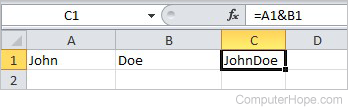
In this example, the formula =A1&B1 combines the values in cells A1 and B1 into cell C1. In this same example, if you wanted space between the two cell values, the formula would include a "space" in it and be written as =A1&" "&B1. You would use double quotes around a space to add a space in the formula and the resulting merged value.