
How to cut or otherwise edit an MP3 or other audio file
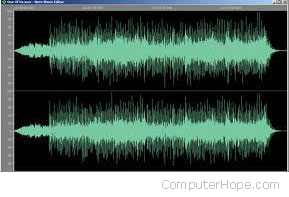
For Microsoft Windows users who want to edit audio files, we highly recommend WavePad, a great program you can download for free. This program supports multiple audio formats, including wav, mp3, vox, gsm, real audio, au, aif, flac, ogg, and many more. Below are some basic steps for editing an audio file using WavePad.
The official WavePad page and download is found here.
Before following any of the steps below, you must have WavePad downloaded and installed on your computer.
Cut or trim the beginning, end, or part of a song
You can cut or trim a song or audio file using your keyboard or mouse. Below are the steps for each of these methods.
Using the mouse
- Using the mouse, highlight the portion of the audio (green lines) you want to delete.
- Once highlighted, press Del.
- Save the file if you're satisfied with the changes.
Using the keyboard
- Play the song until it gets to the point before or after that you want to delete. Then, hold down Shift, and press Home or End to highlight everything from that point.
- Once highlighted, press Del.
- Save the file if you're satisfied with the changes.
If at any time you delete something you didn't want to, click the Undo option on the Home tab or press Ctrl+Z.
Copy section of audio or song file
- Using the mouse, highlight the portion of the audio (green lines) you want to copy.
- Once selected, click the Copy button on the Home tab at the top of the program window.
- Next, click the New option on the Home tab to open a new, blank audio file.
- Click the Paste option on the Home tab to add the copied audio to the new audio file.
- Save the new audio file.
Trim, amplify, normalize, or other edits on multiple audio files
WavePad also has an excellent batch editing feature that lets you perform any of the edit options on multiple files as you would on a single file. To do this, follow the steps below.
- Under the Tools tab, select Batch Converter.
- In the Batch Converter window, click the Add File button to select files. If you have all the files you want to edit in a single folder, click the Add Folder button and select that folder instead.
- Once the files are selected, click the Next button.
- Unless you already have a script, click the Add button and select the action you want to perform. For example, to normalize the audio in each of the files, highlight Normalize and click Add.
- Once you've selected all the audio settings you want to adjust, click the Next button.
- Select how you want to output the files and where you want to output them to, then click Finish.