Phoenix BIOS help and support
In this article, we simulate a Phoenix BIOS to give you an idea of how it might be configured. We'll show you some illustrated graphics of the Phoenix BIOS, and brief explanations of the options and how you might use them.
How is the Phoenix BIOS different?
- Arrow keys navigate.
- Plus and minus keys change values.
- Users must save values before exiting.
Navigation information
The Phoenix BIOS is a very intuitive BIOS setup and is fairly easy to navigate. To navigate the Phoenix BIOS, use up and down arrow keys to navigate the current screen. To change menus, pressing right or left arrow keys switch between each of the available menus.
Once an item is selected, it can be changed by pressing Enter or + or -.
Menus and screenshots
The pictures included in this section are from one version of the Phoenix BIOS. The version of the Phoenix BIOS on your computer may be different, and therefore it could look different than shown in these pictures. These pictures are a general idea of what to look for in the Phoenix BIOS.
Below are example pictures of the Phoenix BIOS setup screens. As seen in the picture below, this BIOS is broken up into different menus.
Main menu
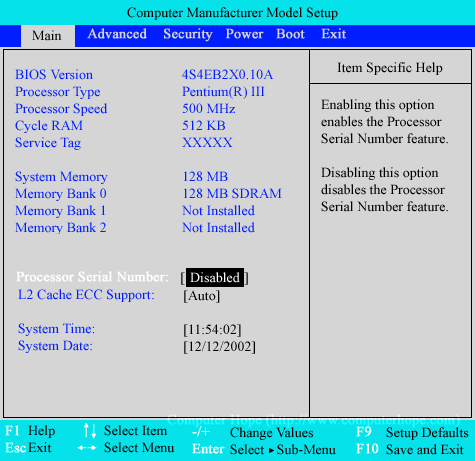
In the illustration below of the Main menu portion of the BIOS, a user can see the computer specifications and change the time, date, and other system specific settings.
Advanced menu
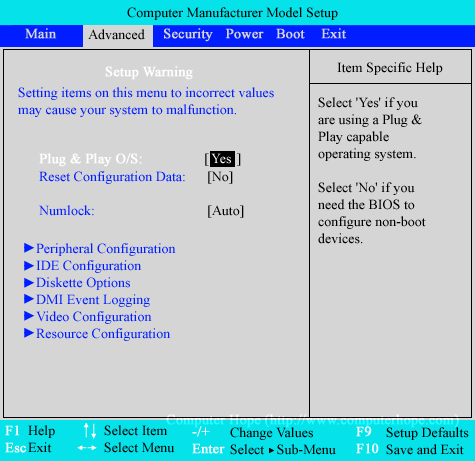
The Advanced menu, as shown below, lets you change the system settings. The menu is broken down into six additional sub-menus that enable you to change settings for each of the different categories.
Peripheral Configuration
The Peripheral Configuration section contains options for the computer's serial ports, parallel ports, and legacy USB ports.
IDE Configuration
The IDE configuration allows a user to define or change any values relating to IDE devices connected to the computer (e.g., hard drive and CD-ROM drive).
Diskette Options
The Diskette Options enables you to enable, disable, and change settings relating to the diskette drive connected to the computer.
DMI Event Logging
The DMI Event Logging enables users to view the DMI event log, clear the log and enable or disable this feature.
Video Configuration
The Video Configuration lets you set settings related to the video including the Palette Snooping, AGP aperture size, and the default adapter.
Resource Configuration
The Resource Configuration enables users to reserve or make available any memory or IRQ resources.
Security menu
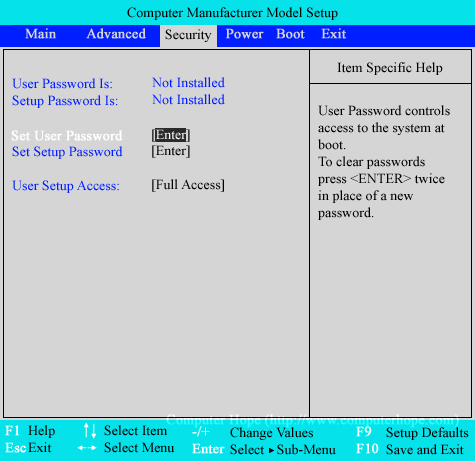
The Security menu enables you to set BIOS passwords on the computer. From here, set a User Password, which prompts for a password each time the computer boots or set a Setup Password to enter the BIOS setup. If a user sets a BIOS password and forgets that password, he or she must clear the CMOS or BIOS password.
Power menu
The next section, or Power menu, enables users to enable and disable the power management options on the computer. Because this section really has no more than disabling and enabling power management and the hardware with power management features, this illustration is not shown.
Boot menu
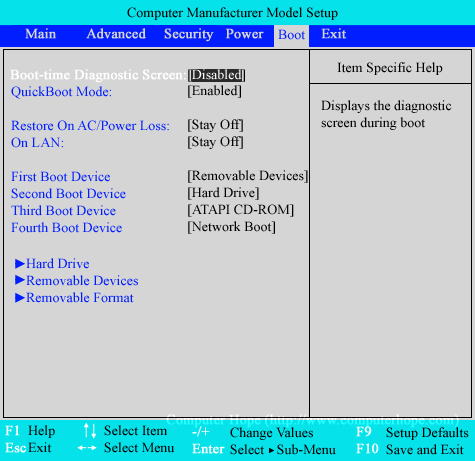
The final section in this example of the Phoenix BIOS is the Boot menu. This section enables users to configure how the computer and its peripherals should load during the boot process. As seen below, users can define the boot sequence of the bootable devices. This section is important for when you want to boot from a floppy diskette or CD-ROM. There are three sub-menus that enable a user to select from a listing of available hard drives or other removable devices.