
What video card does my computer have?
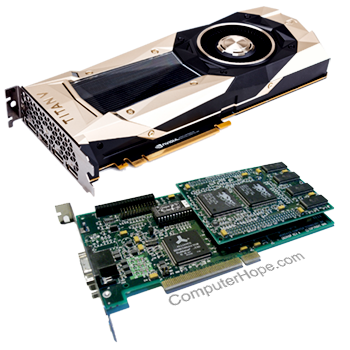
Whether you're looking to upgrade or are curious about your computer's specifications, you may want to know what video card, or GPU (graphics processing unit), is in the computer. Some PCs have integrated graphics, and some have a video card. In either case, the instructions below help you determine and view the graphics device powering your computer's video output. To proceed, choose your preferred method from the list below, or read all of the sections and proceed from there.
To determine how much video memory the video card has, see: How much memory does my video card have?
Device Manager
One of the quickest ways to see what type of graphics processor is in your Windows computer is through the Windows Device Manager.
- Press the Windows key, type Device Manager, and press Enter.
- In the window, expand the Display adapters section.
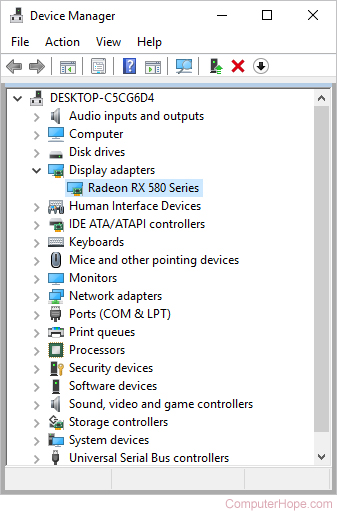
- The GPU is listed under the Display adapters section. For example, the picture above shows a Radeon RX 580 Series video card is installed in the computer. In this example, only the model of the video card is listed. You'd have to know that Radeon is a brand of the ATI company.
Third-party program
There are many third-party programs that detect the video card in your computer. We recommend installing and using the CAM program by following the steps below.
- Open an Internet browser and go to the CAM page.
- In the middle of the screen, click the
 button.
 - Once the download has finished, install it from your browser and open the program.
- You will see a window open that looks like the image below.
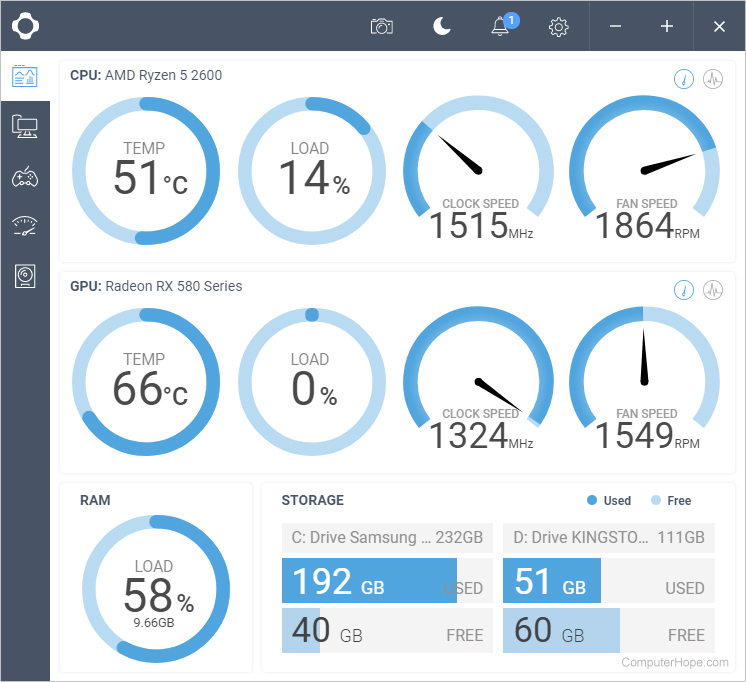
- From here, see which GPU your computer has in the middle section of the main screen. For example, the picture above shows a Radeon RX 580 Series video card, or GPU, is installed in the computer. In this example, only the model of the video card is listed. You'd have to know that Radeon is a brand of the ATI company.
Using a third-party program such as CAM not only lets you identify the video card but also measure important settings. As shown in the picture, the video card temperature, load, clock speed, and fan speed are also seen.
OEM lookup
If you have an OEM (original equipment manufacturer) computer (e.g., Dell, Hewlett Packard, etc.), locate the serial number or service tag number, and then look it up on the manufacturer's website.
At boot or POST
Some computers may display the video card or chipset during the POST (power-on self-test). Try rebooting the computer and as it is booting up, press the "Pause / Break" key to temporarily halt the computer's boot process and read the text on the screen. If you are unfamiliar with video card manufacturers or chipsets, write down some company names you see and search our video card drivers section for that company.
Open the computer
Unplug everything from the back of the computer, open the case, and look for any visual identification printed on the video card or motherboard. Find the manufacturer's name, model number, serial number, or other unique information to help identify the video card or video chipset. The picture below is an example of an older AGP (accelerated graphics port) video card (newer computers use PCIe (PCI Express)).
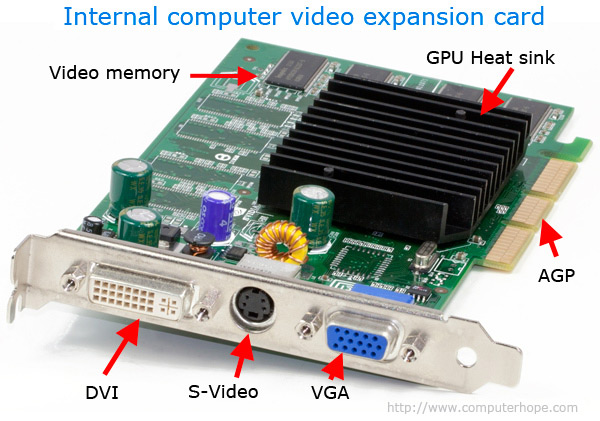
If your video card is on the motherboard, find the motherboard video chipset by identifying the motherboard make and model and reading the motherboard documentation.
FCC identification number
If a manufacturer or model number of the video card is not visible, but you see an FCC identification number, we recommend performing a search using it. Additional information about FCC numbers and how to search for information about them is on our FCC (Federal Communications Commission) definition.
Debug routine (older computers)
New versions of Windows no longer include the debug command. If you are running Windows Vista, 7, 8, or 10, this recommendation will not work.
- Open the Command Prompt.
- At the C:\> prompt, type the following command.
debug
- At the - prompt, type the following command:
d c000:0040
- After typing the command above, several lines of text similar to the following text appear.
C000:0040 00 00 00 00 00 00 00 00 - 00 00 00 00 00 00 00 00  ................
C000:0050 E9 63 7B 00 B4 10 49 27 - E9 FE 2B E9 F7 2B 50 4D  .c{...I'..+..+PM
C000:0060 49 44 58 00 5B 00 00 00 - 00 A0 00 B0 00 B8 00 C0  IDX.[...........
C000:0070 00 5B 53 54 42 20 6E 56 - 49 44 49 41 20 54 4E 54  .[STB NVIDIA TNT
C000:0080 20 76 65 72 2E 20 31 2E - 31 30 20 0D 0A 00 1B 43  ver. 1.10 ....C
C000:0090 6F 70 79 72 69 67 68 74 - 28 43 29 31 39 39 38 20  opyright(C)1998
C000:00A0 53 54 42 20 53 79 73 74 - 65 6D 73 20 49 6E 63 0D  STB Systems Inc.
C000:00B0 0A 00 22 6C 2C 0A 01 00 - C3 50 24 7F E8 60 36 58  .."1,....P$..'6
The example dump above gives you enough information to determine the make and the year of the video card. On line four in this dump, the make of this video card is displayed, which is NVIDIA TNT. If you were to search online, you would find that NVIDIA TNT is the Riva TNT graphics card chipset (VGA). In our example, line five is the video card version, and line six is the Copyright, which is the year the graphics card was manufactured.
- If the information capture doesn't help to identify the video card, type the following:
-d c000:0090
This command gives you a dump similar to the example above. However, it may have additional information about the video card.
If the video card is onboard, you may get the motherboard name or chipset. If you have an onboard video card, get the video drivers for your chipset manufacturer. The video chipset drivers are available through the motherboard manufacturer.
- To exit the debug prompt, type quit and press Enter to exit back to the MS-DOS prompt. To close the MS-DOS window, type exit and press Enter.