
How to allow or block pop-up ads in a browser

Advertisements on the Internet can be invasive. To get your attention, they are sometimes programmed to pop up in front of your current browser window, or grey out the rest of your screen entirely. They may also "pop under" your window so that you don't see them until you minimize your browser.
These ads are not only annoying, but can also interfere with your computer's performance. The good news is that most modern web browsers provide options to prevent and block these types of ads.
To block or unblock pop-up and pop-under Internet ads, follow the instructions below that correspond to the browser you're using.
Google Chrome

The following steps show you how to block or allow pop-ups in Chrome.
- Open Google Chrome.
- In the upper-right of the Chrome window, click the icon.
- Select Settings from the drop-down menu.
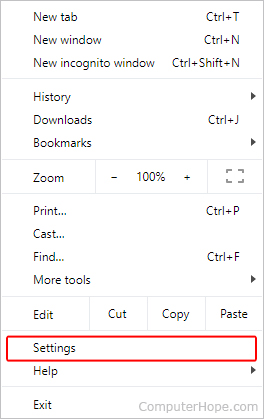
- On the left side of the screen, click Privacy and security.
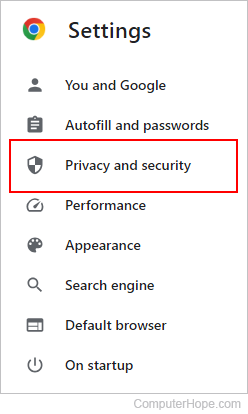
- Expand the Site Settings option.
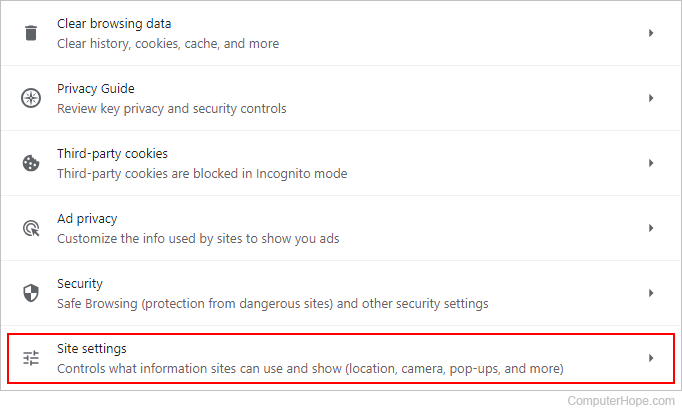
- On the Site Settings page, scroll to the bottom of the screen. Under the Content section, click the Pop-ups and redirects option.
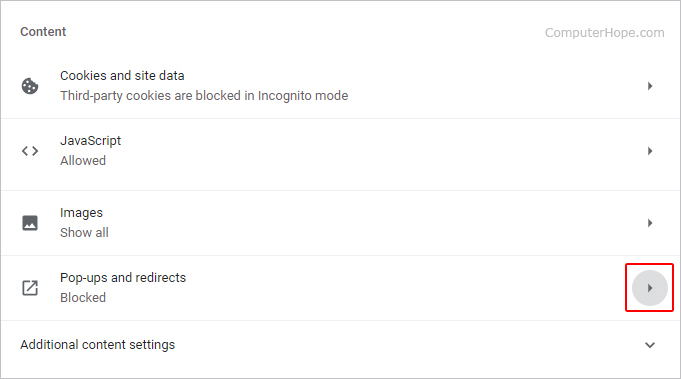
- In the Pop-ups and redirects window, under the Default behavior section, click the radio button next to the option that best suits your needs.
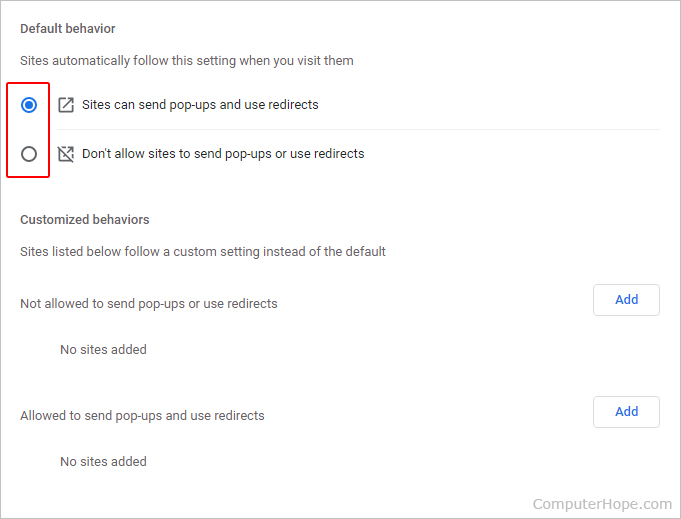
You can also enter chrome://settings/content/popups in the Chrome address bar to open the Pop-ups and redirects settings page.
How to allow or disallow pop-ups on specific websites
Under Customized behaviors, you can select pop-up settings for specific sites by clicking the  button next to the appropriate entry. Once you've clicked , type or paste the URL (uniform resource locator) of the website where you want to allow or disallow pop-ups.
Extensions
Another option for Google Chrome users is to download and install extensions that control pop-ups. These include:
Mozilla Firefox

The following steps show you how to allow and block pop-ups in Firefox.
- Open Mozilla Firefox.
- In the upper-right corner of the screen, click the icon.
- Select Settings from the drop-down menu.
- On the left side of the screen, click Privacy & Security.
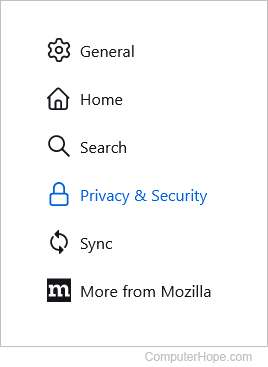
- Scroll down to the Permissions section. Check or uncheck the box for the Block pop-up windows option to allow or block pop-ups.
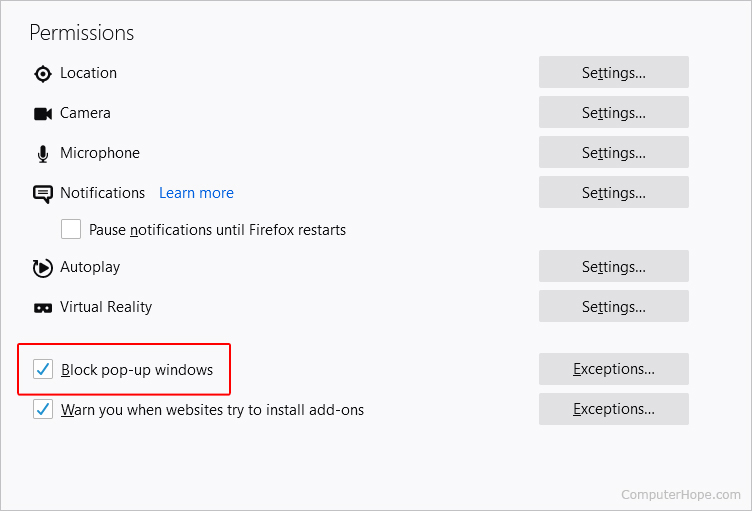
You may also choose certain sites to allow pop-ups on by clicking the  button to the right of the Block pop-up windows entry.
Extensions
If you want even more control over pop-up windows, there are add-ons for Firefox that suppress them, including the following:
Microsoft Edge

The following steps show you how to block or allow pop-ups in Microsoft Edge.
- Open Microsoft Edge.
- In the upper-right corner of the screen, click the icon.
- At the bottom of the Settings and more menu, select Settings.
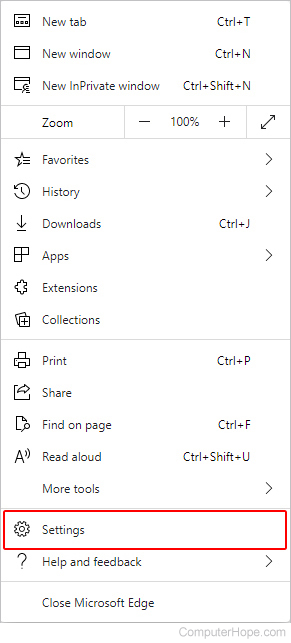
- On the left side of the screen, select Cookies and site permissions.
- Under the Site permissions section, click the option labeled Pop-ups and redirects.
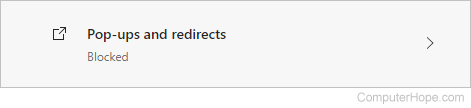
- On the Site permissions / Pop-ups and redirects screen, use the toggle switch to allow or block pop-ups.
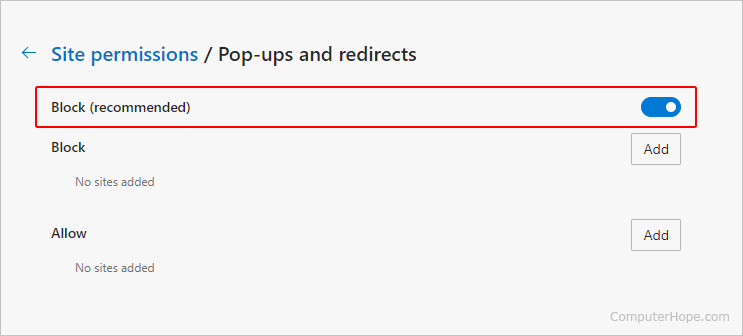
How to allow or disallow pop-ups on specific websites
In the image above, the bottom two sections (Block and Allow) permit certain sites to utilize pop-ups or stop specific sites from using them at all. To use this feature, click the Add button  next to either section.
Microsoft Edge Legacy

Microsoft Edge Legacy was the default web browser included in Windows 10. It replaced Microsoft Internet Explorer, which was deprecated in January 2016.
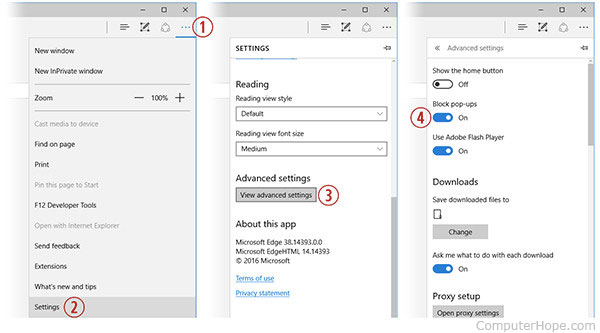
- Open Microsoft Edge Legacy.
- In the upper-right corner of the screen, click the icon (1).
- Select Settings from the drop-down menu (2).
- Scroll down and click the View advanced settings button (3).
- Use the Block pop-ups toggle switch to allow or block pop-ups (4).
Internet Explorer

If you are still using Internet Explorer, follow these instructions to toggle pop-up blocking.
- Open Internet Explorer.
- Click Tools in the file menu (press the Alt key if you don't see the Tools menu option).
- Click Options (or Internet options).
- Click the Privacy tab.
- At the bottom of the Privacy tab, there is a Pop-up Blocker section. To block pop-ups, check the Block pop-ups option (may also be titled Turn on Pop-Up Blocker). You can also set additional options, such as disabling sound or the info bar when a pop-up is blocked, by clicking the Settings button.
Safari
To block or allow pop-up windows in Safari, follow these steps.
- Open the Safari browser.
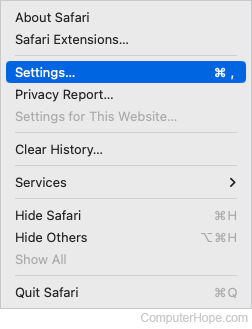
- Select
 from the menu bar in the top-left corner of the screen.
 - In the drop-down menu, select Preferences.
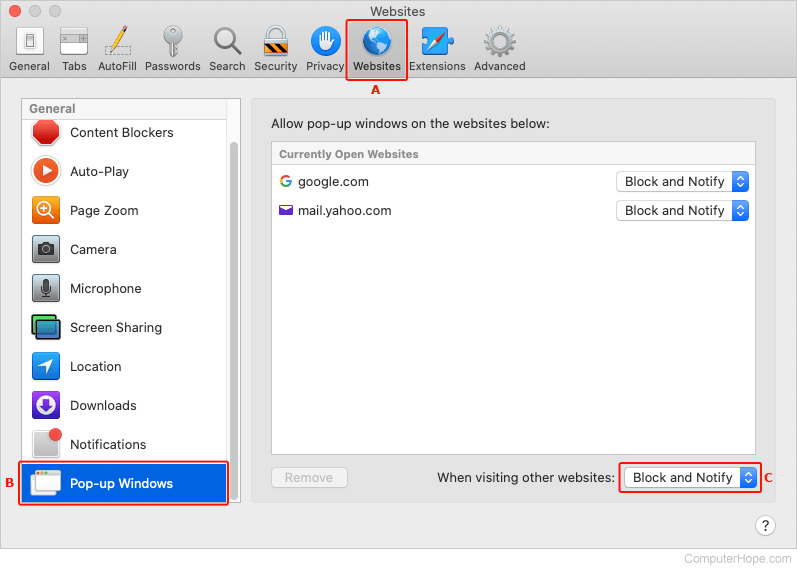
- In the window that opens, click the Websites tab (A).
- In the section on the left, at the bottom, click the Pop-up Windows option (B).
- In the lower-right corner, click the box next to When visiting other websites (C).
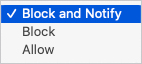
- Select your pop-up blocking settings in the drop-down list.
In the Allow pop-up windows on the websites below section, you can quickly choose the pop-up settings for sites currently open in your browser.
Opera

To block or allow pop-up windows in Opera, follow these steps.
- Open Opera.
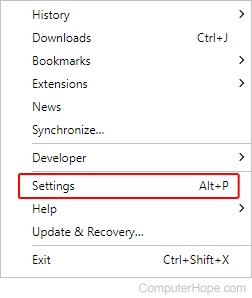
- In the upper-left corner of the screen, click the
 icon.
icon. - Select Settings from the drop-down menu.
- On the left side of the tab that appears, click Privacy & security.
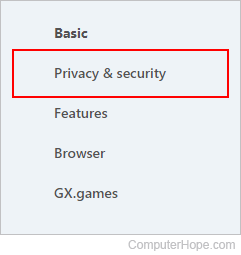
- In the Privacy and security section, click Site Settings.
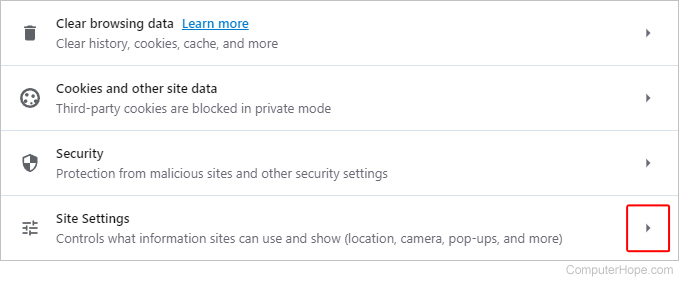
- Scroll down the list and select Pop-ups and redirects.

- Use the toggle switch to allow or block pop-ups.
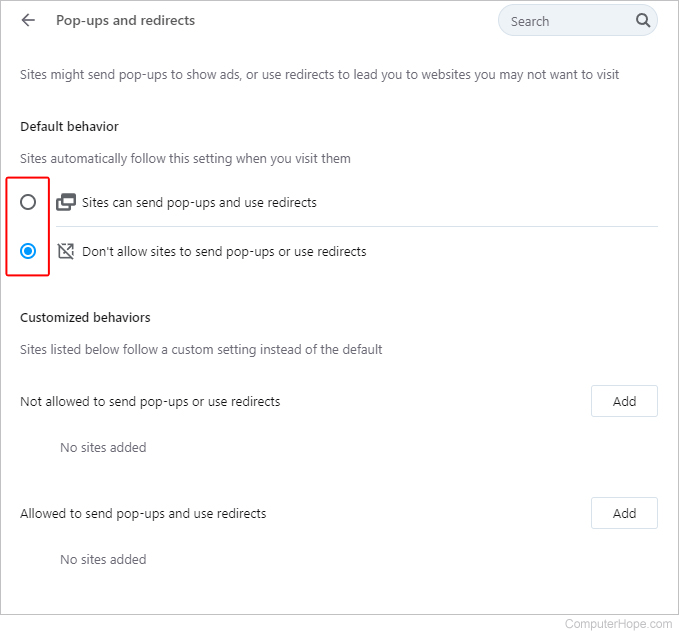
How to allow or disallow pop-ups on specific websites
Under Customized behaviors, you can select pop-up settings for specific sites by clicking the  button next to the appropriate entry. Once you've clicked , type or paste the URL of the website where you want to allow or disallow.
Extensions
Another option for Opera users is to download and install extensions for blocking ads and pop-ups. These include the following: