
How to restore Windows to an earlier copy

The System Restore lets you roll back the state of their system files and settings. This action helps fix poor performance or software errors and does not erase any of your data, like pictures or music. However, it may delete settings or drivers implemented after the restore point was created. To proceed, select your version of Windows and follow the steps.
How to do a System Restore in Windows 11
- Press the Windows key, type restore point, and press Enter.
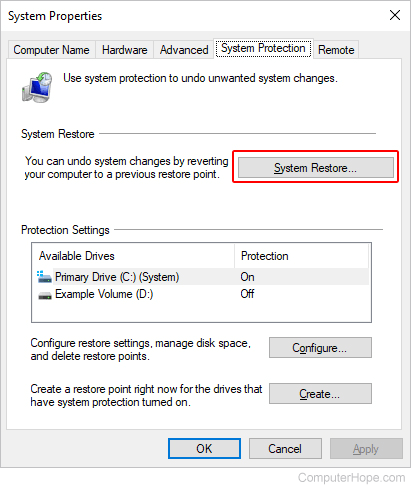
- At the top of the System Properties window that opens, on the System Protection tab, click the System Restore button.
- In the System Restore window that opens, the date of the most recent change or update to your computer is recommended, by default. To restore Windows to that date, click the
 button.
Alternatively, if you know the date your problem started, select the Choose a different restore point option and click the button. Select a restore point and click again. - Click the
 button to start the restore process.
How to do a System Restore in Windows 10
- Press the Windows key, type Create a restore point, then press Enter.
- At the top of the System Properties window that opens, on the System Protection tab, click the System Restore button.
- After processing has finished, click the button.
- The following screen suggests recent restore points and your last critical update. Choose one and click the button.
or
If you know the date your problem started, check the box next to Show more restore points.
- Select a restore point and click the button to start the restore process.
How to do a System Restore in Windows 8
- Navigate to the Start Screen and type restore.
- Click Create a restore point.
- In the System Properties window that opens, in the System Restore section, click the System Restore button.
- After processing, a window appears with two buttons at the bottom; click Next.
- The following screen usually suggests a recent restore point and your last critical update.
or
If you know the date your problem started, check the box next to Show more restore points.
- Select a restore point and click Next.
- Confirm your restore point and click Finish to start the restore process.
How to do a System Restore in Windows Vista and 7
- Click Start.
- In the Start search box, type System Restore and press Enter.
- After processing, a window appears with two buttons at the bottom; click Next.
- The following screen usually suggests a recent restore point and your last critical update.
or
If you know the date your problem started, check the box next to Show more restore points.
- Select a restore point and click Next.
- Confirm your restore point and click Finish to start the restore process.
How to do a System Restore in Windows XP
- Click Start.
- Click Programs, and then Accessories.
- Click System Tools and open System Restore.
- After processing, a window appears with two buttons at the bottom. Make sure Restore my computer to an earlier time is selected and click Next.
- The next screen suggests a recent restore point and your last critical update.
or
If you know the date your problem started, check the box next to Show more restore points.
- Select a restore point and click Next.
- Confirm your restore point and click Finish to start the restore process.
What if I can't find System Restore?
If you cannot find System Restore and have administrator rights, try opening System Restore through the run line (located in the Start menu) by following the steps below.
- Click Start.
- Click Run.
- Type restore/rstrui.
- Press Enter.
- Follow steps 4-7 in the previous section.
Other issues
Cannot boot to Windows at all
If you cannot boot to normal Windows mode at all, you may need to run through the following steps in Windows Safe Mode. Additionally, you could try loading the last known good configuration.
Cannot load in Safe Mode
If you cannot get to Normal or Windows Safe Mode, restore system registry settings through the Recovery Console.
No restore points are available
A computer's system restore point may get deleted for one of the following reasons. Unfortunately, when the system restore points are deleted or removed, they cannot be recovered.
- The Microsoft Windows System Restore option was disabled on the computer.
- The computer's hard drive is low on or out of disk space.
- Microsoft Windows was reinstalled.
- The restore point reached its maximum age of 90 days.
- The "Cleanup" option in the Disk Cleanup utility was run. When this task is performed, it removes all restore points.
- The computer's copy of Windows was upgraded to a newer version. The Windows System Restore option is not designed to revert your computer to an older version of Windows.