
How to fix a CD-ROM, DVD, or disc drive not working in Windows
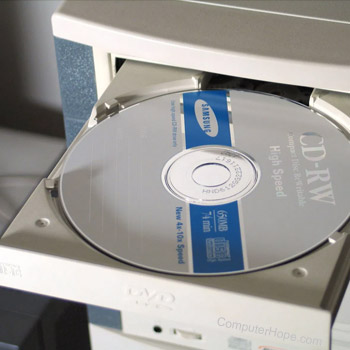
If a CD-ROM (compact disc read-only memory) or DVD (digital versatile disc) disc drive in your computer is not reading discs correctly, the following tips and information may help you fix the problem.
Bad or dirty CD
Make sure you have tested more than one CD (compact disc) in the disc drive, as it may be one CD that is bad or dirty. If all but one or two discs fail, the disc drive is bad or dirty. For instructions on cleaning your CDs and disc drive, see the computer cleaning page.
If, after cleaning the drive and CDs, you still get errors, it's likely the disc drive is bad.
Check Device Manager
- Open the Control Panel.
- Click or double-click the System icon.
- In Windows XP and earlier, click the Hardware tab and then the Device Manager button.
In Windows Vista and later, click the Device Manager link on the left side of the System window.
Within Device Manager, verify the CD-ROM has no exclamation marks or red X's. If listed with a yellow exclamation mark or red X, remove the CD-ROM by highlighting the drive and pressing the delete key. Reboot the computer to reinstall the CD-ROM drive.
If the CD-ROM drive is not in the Device Manager, the drive's cables may not be connected properly. It's also possible that the drive is bad and needs to be replaced.
For additional information on Device Manager, see our Device Manager page.
Corruption in Windows
Try testing the CD-ROM in Safe Mode. If the CD-ROM works in Safe Mode but not in normal Windows, a running program is causing the issue, or the drivers are corrupt. Open Device Manager, highlight and remove the CD-ROM by pressing the delete key. After deleting the CD-ROM, reboot the computer. Windows should then detect the CD-ROM and reinstall it.
If the CD-ROM drive is not in the Device Manager, the drive's cables may not be connected properly. It's also possible that the drive is bad and needs to be replaced.
Try booting a CD or bootable diskette
Windows 2000, XP, Vista, 7, and later users
If you attempted the recommendations above, boot from the Windows disc to see if the computer can detect and boot from the disc. If the computer can boot from the disc, you are encountering a Windows driver related issue. Try the above recommendations again.
Windows 98 users
If you attempted the recommendations above, try booting from a Windows 98 diskette or another bootable diskette with CD-ROM drivers to see if the CD-ROM works from MS-DOS. If the CD-ROM does work from MS-DOS, this indicates there is a Windows corruption issue. However, if the CD-ROM does not work, refer to the next and final possibility. Additional information on bootable disks is on our boot disk page.
Verify computer running in 32-bit mode
If you are using Windows 98 or Windows 95, verify the computer is running in 32-bit mode by clicking Start, Settings, Control Panel, double-click System, and click the Performance tab. Under Performance by File System, verify it says '32-bit'.
CD-ROM cables connected improperly
If you have recently installed or moved your computer, verify that the CD-ROM cables are connected correctly.
If the disc drive is not opening when you press the eject button, verify the CD-ROM power cable is firmly connected.
Bad CD-ROM drive
If you tried all the steps above and are still encountering errors with reading discs in the CD-ROM drive, the drive is bad. Try replacing the drive and see if a new CD-ROM drive resolves the issue.