
How to import and export browser bookmarks or favorites

Most users have a preferred Internet browser. However, they may want to try out a different browser or switch to a new one permanently. Like moving to a different residence, users like to take their things with them. In this case: their Internet bookmarks or favorites. Learn how to import your bookmarks or favorites from or export them to another browser by selecting your browser from the following list.
Microsoft Edge

- Open the Microsoft Edge browser.
- In the upper-right corner of the screen, click the
 icon.
icon. - Select Favorites from the drop-down menu.
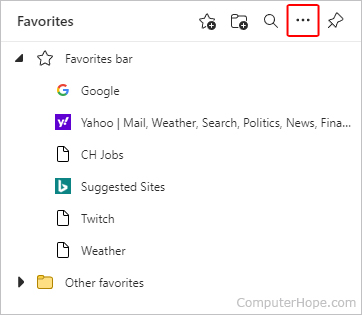
- In the Favorites window, click the kebab menu icon.
Import favorites from another browser
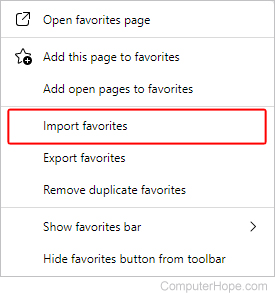
- Select Import favorites from the drop-down menu.
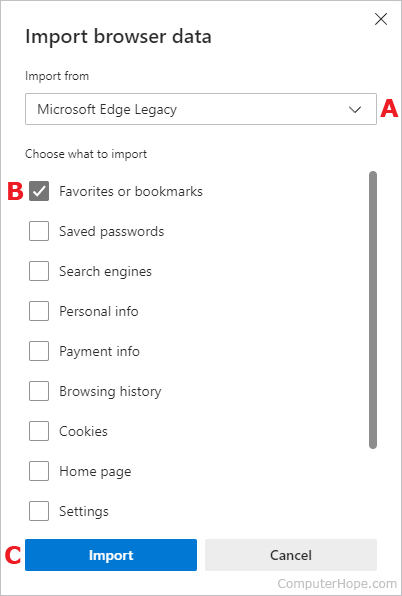
- In the prompt, choose a browser to import favorites from (A). Then, check the box next to Favorites or bookmarks (B) and click the Import button (C).
Import favorites from a file
- Select Import favorites from the drop-down menu.
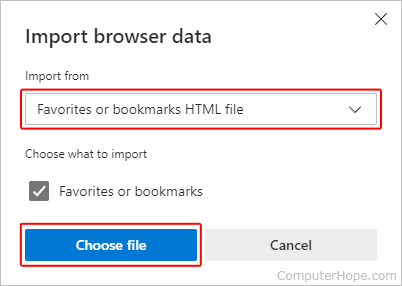
- In the Import browser data window, click the down arrow
 on the right side of the box under the Import from section.
 - Select Favorites or bookmarks HTML file from the drop-down menu and click the Choose file button.
- Locate the saved favorites file and click the
 button.
Export favorites to a file
- Select Export favorites from the drop-down menu.
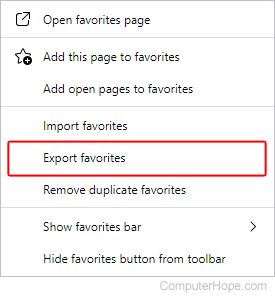
- Choose a file save location and click the
 button.
Microsoft Edge Legacy

- Open the Microsoft Edge Legacy browser.
- In the upper-right corner of the screen, click the icon.
- Select Settings from the drop-down menu.
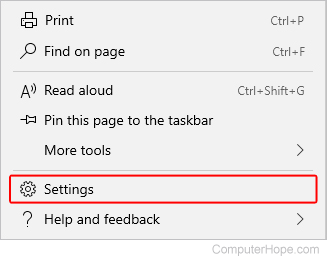
- Under the Import favorites and other info section, click the Import from another browser button.
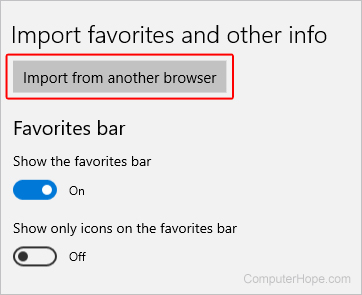
Import favorites from another browser
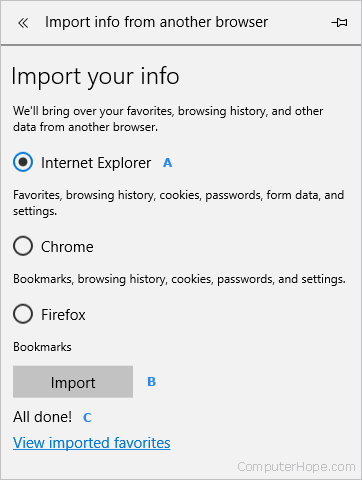
On the next screen, select the browser you want to import bookmarks from (A) and click the Import button (B). If you're successful in importing your bookmarks, there is an "All done!" confirmation message (C).
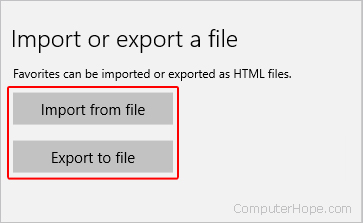
Export to or import from a file
Saving favorites as an HTML (hypertext markup language) file is a convenient way to back up, move, or restore them. Click either button and then save or locate a previously saved file.
Microsoft Internet Explorer

Internet Explorer versions 11 users
- Open the Microsoft Internet Explorer browser.
- In the upper-right corner of the screen, click the
 icon.
icon. - In the menu, click the down arrow next to the
 drop-down.
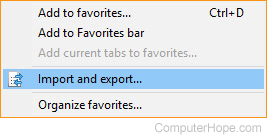
 - From the drop-down menu, select Import and Export.
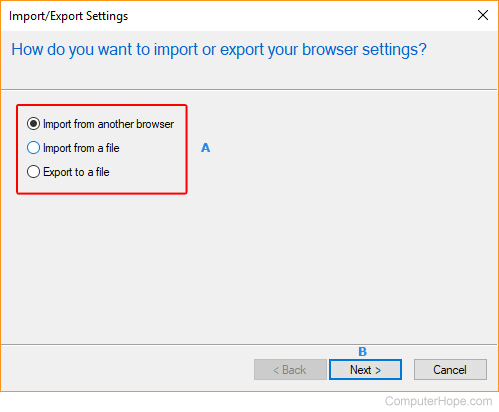
- In the Import/Export Settings menu, choose whether you want to import from another browser, import from a file, or export to a file (A), and click
 (B).
(B).
Import favorites from another browser
- After you click the button, you see a list of browsers from which you can import bookmarks.
- Check the box next to the browser whose bookmarks you want to import.
- Click the
 button, and then the
  button.
Import favorites from a file
- After you click the button, you see three options on the screen. These describe from where the bookmarks file is imported.
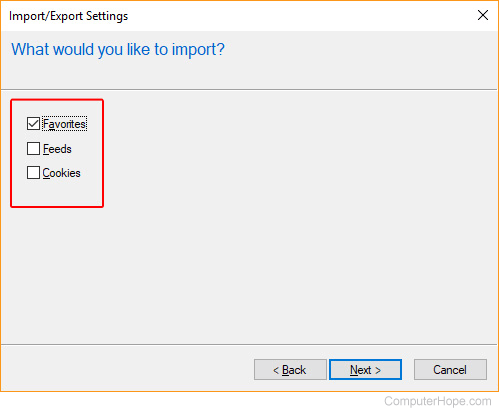
- Check the box next to each location you're interested in, then click the button.
- Click the
 button and find the location where you're importing the file.
 - Once you've located the file, choose the import location and click the button.
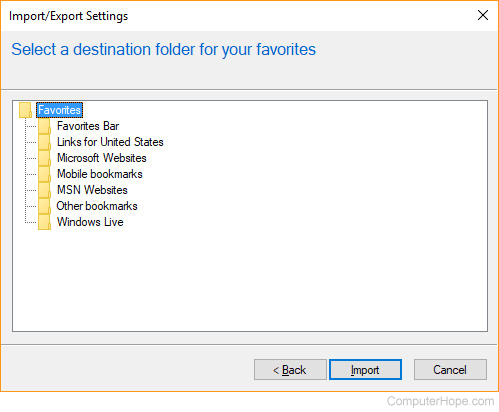
- Click the button.
Export favorites to a file
- After you click the button, you see a list of locations where you can export your favorites.
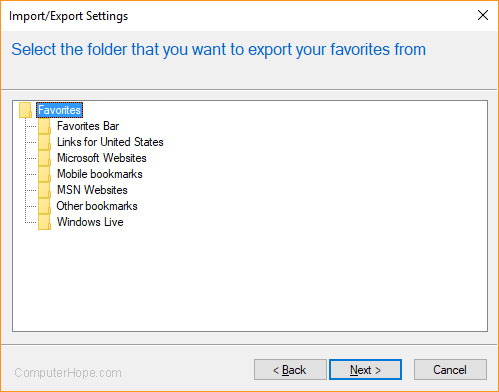
- After choosing your desired location, click the button.
- Click the button and find the location where you're exporting the file.
- Once you've chosen where to save your file, click the button.
- Click the
 button and then the button.
Internet Explorer 5 to 8 backing up favorites
- In Internet Explorer, click the File menu and select Import and Export.
- In the Import and Export window, click Next.
- Click Export Favorites and click Next.
- Select the folder you want to backup. To backup all favorites, leave the Favorites folder highlighted and click Next.
- Select the destination where you want to save your favorites and click Next.
- Click Finish.
Internet Explorer 5 to 8 recovering backup files from an IE or Netscape backup
- In Internet Explorer, click the File menu and Import and Export.
- In the Import and Export window, click Next.
- Click Import Favorites and click Next.
- Select the location containing your favorites and click Next.
- Select where you want to save your favorites and click Next.
- Click Finish.
Google Chrome

Chrome is unique in that all your settings and bookmarks are tied to your Google account and backed up automatically.
- Open the Google Chrome browser.
- In the upper-right corner of the window, click the
 icon.
icon. - Move your mouse over Bookmarks.
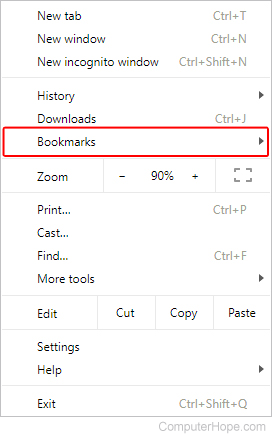
Import bookmarks from another browser
- Select Import bookmarks and settings.
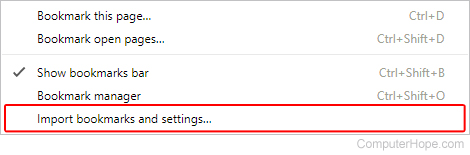
- From the drop-down menu, choose the browser you want to import bookmarks from (A), and click the IMPORT button (B).
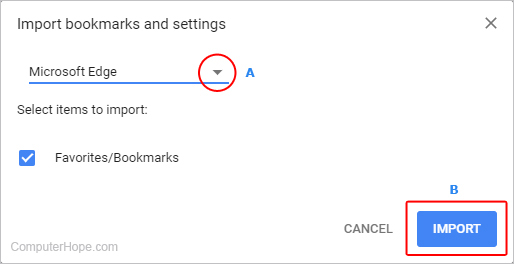
- If your import is successful, a confirmation screen is displayed.
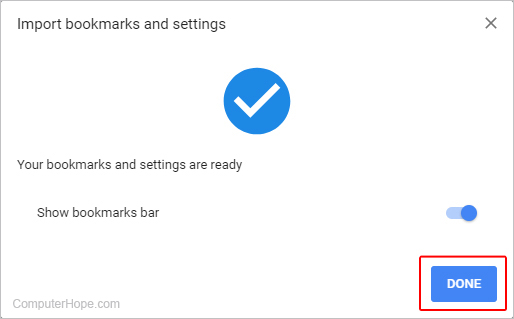
- Click DONE to finish.
Import from or export to a file
- Select Bookmark manager.
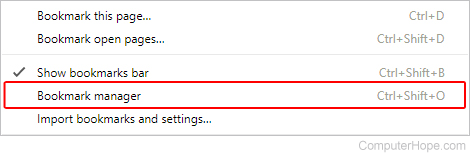
- In the Bookmarks manager, click in the upper-right corner of the screen.
- Select either Import bookmarks or Export bookmarks.
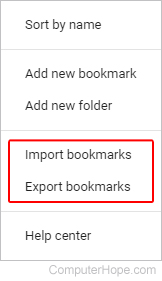
- Click either selector and then to export or to import a previously-saved file.
Mozilla Firefox

- Open the Mozilla Firefox browser.
- Click the Library icon
 in the upper-right corner of the browser window.
 - In the Library menu, select Bookmarks.
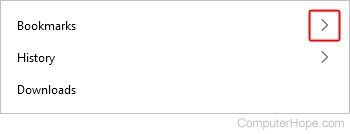
- At the bottom of the window, select Manage bookmarks.

- In the window, click Import and Backup.
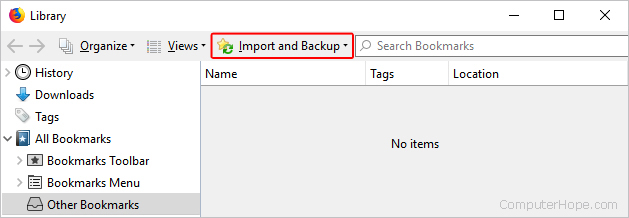
Import bookmarks from another browser
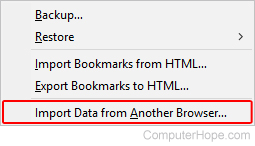
- Select Import Data from Another Browser.
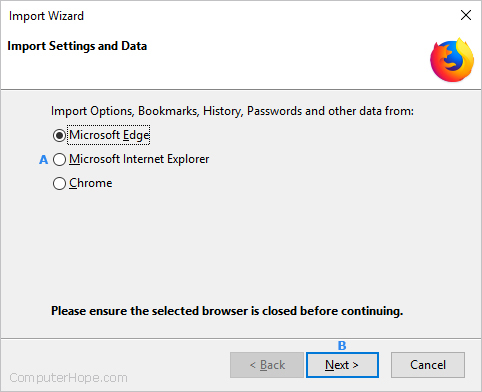
- Choose the browser you want to import bookmarks from (A), and click Next (B).
Export bookmarks to a file
- Select Export Bookmarks to HTML.
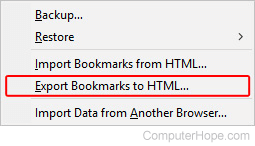
- Choose a location to save your bookmarks file, then click the button.
Import bookmarks from a file
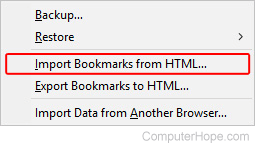
- Select Import Bookmarks from HTML.
- Choose a location to save your bookmarks file, then click the button
 .
.
Opera

- Open the Opera browser.
- In the upper-left corner of the browser window, click the
 button.
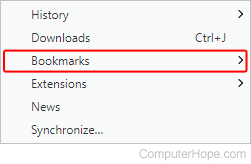
 - In the drop-down menu, move your mouse cursor over Bookmarks.
Import bookmarks from another browser
- Select Import bookmarks and settings.
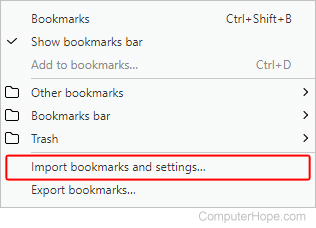
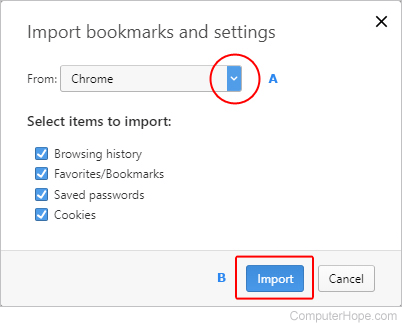
- In the new menu, select the browser you want to import bookmarks from (A), then click Import (B).
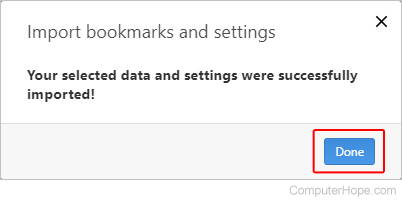
- If your import is successful, you see a confirmation message. Click Done.
Export bookmarks to a file
- Select Export bookmarks.
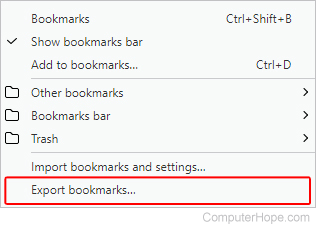
- Browse to the location you want to save your bookmarks, then click the button.
Netscape

By default, Netscape saves your bookmarks as bookmarks.html.
Netscape Communicator and Netscape 7.0 and above backing up bookmarks
- In Netscape, click Bookmarks and then Manage Bookmarks, or press the keyboard shortcut Ctrl+B.
- In the Bookmark Manager, click Tools, then click Export.
- Select the location where you want to export the file and click OK.
Netscape Communicator and Netscape 7.0 and above recovering backup files from Netscape backup or Internet Explorer
- Within Netscape, click Bookmarks and Manage Bookmarks, or press the keyboard shortcut Ctrl+B.
- In the Bookmark Manager, click Tools, then Import.
- Select the file you want to import and click Open.
Safari

Export bookmarks
- Open the Safari browser.
- Click the file menu.
- Select the Export Bookmarks option. By default, Safari saves your bookmarks as Safari Bookmarks.html.
Import bookmarks from Chrome or Firefox
- Open the Safari browser.
- Click the file menu.
- Select the Import From option.
- Select the Google Chrome or File option.
- Select the Import From option.
- Select either Chrome or Firefox. Bookmarks are pulled from the Chrome or Firefox browser on your computer.
Import bookmarks from HTML bookmarks backup
- Open the Safari browser.
- Click the file menu.
- Select the Import From option.
- Select the Bookmarks HTML File option.
- Find and select the HTML bookmarks file on your computer. The bookmarks are imported and located in a new folder having a name starting with "Imported" followed by the import date.