
How to boot from a CD or DVD in a computer
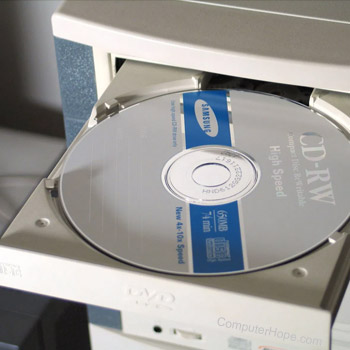
To boot from the computer, place the CD (compact disc) or DVD (digital versatile disc) into the drive and reboot the computer. As the computer boots, it should detect the bootable disc and use the files on it to boot. If the computer loads to an error message when attempting to boot or loads into Windows, you may be encountering any of the following situations.
Need to press a key to boot to CD or DVD
Some bootable CDs (e.g., Microsoft Windows CD), prompts for you to press any key to boot from the CD. If no key is pressed, the computer continues to boot normally and does not boot from the CD. Make sure to pay close attention to the screen as the computer is starting and press a key if prompted.
CD or DVD is not bootable
Not all CDs and DVDs are bootable. To boot from a CD, you must have a CD that is stated to be bootable. Realize that early Windows 95 CDs are not bootable. However, Windows 98, Me, XP, and later CDs are bootable.
Not configured properly in BIOS
If the BIOS is not properly set up, the computer may ignore or not look at the CD-ROM (compact disc read-only memory) or DVD as a bootable option. Open BIOS setup and verify your boot sequence settings are properly set to boot from the CD-ROM drive. These settings are under the boot options.
We suggest using boot options setup similar to the example below. If all else fails, make your CD-ROM or ATAPI (AT Attachment Packet Interface) CD-ROM the first bootable option.
- Floppy or LS120 (if available)
- CD-ROM or DVD-ROM
- Network (if available)
- Hard Drive
If CD-ROM is after another device that's bootable, it boots from the other device before the CD-ROM. Verify that the devices before CD-ROM, (e.g., floppy drive) has no bootable media in them. Bootable media includes your hard drive, which is bootable unless it's blank or empty.
Disc drive not selected from the boot menu
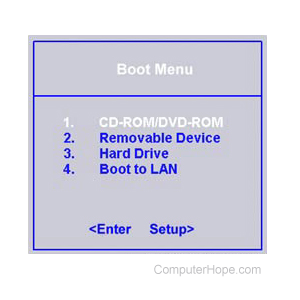
On many computers, as the computer is booting, you may need to enter the boot menu (e.g., may see Press F9 for boot menu). If this option is available, press the key to enter the boot menu and select the option to boot from the CD-ROM or DVD drive.
If you enter the boot menu and the CD-ROM or DVD drive is not listed as an option, remove the disc from the computer. Then, turn off the computer, and press the key to enter the boot menu again. If the CD-ROM/DVD-ROM (digital versatile disc read-only memory) is not available, put the disc back into the computer and then choose the option to boot from the disc.
Bad CD or DVD
Verify the CD or DVD is readable by accessing it through Windows or in another computer. The CD or DVD may be bad or not readable. If you determine the CD is getting errors when being read, try first cleaning the CD before looking for a replacement. For additional information about how to clean your CD and CD-ROM drive, see our computer cleaning page.
Jumpers not set properly
Not all disc drives boot if the jumpers are not set properly. If applicable for your computer and disc drive, verify that the CD-ROM or DVD drive has the jumpers set properly. We recommend the CD-ROM be set as primary on the secondary controller. This rule also applies to portable computers with removable disc drives.
Cables or other drive related issues
Some computers today have multiple disc drives, for example, a computer may have a DVD drive and another CD or CD-RW (compact disc re-writable) drive. If your computer has multiple disc drives, consider disconnecting one of the drives and use the other drive to try to boot from the disc.
With some IDE (integrated drive electronics) or ATA (Advanced Technology Attachment) disc drives, if the drive is not connected as the first drive, it can prevent the drive from properly booting. If you've never been able to boot from a CD or DVD, verify that the drive is the first drive on the cable.
Bad CD or DVD drive
Verify if another CD or DVD works in the drive. If the disc drive is bad, it cannot boot from the disc because it cannot read from the disc. If, after doing this, you determine the drive is bad, we recommend you replace the drive.