
How to enable, disable, view, or delete Internet cookies

The following page contains information on managing your Internet cookies in most of the major browsers. It should be noted that if a user disables cookies, some web pages won't work properly. To proceed, select your browser from the list below and follow the instructions.
Google Chrome

How to view and delete cookies
- Open the Google Chrome browser.
- Click the icon in the upper-right corner of the browser window.
- In the drop-down menu, select Settings.
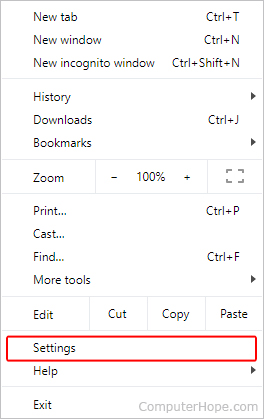
- On the left side, click the Privacy and security option.
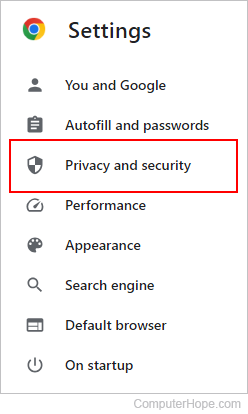
- In the Privacy and security section, click the Cookies and other site data selector.
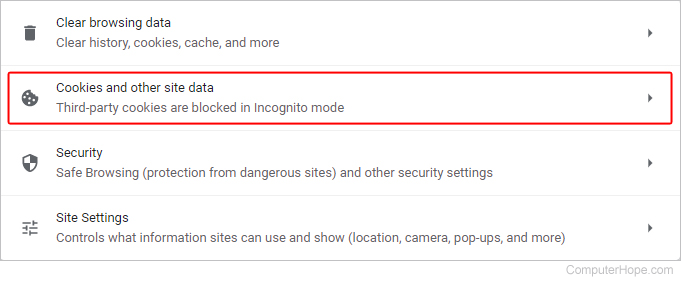
- In the next window, at the bottom of the General settings section, click See all cookies and site data.
- The All cookies and site data section shows a list of every cookie for Chrome on your computer. You can delete all of them by clicking the Remove All button (A), or individual cookies by clicking the trash can icon (B) next to each entry.
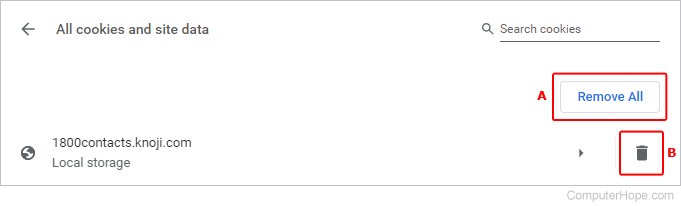
After cookies are deleted, if cookies are still enabled on the browser, they are recreated upon revisiting any site that uses cookies.
How to set or change cookie permissions
This section shows how to enable or disable some or all cookies in Chrome.
- Open the Google Chrome browser.
- Click the icon in the upper-right corner of the browser window.
- In the drop-down menu, select Settings.
- On the left side, click the Privacy and security option.
- In the Privacy and security section, click the Cookies and other site data selector.
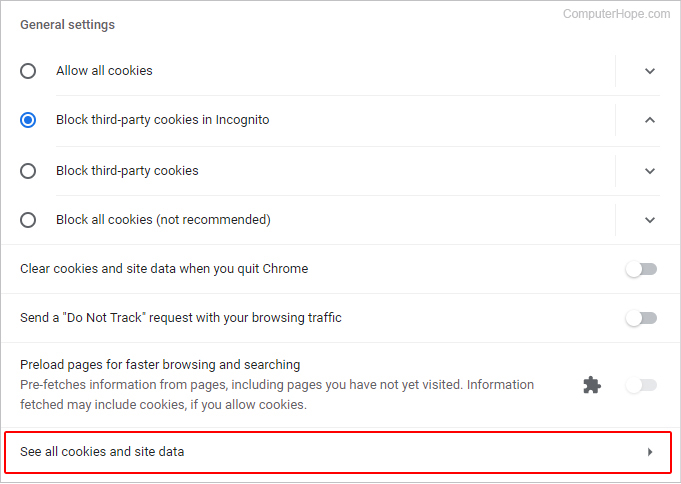
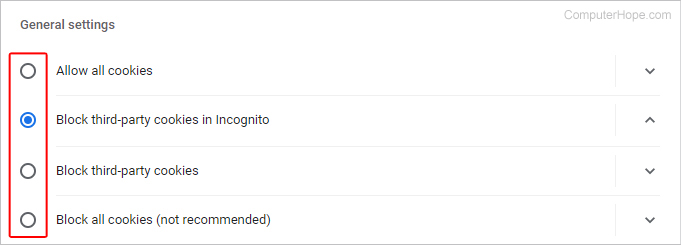
- In the next window, at the bottom of the General settings section, click the radio button next to your preferred cookie permissions choice.
Mozilla Firefox

How to view and delete cookies
- Open the Mozilla Firefox browser.
- Click the menu icon in the upper-right corner of the browser window.
- Select Settings from the drop-down menu.
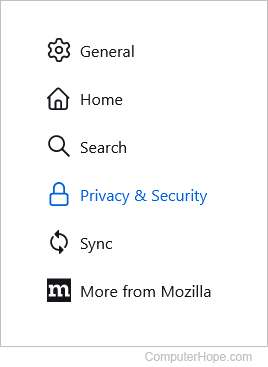
- In the window, click the Privacy & Security option in the left navigation pane.
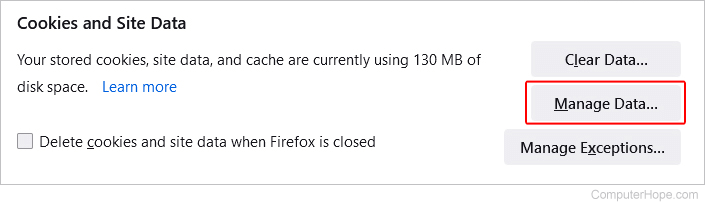
- In the Cookies and Site Data section, click the Manage Data button.
- In the prompt, you can see a list of the cookies saved in Firefox. You may delete cookies individually with the Remove Selected button, or all at once using the Remove All button.
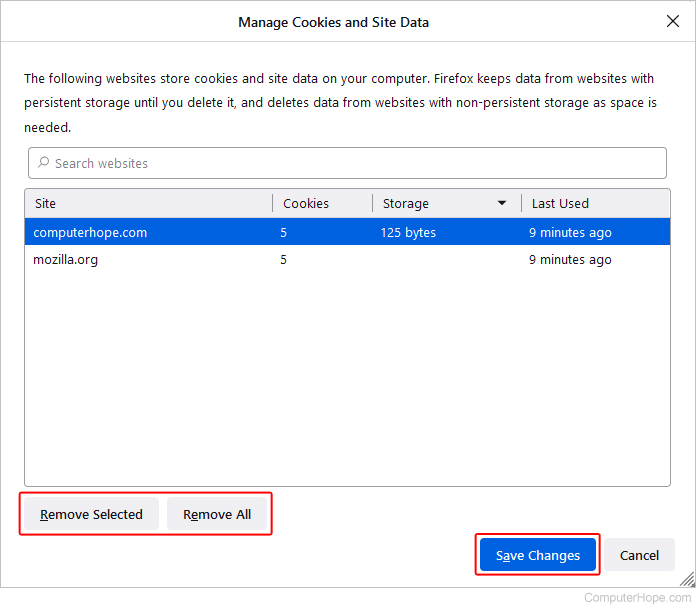
- When you're finished, click the Save Changes button.
After cookies are deleted, if cookies are still enabled on the browser, they are recreated upon revisiting any site that uses cookies.
How to set or change cookie permissions
This section shows how to enable or disable some or all cookies in Firefox.
- Open the Mozilla Firefox browser.
- Click the menu icon in the upper-right corner of the browser window.
- Select Settings from the drop-down menu.
- In the window, click the Privacy & Security option in the left navigation pane.
- In the Cookies and Site Data section, click the Manage Exceptions... button.
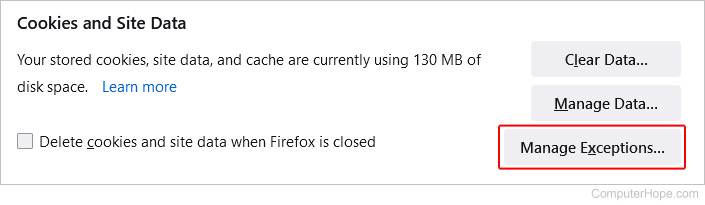
- In the prompt, type in the address of a site (A), and click a button to set permissions (B).
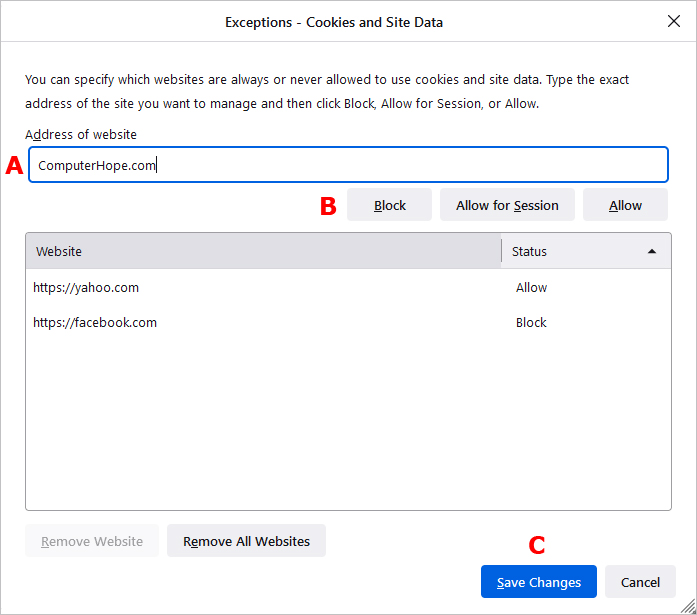
- When you're finished, click the Save Changes button (C).
Microsoft Edge

How to view and delete cookies
- Open the Microsoft Edge browser.
- Click the Settings and more icon in the upper-right corner of the browser window.
- In the drop-down menu, near the bottom, select Settings.
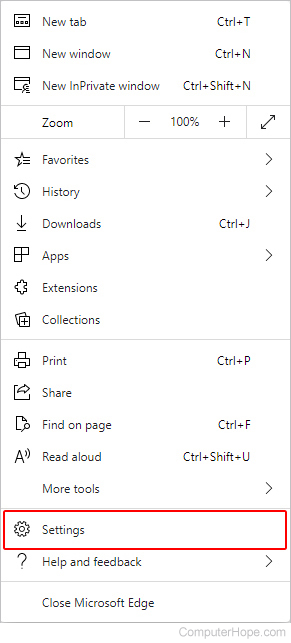
- Under the Settings section on the left, click Cookies and site permissions.
- At the top of the Cookies and data stored section, click the arrow next to Manage and delete cookies and site data.

- Under the Site permissions / Cookies and site data section, click the right arrow next to See all cookies and site data.
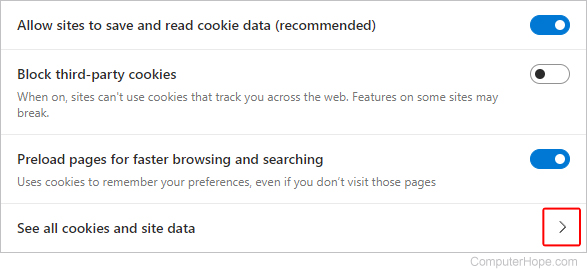
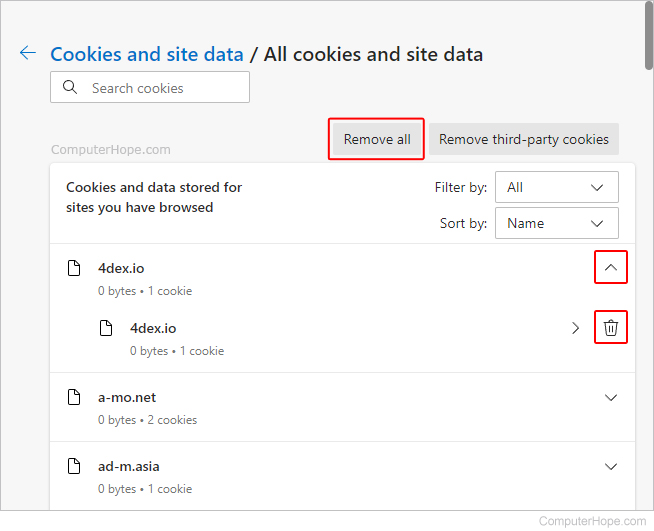
- The next page shows a list of cookies in Edge. Click the Remove all button to clear the full list of cookies. To remove individual cookies, click the down arrow (points up after you activate it) next to the entry to expand it, and then the trash icon.
- When you're finished, close the Settings tab.
After cookies are deleted, if cookies are still enabled on the browser, they are recreated upon revisiting any site that uses cookies.
How to set or change cookie permissions
This section shows how to enable or disable some or all cookies in Microsoft Edge.
- Open the Microsoft Edge browser.
- Click the Settings and more icon in the upper-right corner of the browser window.
- In the drop-down menu, near the bottom, select Settings.
- Under the Settings section on the left, click Cookies and site permissions.
- At the top of the Cookies and data stored section, click the arrow next to Manage and delete cookies and site data.
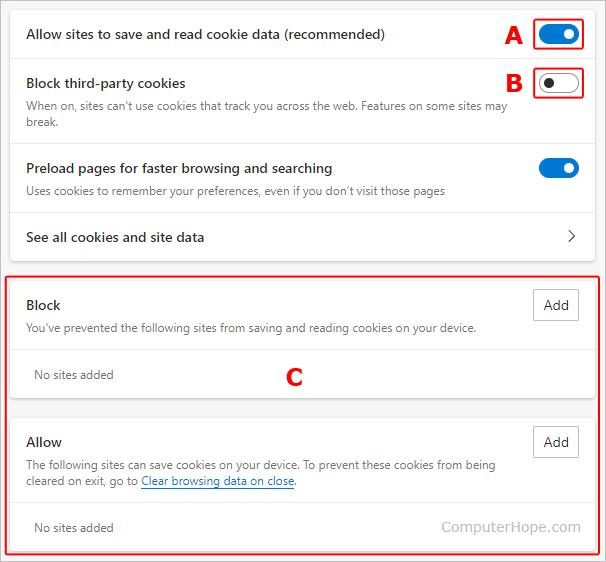
- Under Cookies and data stored / Cookies and site data, you can toggle cookies on and off (A), block third-party cookies (B), or set specific sites in the Block or Allow (C).
- When you're finished, close the Settings tab.
Microsoft Edge Legacy

How to delete cookies
- Open the Microsoft Edge Legacy browser.
- Click the more icon in the upper-right corner of the browser window.
- In the drop-down menu, near the bottom, select Settings.
- In the gray navigation pane, click the Privacy & security option.
- Under Clear browsing data, click the Choose what to clear button.
- Check the box for Cookies and saved website data, if not already checked.
- Click the Clear button at the bottom of the Clear browsing data side window.
After cookies are deleted, if cookies are still enabled on the browser, they are recreated upon revisiting any site that uses cookies.
How to disable or enable cookies
- Open the Microsoft Edge Legacy browser.
- Click the more icon in the upper-right corner of the browser window.
- In the drop-down menu, near the bottom, select Settings.
- In the gray navigation pane, click the Privacy & security option.
- In the Browsing data section, click the Cookies drop-down list.
- Select Block all cookies to disable cookies or Don't block cookies to enable cookies.
Microsoft Internet Explorer

How to delete cookies
- Open the Internet Explorer browser.
- Click Tools in the upper-right corner.
- Move your mouse cursor over Safety and click Delete browsing history.
- Check the box next to Cookies and website data, if not already checked.
- Click the Delete button.
After cookies are deleted, if cookies are still enabled on the browser, are recreated upon revisiting any site that uses cookies.
How to delete cookies in older versions of Internet Explorer
Users of IE (Internet Explorer) 5.x and 6.x users can delete cookies by clicking View, Internet Options, and then the Delete Cookies button.
How to view cookies
- Open the Internet Explorer browser.
- Click Tools in the upper-right corner.
- Click Internet Options.
- In the window, on the General tab, click the Settings button.
- In the window, under the Temporary Internet Files tab, click the View files button.
How to view cookies on older versions of Internet Explorer
IE 5.x and 6.x users running Windows XP or Windows 2000 can view cookies by opening the C:\Document and Settings\<user>\cookies folder (where <user> is your login name).
How to disable or enable cookies
- Open the Internet Explorer browser.
- Click Tools in the upper-right corner.
- Select Internet Options.
- On the Privacy tab, under the Settings section, click the Advanced button.
- Select the Block option for First-party Cookies and Third-party Cookies to disable cookies, or select the Accept option to enable cookies. Also, uncheck the box for Always allow session cookies to disable session cookies, or check the box to enable session cookies.
- Click OK on each open window to save the settings change.
How to disable or enable cookies in older versions of Internet Explorer
- Microsoft Internet Explorer 6.x users can disable or manage their cookie settings by clicking View menu, then Internet Options, and then selecting the Privacy tab.
- Microsoft Internet Explorer 3.x and 4.x users can toggle cookies by clicking the View menu, then Internet Options, and then Advanced. Once you are in this menu, select or deselect Never accept cookies or Warn me before accepting cookies.
Safari

How to view and delete cookies
- Open the Safari browser.
- Select
 from the menu bar at the top-left corner of the screen.
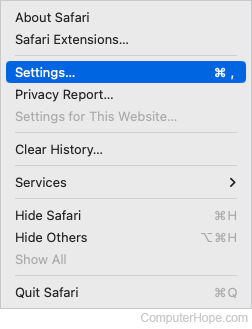
 - In the drop-down menu, select Settings.
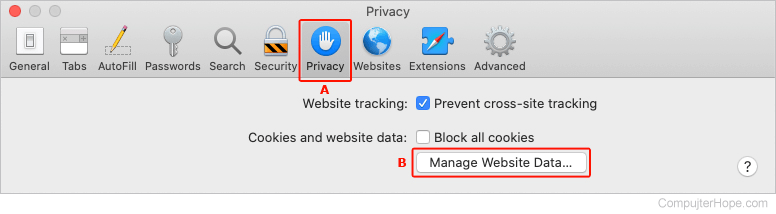
- Click the Privacy tab (A) and then the Manage Website Data button (B).
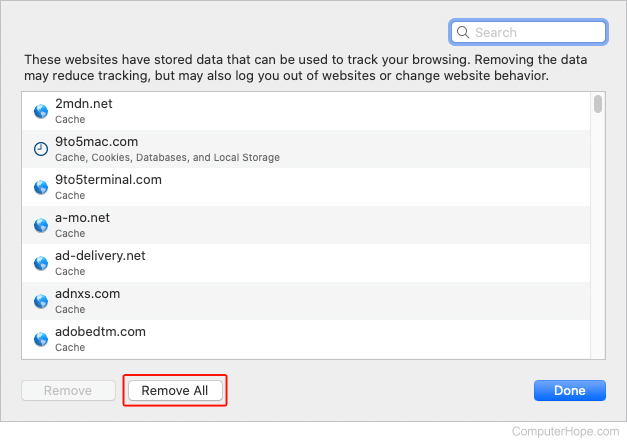
- In the drop-down menu, you can delete cookies individually by selecting them and clicking the
 button. You can also delete all cookies using the Remove All button.
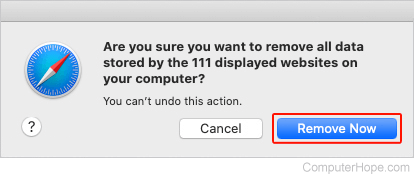
- If you decide to delete all cookies, confirm your choice in the prompt by clicking the Remove Now button.
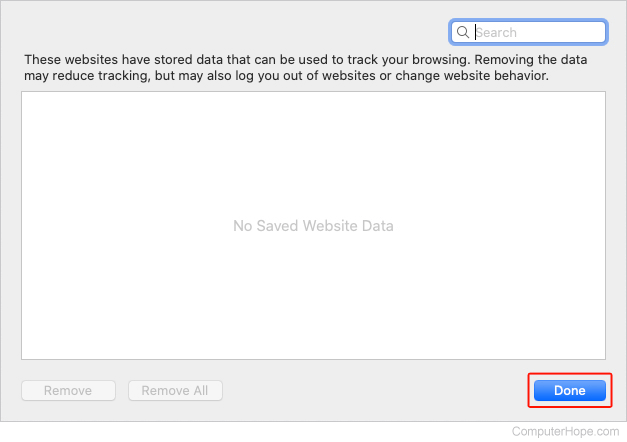
- Once you've verified the cookies are removed, click the Done button in the previous window.
After cookies are deleted, if cookies are still enabled on the browser, they are recreated upon revisiting any site that uses cookies.
How to block or unblock cookies
- Open the Safari browser.
- Select from the menu bar at the top-left corner of the screen.
- Select Settings... from the drop-down menu.
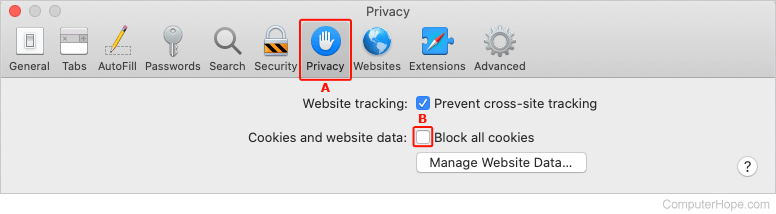
- Click the Privacy tab (A), and then check the box next to Block all cookies (B).
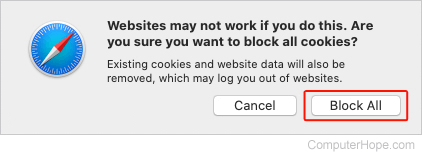
- In the prompt, click the Block All button to confirm.
Opera

How to view and delete cookies
- Open the Opera browser.
- Click
 in the upper-left corner of the browser window.
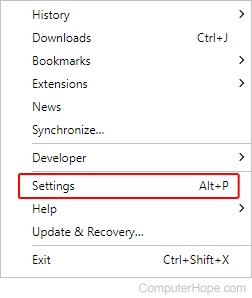
 - In the drop-down menu, select Settings.
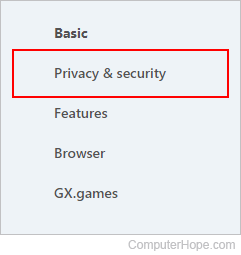
- On the left side of the tab that appears, click Privacy & security.
- In the Privacy and security section, click the Site Settings option.
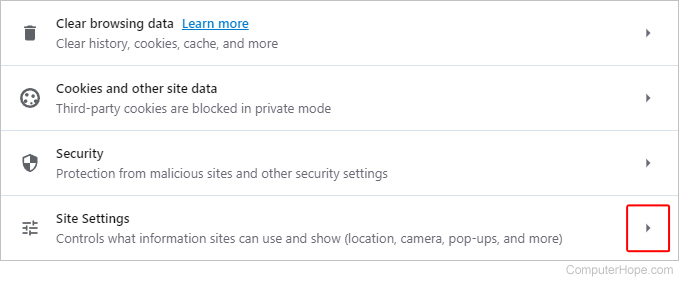
- Near the top, under Permissions, click the Cookies and site data option.

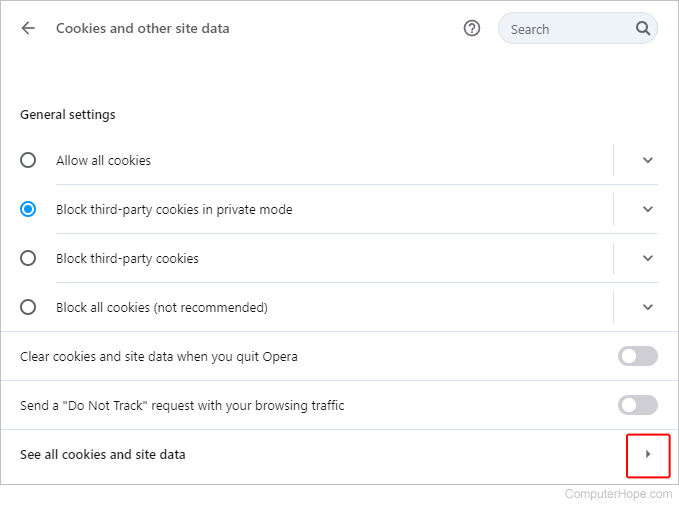
- Click the right arrow next to the See all cookies and site data option.
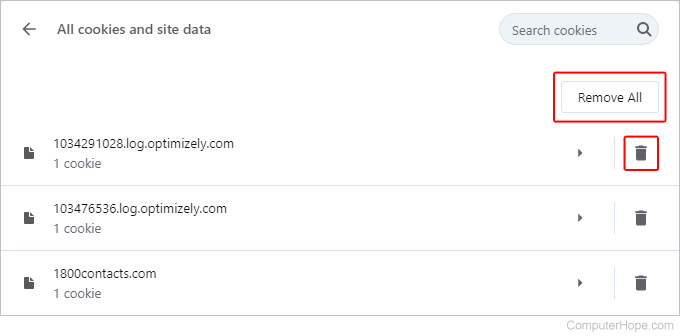
- This section displays a list of the cookies in Opera. Remove cookies individually with the trash can icon, or click the Remove All button.
- Close the Settings tab when you're done.
After cookies are deleted, if cookies are still enabled on the browser, they are recreated upon revisiting any site that uses cookies.
How to set or change cookie permissions
This section shows how to enable or disable some or all cookies in Opera.
- Open the Opera browser.
- Click in the upper-left corner of the browser window.
- In the drop-down menu, select Settings.
- In the window, click Advanced on the left side of the screen, then Privacy & security.
- In the Privacy and security section, click the Site Settings option.
- Near the top, under Permissions, click the Cookies and site data option.
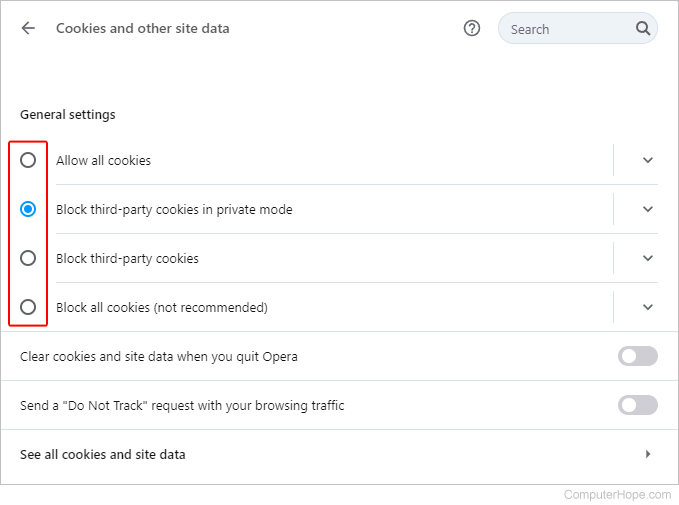
- Under the General settings section of the next page, click the radio button next to the permissions you'd prefer.
- Close the Settings tab when you're done.
You can click the down arrow next to each entry under General settings for more information about each.
Netscape

How to view and delete cookies
Netscape 7.x users can view and delete cookies by clicking the Tools menu and selecting Cookie Manager.
How to disable and enable cookies
- Netscape 4.x users can disable cookies by clicking the Edit menu, Preferences, Advanced, and then selecting Warn before accepting cookies.
- Netscape 7.x users can disable cookies by clicking the Tools menu and selecting Cookie Manager.