
Folder Options
In Windows, Folder Options is a section of the File Explorer that allows the user to customize how files and folders are shown. Below is an example of the Folder Options window with the View tab selected.
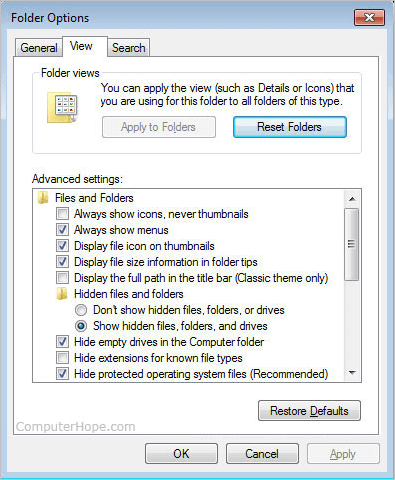
What's available in Folder Options
Once open, Folder Options has three available tabs, General, View, and Search. Below is further information about each tab.
General
In General, the following settings are available.
- Where File Explorer opens by default (e.g., Home or This PC).
- How folders are browsed (each folder opens in the same window or a new window).
- How items are clicked to open (double-click or single-click).
- Privacy settings that enable or disable showing the files and folders that recently accessed. You can also clear the File Explorer history in this section.
View
The View tab (shown earlier), is the most frequently used Folder Options tab because it has the most of the File Explorer options. The first option is the Folder views, which lets you set the default view of how files should be shown for all folders. For example, to always show files as thumbnails, set the view to thumbnail view, go into this section of the Folder Options, and click Apply to Folders. In addition to the Folder views, there are the following folder advanced settings. These settings can be enabled (checked) or disabled (unchecked).
Advanced settings:
- Always show icons, never thumbnails.
- Decrease space between items (compact view).
- Display file icon on thumbnails.
- Display size information in folder tips.
- Display the full path in the title bar.
- Hidden files and folders (show or hide hidden files).
- Hide empty drives.
- Hide extensions for known file types.
- Hide folder merge conflicts.
- Hide protected operating system files (Recommended).
- Launch folder windows in a separate process.
- Restore previous folder windows at logon.
- Show drive letters.
- Show encrypted or compressed NTFS files in color.
- Show pop-up description for folder and desktop items.
- Show preview handlers in preview pane.
- Show status bar.
- Show sync provider notifications.
- Use check boxes to select items.
- Use Sharing Wizard (Recommended).
- When typing into list view (select typed item or type in the search box).
- Always show availability status
- Expand to open folder.
- Show all folders
- Show libraries.
- Show Network.
- Show This PC.
Search
Finally, in the Search tab, you can adjust how Windows searches for files (indexed or non-indexed) and other search settings like if compressed files should also be searched.
How to open Folder Options
In Windows 11, click the meatballs menu (three dots) and click Options.
Or:
In the View tab or file menu click Options.
File, File Explorer, Folder, Navigation pane, Operating system terms, Thumbnail