
How to remove blank lines from a file
There are many ways to remove blank lines from text, files, and documents depending on the computer and program you're using. Below are all of the different ways to remove blank lines.
Computer Hope Text Tool
Using our free online Text Tool, you can remove any blank line from any submitted text. In addition to removing blank lines, you can also replace blank lines with other text and perform other text manipulations from any computer or device.
See our removing blank lines with regular expressions section below for how this tool and other tools use regular expressions to replace blank lines.
Notepad++
Notepad++ is a fantastic free text editor for Microsoft Windows computers that supports regular expression search and replace to replace blank lines in one or more files. Follow the steps below to replace blank lines in your file using Notepad++.
- Download Notepad++ if not already installed on the computer.
- Open Notepad++ and the file you want to edit.
- In the file menu, click Search and then Replace.
- In the Replace box, in the Find what section, type ^\r\n (five characters: caret, backslash 'r', and backslash 'n'). Leave the Replace with section blank unless you want to replace a blank line with other text.
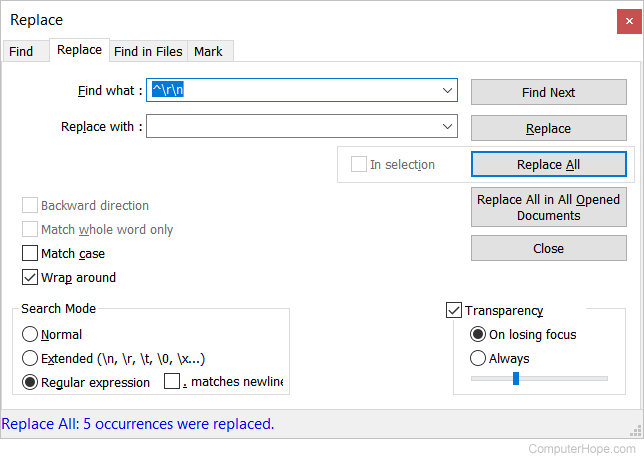
- In the Search Mode section, make sure Regular expression is selected.
- Click the Replace All button to replace all blank lines.
Above, the Notepad++ regular expression looks for new lines (^) with a carriage return (\r) and newline (\n). With some files, there may not be a carriage return and only new lines which means you'd use (^\n) as your find text. Additional information and examples on regular expressions is on our regular expression page.
If the replace is not working for your file, view the files formatting marks by clicking the pilcrow / paragraph icon in the toolbar. Once selected, carriage returns are CR (carriage return) and new lines are LF (line feed).
TextPad
TextPad is a great text editor to replace blank lines. Follow the steps below to replace blank lines in an open TextPad file.
- Open TextPad and the file you want to edit.
- Click Search and then Replace.
- In the Replace window, in the Find what section, type ^\n (caret, backslash 'n') and leave the Replace with section blank, unless you want to replace a blank line with other text.
- Check the Regular Expression box.
- Click the Replace All button to replace all blank lines.
Above, the find text (^\n) is a regular expression that tells TextPad to look at the start of a line (^) for a newline (\n). Additional information and examples on regular expressions is on our regular expression page.
Microsoft Word
In Microsoft Word, there are often spaces between paragraphs and not just the lines of text. To remove extra spaces between paragraphs, follow the steps below.
- Open Microsoft Word and the document you want to edit.
- On the Home tab, click Replace or press the keyboard shortcut Ctrl+H.
- In the Find and Replace window, in the Find what section, type ^p^p and in the Replace with section, type ^p (only once).
- Click the Replace All button.
Following the steps above replaces two paragraph marks that are next to each and creating the extra blank line between the paragraph.
If there are multiple lines of spacing between one or more paragraphs, clicking the Replace All button more than once continues to replace the extra spaces. If there is extra spacing, you may need to press the button a few times to remove all extra spacing. Alternatively, you can also add more than two ^p as your find text.
Microsoft Notepad and WordPad
Microsoft Notepad and WordPad are basic text editors and do not have regular expression or special character replace options. So, it is not possible to replace blank lines in either of these programs. You can copy the text from Notepad or WordPad and paste it into our free online Text Tool to remove the blank lines or follow the Notepad++ options.
Vim
In the vim text editor, you can delete all blank lines with the global (g) command:
:g/^$/d
This command says, "For the entire file (g), search for lines containing only the beginning (^) and ending ($) of a line, and delete (d) those lines."
This command will not delete lines containing whitespace. To also delete lines containing only whitespace, you can use \W*, which means "zero or more whitespace characters."
:g/^\W*$/d
This command deletes any line containing only zero or more whitespace characters. Lines that contain any other type of character are not deleted.
^, $, *, and \W are special metacharacters used in regular expressions. For more information about regular expressions, continue reading the next section.
Removing blank lines with regular expressions
Learning the basics of regular expressions help you replace blank lines and almost any other type of text or formatting if the program you're using supports regular expressions. Most advanced text editors, HTML editors, and text editors support the ability to find and replace text using regular expressions. If you understand the basics mentioned below, you can replace blank lines in any program.
All programs that support regular expressions have a check box or selection for Regular expressions in the find and replace option of the program. Some programs may hide this option in an Advanced section.
For replacing blank lines, first familiarize yourself with the caret (^), a regular expression and a way of saying the beginning of the line. For example, the regular expression ^a would be "a" at the beginning of a line.
Next, learn at least two escape sequences, the \n escape sequence, a newline and \r, a carriage return. Depending on your editor you may need both escape sequences or only one.
Finally, with an understanding of these three regular expression elements, you can place them together. For example, doing a find and replace for ^\n looks for lines that begin with a newline. Since a blank line has no text, and only a return character, this regular expression would replace all blank lines.
If the regular expression option is not selected and you perform a regular expression search, no matches are returned since it is only trying to find the text. For example, if you search for "^" without enabling regular expressions, the program searches for the actual ^ character and not the function of the ^ character.
Not all programs that support regular expressions use the same syntax for regular expressions. In other words, a program may use a different character to represent a beginning of a line or a different method of entering an escape sequence. If following the steps above does not work, you may need to consult the product's documentation to learn how they're using regular expressions.