
Browser
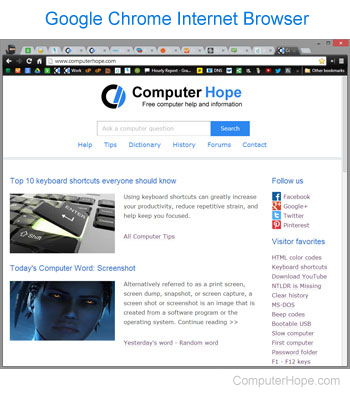
Alternatively called a web browser or Internet browser, a browser is a program to present and explore content on the World Wide Web. These pieces of content, including pictures, videos, and web pages, are connected using hyperlinks and classified with URIs (Uniform Resource Identifiers). This page is an example of a web page that can be viewed using a browser.
There have been many different web browsers that have come and gone over the years. The first, named WorldWideWeb (later changed to Nexus), was invented by Tim Berners-Lee in 1990. However, the first graphical browser and widely used browser that helped bring popularity to the Internet was NCSA Mosaic.
Browser was featured as a top term of 1996.
List of current Internet browsers
 Google Chrome - Chrome help
 Microsoft Edge - Edge help
 Apple Safari - Safari help
 Mozilla Firefox - Firefox help
 Opera - Opera help
 Amazon Silk
 UC Browser
 Microsoft Internet Explorer - IE help
Where can I download a different browser?
The following links open in a new window. Once downloaded, you'll need to open your download folder and start installing the browser to be installed on your computer. If you need help finding the download, see: Where are the files I downloaded using my web browser?
As long as your computer meets the browser requirements, your computer can have more than one (or all) of the above browsers installed.
What happens when you first open a browser?
When you first open your Internet browser, if you're connected to the Internet, it loads your homepage or shows a start screen with your favorite pages. Once open, you can browse the Internet by following hyperlinks or using a search engine to search for what you want to find.
If you changed your browser settings, it may also open the last opened web pages or all the tabs you had opened when it was last closed.
What is needed for a browser to work?
A browser needs a computer, smartphone, or tablet that meets the system requirements with a working Internet or intranet connection that can connect to other computers. If there is no Internet connection, you'll get an error.
Why do I get errors in my browser?
While using the browser, it may encounter many different errors. Typically, you'll get an HTTP (hypertext transfer protocol) status code as an error. For example, while browsing, you may get a 404 error, which indicates the page you're attempting to access no longer exists. See the following list for a full list of HTTP status error codes and their meanings.
Getting around in a browser
Each browser has a navigation toolbar that helps you find your way around the Internet. The images below show that the navigation toolbar has undergone significant changes to streamline its appearance and functionality. However, the toolbar always has the navigation arrows and address bar.
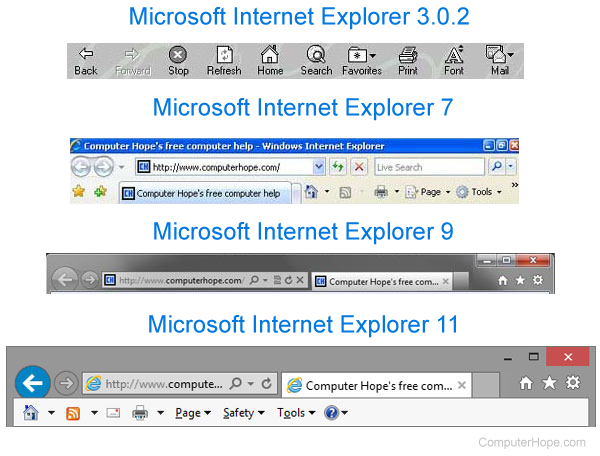
Overview of browser bar buttons, menus, and functions
Over time, many Internet browser buttons and options have been moved or removed. Consequently, some options below may not be visible on your browser.
In certain browsers, pressing Alt on your keyboard shows hidden options.
Settings (menu)
Nearly all modern browsers today have moved advanced options and features to the upper-right or left corner of the browser window. Each browser's menu button is different:
For example, Internet Explorer uses  (gear icon), Chrome uses
  (kebab menu), Firefox uses
  (hamburger menu), and Opera uses the
  icon.
icon.
Back
The back button visits the previous page that referred you to the page you are currently viewing. This button often resembles an arrow pointing to the left.
Forward
The forward button moves you forward a page. It only works if you have previously used the back button. If you have not gone back and your browser shows a forward button, it will be grayed out.
Stop
The stop button no longer exists in most modern web browsers. However, its function (to stop a web page from loading) may still be executed by pressing Esc.
Refresh (reload)
As you browse the Internet, the browser cache's data it downloads, meaning they store some or all parts of each page you visit on your computer. This feature is useful as it allows the browser not to need to download the full page each time it's visited. On some sites, you may want to refresh the page to get the latest version (e.g., on a news site). The Refresh button can also be used to reload a page that failed to load because of an error.
Press F5 or Ctrl+R to refresh the page from the keyboard. If F5 is not working, you can also do a force reload by pressing Ctrl+F5 in Windows or on an Apple computer, press Command+R.
Home
The Home button returns users to their default web page, the same page that loads when the browser is first opened.
Search
In the past, the Search button opened the default search page or executed a search on the text found in a search text field. Today's browsers have an omnibox, a search function built into the address bar.
Fullscreen
This function makes the browser window a fullscreen, temporarily removing the toolbar, buttons, and address bar. This view mode is toggled on and off by pressing the F11 on your keyboard.
History
This feature allows users to view the pages that have been visited since the browser history was last cleared or created. All your saved pages are stored in your Internet cache.
The keyboard shortcut for history for most browsers is Ctrl+H.
Favorites (bookmarks)
This folder stores websites or pages chosen by the user. The term "Favorites" is used with Microsoft Internet Explorer; in other browsers, this may be known as bookmarks or a hotlist.
Although no longer a button, this feature is still accessible by pressing Ctrl+P on the keyboard.
Font (size)
This button no longer exists but was used to increase or decrease the size of a font, an option now covered by the zoom feature.
Zoom
On modern browsers, holding down Ctrl and pressing either the "+" (plus key) or "-" (minus key) zooms in or out, increasing and decreasing the size of the font and images. To reset the zoom function to its default size, press Ctrl+0 (zero) at the same time.
Used to open a user's preferred e-mail program. Today, this option is no longer found in browsers.
Edit
Used to open and edit the web page you are viewing in an HTML editor. Today, it is no longer found in browsers.
ActiveX, Address bar, BHO, Bookmark, Browse, Cookie, Cross-browser, Internet, Internet terms, Konqueror, Lynx, Mosaic, Netscape, Omnibox, Plug-In, SeaMonkey, Tabbed browsing, Web, Web design terms