
Computer system resources
System resources ABCs
System resources are what allocate and set up your computer hardware components and allow the hardware to work without conflicting with other hardware in your computer. Each hardware device has the following hardware system resources.
What is an IRQ?
Short for interrupt request, an IRQ is a signal with a direct line to the processor and allows the hardware to "interrupt" (stop) the processor momentarily. Every IBM compatible computer has a maximum of 15 IRQs and are prioritized in the computer according to the importance of the device. See our IRQ definition for additional information, related links, and a listing of IRQs.
What is an I/O?
An Input/Output (I/O) is a locations in memory that stores and is referenced by other computer hardware and software. See our I/O port definition for a complete explanation and related links on this system resource.
What is DMA?
DMA or Direct Memory Access are pathways provided by the hardware to allow the hardware direct access to the computer's memory. See our DMA definition for further information, related links, and a listing of DMAs.
Checking resource availability
If you have Windows 2000 or Windows XP, follow the steps below. Click Start, Programs, Accessories, System Tools, and then System Information to display the system resource information.
If you have Windows 95, Windows 98, or Windows Me, follow the steps below.
- Open the Device Manager.
- Double-click the computer (the first icon listed in Device Manager). You should see numbers 00 - 15; any number that is not listed is an indication that the IRQ is free. If all numbers are listed once or more, this would be an indication that all IRQs are being used.
In Windows 3.x or MS-DOS, to determine the currently used resource settings, use the MSD command, located in the DOS directory.
Assigning a resource setting
Older devices use jumpers to set up the resource settings for a hardware device. If your expansion card has jumpers, set the jumpers to the settings available on your computer.
If your expansion card has no jumpers or dip switches, the card is a Windows card (plug and play card) and uses Windows to be configured. Many of these cards are configured through the software used to install the card or Device Manager.
Changing resources
In Windows, PnP (plug and play) cards can be adjusted in the Device Manager. If your device is encountering conflicts with another device in Device Manager, double-click the device in the Device category.
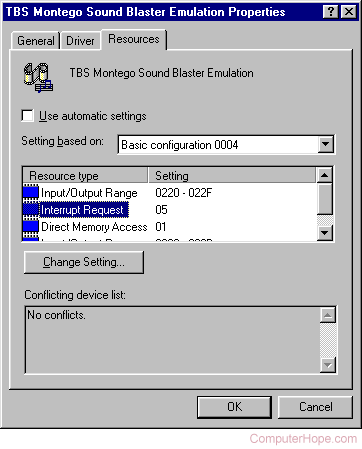
In early versions of Windows, adjust the settings of the device by clicking the Resource tab. In Resources, uncheck the box for the "Use automatic settings" option. Once unchecked, change the Basic Configuration. As you change the basic configuration, each of the resource settings change. If you only have one option for resource settings, it's likely that the device may be a Legacy device or may only work with one configuration mode.
All IRQs are used, now what?
If your computer is utilizing all IRQs, unfortunately, there are only a few ways around this, which can be very complicated. The first and easiest way would be to attempt to remove devices from the computer to allow IRQs to become free or substitute for external devices. Alternatively, you could assign the IRQ settings to a setting already being used by another device. However, when doing this, we recommend you choose a device that is rarely used. Windows may report there's a device conflicting; however, in some instances, the devices can work on the same IRQ but not at the same time.
Can I add an IRQ?
No, all PCs are limited to IRQs 00-15, even the latest PCs have this limitation. However, devices such as a SCSI (small computer system interface) card and a USB port can support multiple devices with one IRQ. With USB it can have up to 127 devices connected at once.
IRQs not recommended
When connecting devices, we recommend you stay away from IRQ 9, the cascade port with IRQ 2. However, it's a good idea to assign devices you want to move and do not plan to use to IRQ 9 to allow extra IRQs for a device you may plan to use. A good example of this recommendation is moving the MPU-401 device, a midi device used for musical keyboards.