
How to find my IP address
Knowing your IP address can be helpful for troubleshooting many network problems and well and Internet connection issues. However, there are different types of IP address: local and external. The information on this page shows you how to determining your local IP address. To know your external or public IP address (the one the Internet sees), use our custom system information tool.
Determining the IP in Microsoft Windows
- Open the command line.
- From the prompt, type ipconfig and press Enter.
- You should see information similar to what is shown below. Look for the number sequence next to IPv4 Address.
Windows  IP Configuration

Ethernet adapter Local Area Connection:

Connection-specific DNS Suffix . :
IPv4 Address. . . . . . . . . . . . : 192.168.1.101
Subnet Mask . . . . . . . . . . . . : 255.255.255.0
Default Gateway . . . . . . . . . . : 192.168.1.1
If you have more than one network adapter (e.g., a wireless adapter and a network interface card), the IP address for each of them is listed when using this command.
Graphical representation of network settings
Windows 11
Microsoft Windows 11 users can view their computer network settings through Windows network properties by following the steps below.
- In the search box, type network status and press Enter.
- In the Network and Sharing Center window, click the network connection type or Wi-Fi SSID (service set identifier).
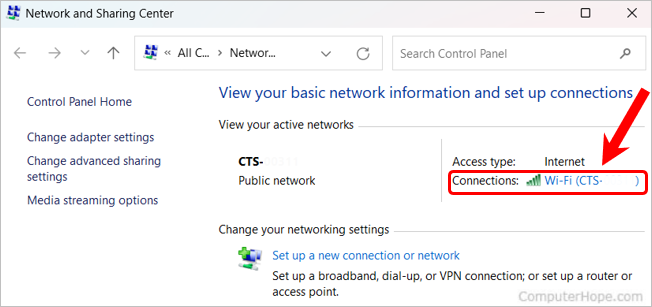
- In the network status window that opens, click the Details button.
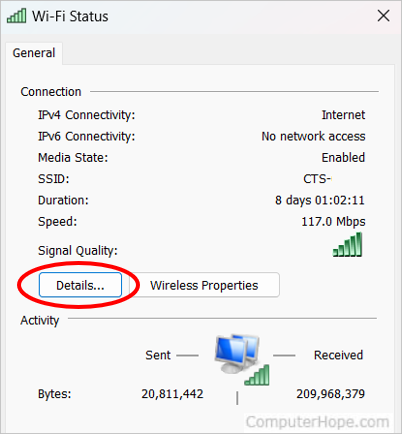
- In the Network Connection Details window, the network information is displayed.
Windows 10
Microsoft Windows 10 users can view their computer network settings through Windows network properties by following the steps below.
- In the search box, type network status and press Enter.
- In the Network status window, click the Properties button below the network connection type or Wi-Fi SSID.
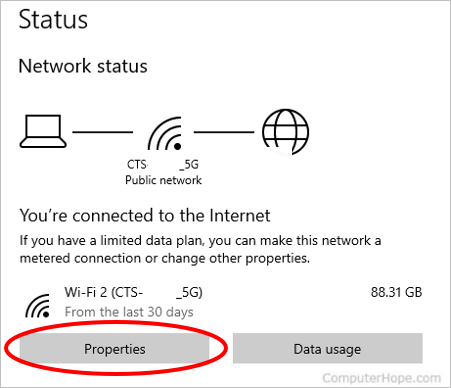
- In the View your network properties window, the network information is displayed.
Windows 7
Microsoft Windows 7 users can view their network details through Windows by following the steps below.
- Click Start or press the Windows key.
- In the search box, type network and sharing and press Enter.
- In the Network and Sharing Center window, next to Connections:, click your connection type. For example, on a wired connection, click Local Area Connection.
- In the Status window, click the Details button.
- In the Network Connection Details window, all your network information is displayed.
Windows XP
Microsoft Windows XP users may get a GUI (graphical user interface) representation of their network by right-clicking the network icon in their windows notification area and selecting Status. In the Local Area Connection Status window, click the Support tab.
Windows 98
Microsoft Windows 98 users may also get a GUI representation of their network settings by clicking Start, Run, and typing ipconfig in the run line. Unfortunately, all later versions of Windows no longer have this feature.
See the IP in Linux and Unix, BSD 4.2+, and Apple OS X
For BSD (Berkeley Software Distribution), Linux, or Unix users, to view their IP address or network information, users must have administrator or root privileges.
- Open the Linux or Unix shell if you are utilizing a GUI interface for your Linux or Unix machine.
- From the prompt, type "ifconfig eth0" (without the quotes) and press Enter. Once done, a list of network information similar to what is shown below should appear.
eth0 Link encap:Ethernet HWaddr 00:A0:24:72:EB:0A inet addr:10.10.10.2
Bcast:10.0.0.255 Mask:255.255.255.0 UP BROADCAST RUNNING MULTICAST
MTU:1500 Metric:1 RX packets:5569799 errors:32 dropped:32 overruns:0 frame:6 TX
packets:3548292 errors:0 dropped:0 overruns:0 carrier:3 collisions:14 interrupt:18
base address:0xda00
As seen above, the network settings are displayed for all the network devices when running the "ifconfig" command. First, in the example above, we have the network settings for the "lo" (local loopback). Next is the actual network settings of your network adapter.
View the IP address of a Mac

To view an IP address of an Apple Mac computer, follow the steps below.
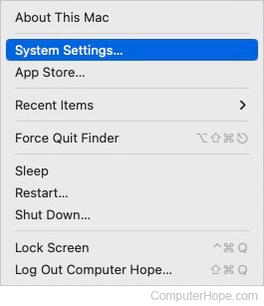
- From the desktop, click the Apple icon in the upper-left corner of the screen to display the Apple menu.
- In the drop-down menu, select System Settings.
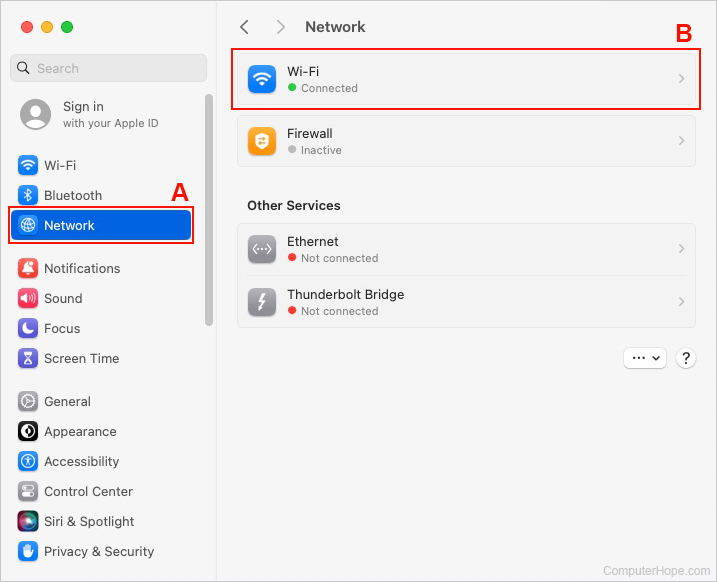
- On the left side of the screen, click Network (A). Then, in the section to the right, click the device you're using to connect to the Internet (B).
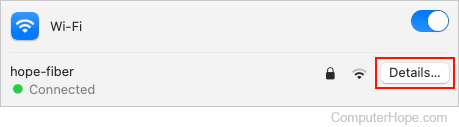
- On the right side of the connection, click the Details button.
- Your IP and Router addresses are shown in the lower-right corner of the window.
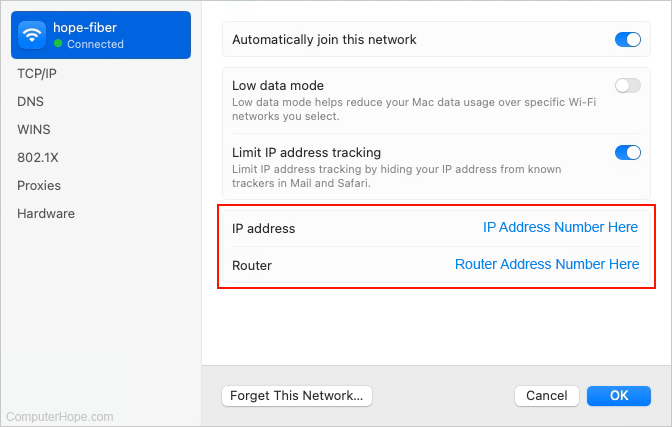
You can see the IP address of other network controllers by selecting them from the Network section described above.
Android smartphone or tablet
As there are many brands of Android smartphones and tablets, the instructions for your device may differ. However, the process is usually similar for most devices. The instructions below were created using a Google Pixel.
- Go to the apps list and tap the Settings
 icon.
icon. - Scroll to the bottom and select About phone (or something similar on a tablet).

- On the About phone screen (or something similar on a tablet), scroll to the IP address section near the bottom.
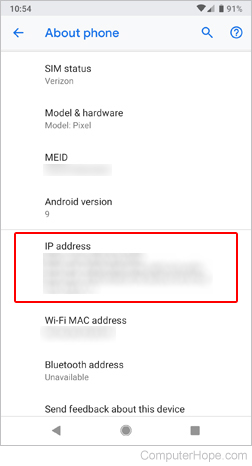
You likely see four different IP addresses. The reason is that there is an internal and external IP address for your Wi-Fi network and mobile data connections.
Apple iPhone and iPad
- On the home screen, tap the
 icon.
icon. - On the Settings screen, tab the Wi-Fi option.
- Ensure the Wi-Fi is turned on and connected to the correct wireless network.
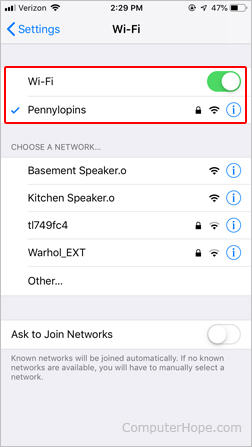
- Click the
 button next to your Wi-Fi connection.
 - Your IP address is shown on the next screen.
