
How to move the mouse cursor with the keyboard in Windows

Microsoft Windows has a feature called Mouse Keys that lets you move the mouse pointer one pixel at a time by pressing the arrow keys on your numeric keypad. Mouse Keys is an "Ease of Use" feature that helps those who cannot operate a mouse. Other users may also find Mouse Keys helpful if their mouse breaks or runs out of batteries. The following sections show you how to turn Mouse Keys on and off, and how to utilize the feature via the numeric keypad.
How to enable/disable Mouse Keys
Using keyboard shortcut
In all versions of Windows, toggle Mouse Keys on and off with a keyboard shortcut.
- Press the Left Alt+Left Shift+Num Lock keys at the same time to display a dialog box similar to the example below.
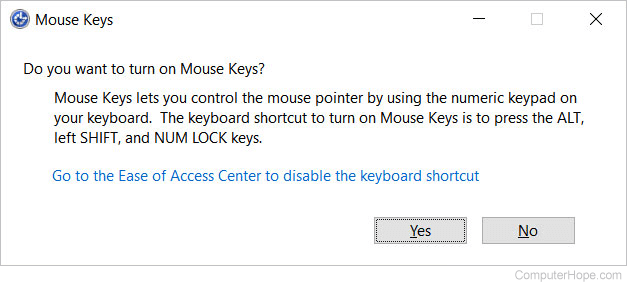
- When the window appears, press the Spacebar or Enter to choose Yes.
- Repeat this process to turn Mouse Keys off. A descending chime is heard when Mouse Keys is disabled.
You may need to press Num Lock two times while pressing the Left Alt and Shift keys to turn off Mouse Keys, as there is a slight delay in the process.
Windows 11
In Windows 11, toggle Mouse Keys in the Accessibility settings. If your mouse isn't working, use the Tab key and spacebar to navigate menus.
- Press the Windows key, type accessibility mouse settings, and press Enter.
- Press the Tab key until you see a rectangular box around the toggle switch for the Mouse keys option. Press the Spacebar to change the toggle to the "On" position.
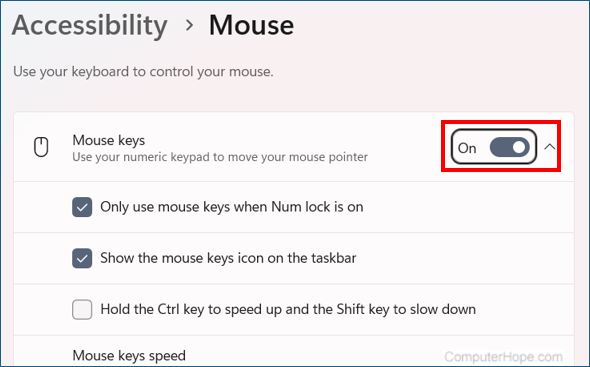
- Press Alt+F4 to close the settings window.
After turning Mouse Keys on using this method, you may need to press Num Lock again to start using the feature.
Or
- Press the Windows key+R to open the Run box.
- Type ms-settings: and press Enter. (Don't forget the colon : after ms-settings).
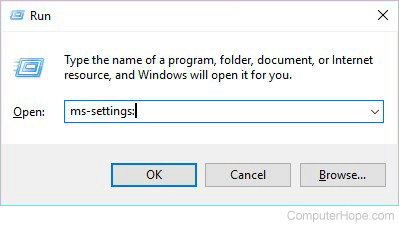
- In the Settings window, the text cursor is already in the search box. Type mouse keys. Press the down arrow on your keyboard to select the first suggestion, Mouse Keys, and press Enter.
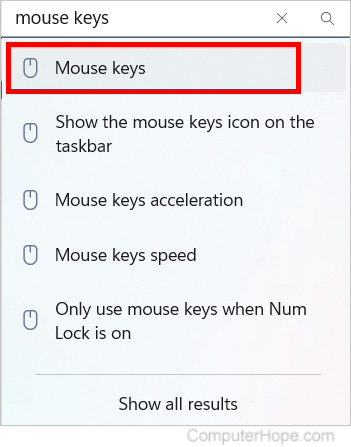
- The Accessibility Mouse settings for your mouse are opened.
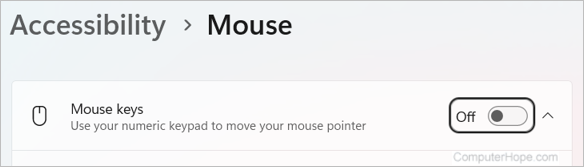
- Press the Tab key until you see a rectangular box over the toggle switch for the Mouse keys option. Press the Spacebar to move the switch to the "On" position.
- Mouse Keys are now enabled, but by default, they only work if Num Lock is enabled. Press Num Lock on your keyboard to enable or disable it.
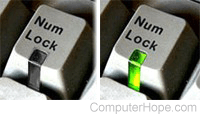
A high-pitched beep is heard when you turn on Num Lock. This sound lets you know your numeric keyboard is controlling your mouse pointer. Press 8, 6, 4, and 2 (up, left, right, down) on your numeric keypad, and the mouse pointer moves one pixel in that direction.
If you are using a laptop, enabling Num Lock may require you to press Fn+Num Lock. Some laptop numeric keypads share keys with other numbers and keyboard letters (e.g., 7, 8, 9, U, I, O, J, K, L). When the Num Lock is on, these keys produce a number when pressed. See your laptop's manual for information specific to your laptop.
To stop using Mouse Keys, press Num Lock to turn off your numeric keypad. To permanently disable Mouse Keys, repeat steps 1–5 above, and change the Mouse Keys toggle to the Off position.
Windows 10
In Windows 10, toggle Mouse Keys in the Ease of Access settings. If your mouse isn't working, use the Tab key and Spacebar to navigate menus.
- Press the Windows key, type Ease of Access mouse settings, and press Enter.
- Press the Tab key until you see a rectangular box around the toggle switch in the Control your mouse with a keypad section. Press the Spacebar to change the toggle to the "On" position.
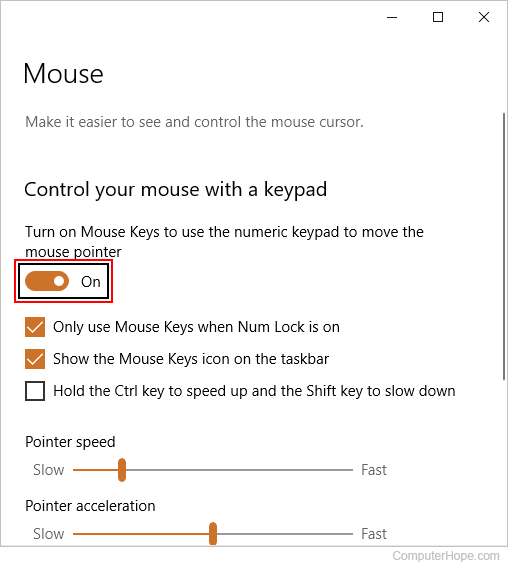
- Press Alt+F4 to close the settings window.
After turning Mouse Keys on using this method, you may need to press Num Lock again to start using the feature.
Or
- Press the Windows key+R to open the Run box.
- Type ms-settings: and press Enter. (Don't forget the colon : after ms-settings).
- In the Settings window, the text cursor is already in the search box. Type mouse keys. Press the down arrow on your keyboard to select the first suggestion, Turn Mouse Keys on or off, and press Enter.
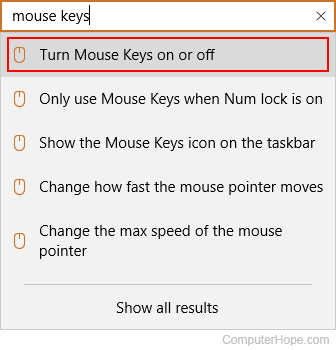
- The Ease of Access settings for your mouse are opened.
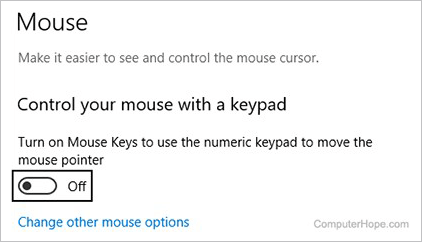
- Press the Tab key until you see a rectangular box over the toggle switch in the Control your mouse with a keypad section. Press the Spacebar to move the switch to the "On" position.
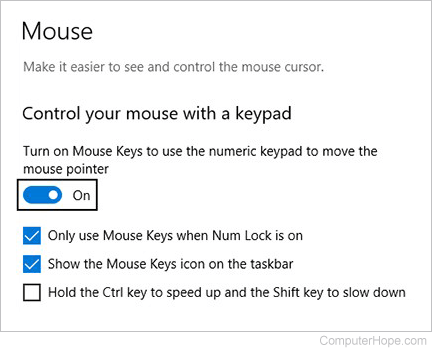
- Mouse Keys are now enabled, but by default, they only work if Num Lock is turned on. Press Num Lock on your keyboard to toggle the feature on and off.
A high-pitched beep is heard when you turn on Num Lock. This sound lets you know your numeric keyboard is controlling your mouse pointer. Press 8, 6, 4, and 2 (up, left, right, down) on your numeric keypad, and the mouse pointer moves one pixel in that direction.
If you are using a laptop, enabling Num Lock may require you to press Fn+Num Lock. Some laptop numeric keypads share keys with other numbers and keyboard letters (e.g., 7, 8, 9, U, I, O, J, K, L). When the Num Lock is on, these keys produce a number when pressed. See your laptop's manual for information specific to your laptop.
To stop using Mouse Keys, press Num Lock to turn off your numeric keypad. To permanently disable Mouse Keys, repeat steps 1–5, and change the Mouse Keys toggle to the Off position.
Windows 8
If the keyboard shortcut listed above don't work, enable or disable Mouse Keys using the following steps.
- Press the Windows key on your keyboard and type Ease of Access mouse settings.
- Arrow down to the Ease of Access mouse settings entry in the list and press Enter.
- Press Tab to navigate to the toggle switch under Mouse Keys.
- Press the Spacebar to change the toggle to the On position.
- Press Alt+F4 to exit this menu.
Windows XP, Vista, and 7
If the keyboard shortcut above does not work, enable or disable Mouse Keys using the following steps. If your mouse isn't working, use the Tab key and Spacebar to navigate menus.
- While viewing the desktop, press the Windows key or click Start in the lower-left corner.
- Select Control Panel from the list on the right side.
- In the Control Panel, open Ease of Access.
- Under Ease of Access Center, select Change how your mouse works.
- Check the check box next to Turn on Mouse Keys.
- Click Apply, then OK.
To change the cursor's movement speed or other settings, select Set up Mouse Keys.
How to use Mouse Keys
The following table shows the keys on the Numeric Keypad and how they interact with the mouse cursor. Make sure you're only using the Keypad to execute these actions.
| Desired Action | Key Combination |
|---|---|
| Move up and to the left | Press 7 |
| Move up | Press 8 |
| Move up and to the right | Press 9 |
| Move left | Press 4 |
| Move right | Press 6 |
| Move down and to the left | Press 1 |
| Move down | Press 2 |
| Move down and to the right | Press 3 |
| Select the left mouse button | Press / |
| Select both of the mouse buttons | Press * (asterisk) |
| Select the right mouse button | Press - |
| Click | While pressing the left button, press 5. |
| Right-click | While pressing the right button, press 5. |
| Double-click | While pressing the left button, press +. |
| Drag an item | Point to the item, then press 0. |
| Drop the item you are dragging | Press . (period) |