How to send an attachment or photo through e-mail
While adding attachments to an e-mail is similar in most cases, there are too many e-mail programs for us to cover them all. This page contains instructions to attach a photo, picture, document, PDF (Portable Document Format), and other files in popular e-mail programs and services. You may have to adapt the provided steps to fit the specific e-mail program or service you use.
Most e-mail service providers do not allow you to send executable files, like .bat, .bin, or .exe files, as e-mail attachments when using their services. Some scripting files, like JavaScript, Perl, or PHP (PHP: Hypertext Preprocessor), may also not be allowed as an e-mail attachment.
Select your program or service from the list below and follow the instructions.
Tips on sending attachments
The following are important points to consider when sending any attachment through e-mail.
- It is common courtesy to send only one to five attachments in a single e-mail. If you have more than five pictures, we suggest you post them online and send a link to that site, or compress all the files into one file.
- To send a video through e-mail, it's a better idea to send a link to the video instead. For example, post on YouTube, and then link to it on YouTube.
- To send a file larger than 25 MB, we suggest you post it using one of the services mentioned above, as most Internet e-mail services have that as their limit. For more information, see our page on how to send big attachments.
- Consider using an image editor to reduce the size of images. Images often take up a considerable amount space. Not only does this cause longer download times, but it reduces the possible number of images to send.
- Attach multiple pictures at the same time by pressing Ctrl and clicking each file individually.
- Drag-and-drop attachments to the body of an e-mail message.

Gmail
- Log in to your Gmail account.
- In the upper-left corner of the window, click the
 button to create a new e-mail message. You may also reply to a message you received previously.
 - When you're ready to insert an attachment in the body of your message, click the
 icon at the bottom of the message window.

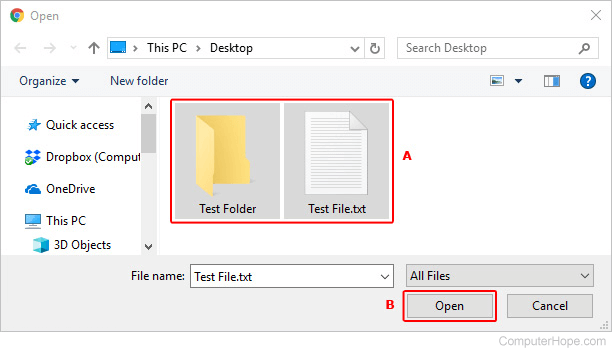
- Navigate to the location of the file(s) you want to attach, make your selections (A), and click Open (B).
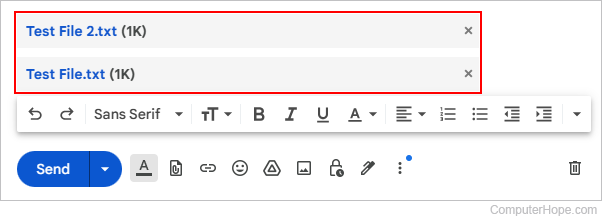
- When you've successfully attached your items, you see them at the bottom of the body of your message.
- When you've finished composing your message, click the
 button.

Outlook.com (formerly Hotmail)
- Log in to your Microsoft Outlook.com e-mail account.
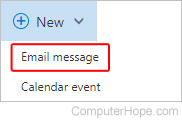
- Near the top of the window on the left side, click the down arrow next to New and select Email message. You may also reply to a message you received previously.
- When you're ready to insert an attachment in the body of your message, click the
 icon at the bottom of the message window.

- Navigate to the location of the file(s) you want to attach, make your selections (A), and click Open (B).
If you use an online file option (e.g., OneDrive), check the boxes next to the files you want to attach and click  at the bottom of the window.
- After you select the files you want to send, click Attach as copies on the next screen.
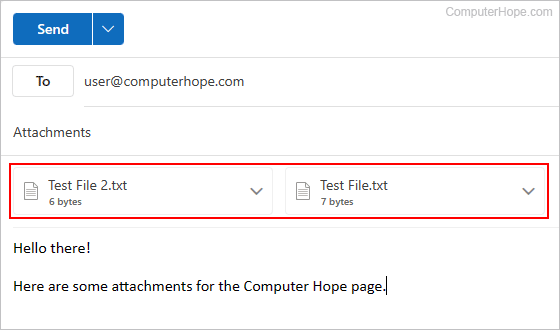
- When you've successfully attached your files, you see them at the top of the message body message.
- When you've finished composing your message, click the
 button.

Yahoo!
- Log in to your Yahoo! e-mail account.
- In the upper-left corner of the screen, click the
 button. You may also reply to a message you received previously.
 - In the bottom of the message body message, click the
 icon.
icon.

- Navigate to the location of the file(s) you want to attach, make your selections (A), and click Open (B).
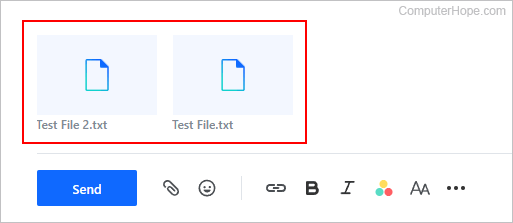
- When you've successfully attached your items, you see them at the top of the body of your message.
- When you've finished composing your message, click the
 button.
Microsoft Outlook and Outlook Express
- Open Microsoft Outlook.
- Reply to an existing e-mail, or compose a new e-mail by clicking the Message tab in the top-left portion of the program window.
- Click the Attach File icon in the top-middle portion of the screen (it looks like a paper clip). Alternatively, click Insert at the top of the window and select Attach File.
- Select a recent file or click Browse This PC.
- Navigate to the location of the file(s) you want to attach, make your selections (A), and click Open (B).
- If the attachment is successfully added, it is displayed below the Subject line, next to Attached in your message.
- Once you're finished composing the message, click the Send button on the left side of the message window.
Apple Mail
This section contains instructions for those using macOS on a desktop or laptop computer. If you're on an iMac or MacBook, follow the steps below.
- Open Apple Mail.
- On the top-right side of the screen, click the Compose new message button.

- When the new message appears, click the Attach a document to this message button (paper clip) in the upper-right corner.

- Locate the image you want to send and click the
 button.
 - Enter the address of the user who you want to send the message.
- Click the Send button at the top-left corner of the screen.


Mozilla Thunderbird
- Open Mozilla Thunderbird.
- Reply to an existing e-mail, or compose a new e-mail by clicking the Write icon in the top-left portion of the program window.
- In the e-mail, click the Attach icon (looks like a paper clip).
- Navigate to the location of the file(s) you want to attach, make your selections (A), and click Open (B).
- If the attachment is successful, you see the file(s) in your message.
- Once you've finished typing your message, click the Send button located in the upper-left corner of the window.
Mail app on iPhone or iPad
- Access the Photos app to view pictures on the iPhone or iPad.
- Find and tap the picture you want to attach to an e-mail.
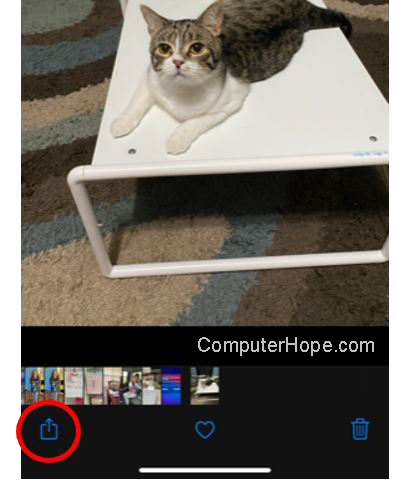
- When viewing the picture, tap the
 icon at the bottom-left corner of the screen.
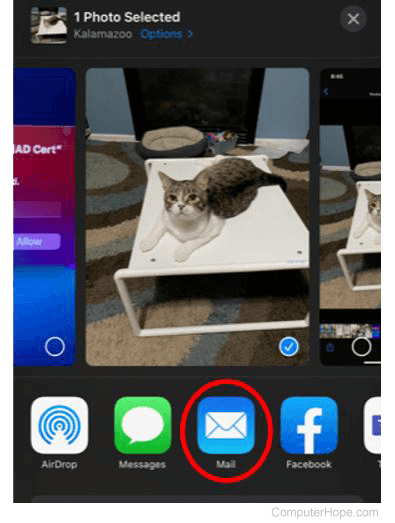
- On the Photo Selected screen, tap the Mail icon.
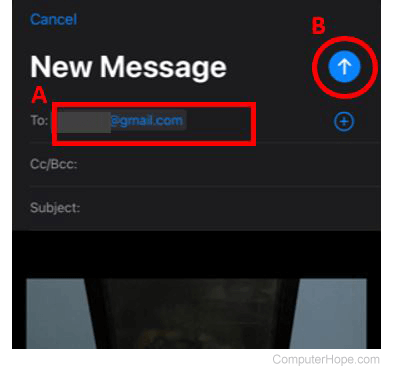
- A new e-mail message is opened with the picture attached and displayed in the body of the e-mail. Enter the e-mail address for who to send the e-mail to (A), the e-mail subject, and any text you want to include in the message body.
- Tap the Send icon (B) at the upper-right corner of the New Message screen to send the e-mail.
Mail app on Android phone or tablet
- Access the Photos app to view pictures on the phone or tablet.
- Find and tap the picture you want to attach to an e-mail.
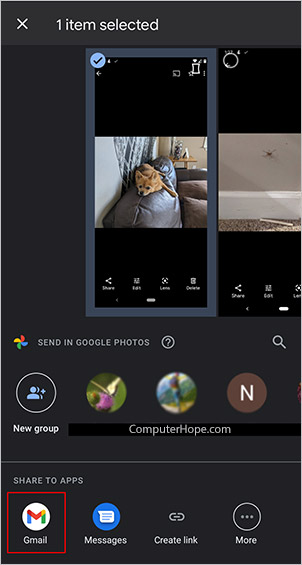
- When viewing the picture, tap the Share icon at the bottom-left corner of the screen.
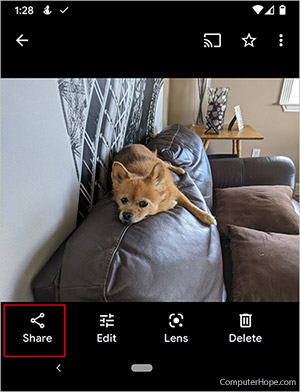
- In the Share to Apps section of the Share screen, tap the email app you want to use. You may have to tap More to find the right app.
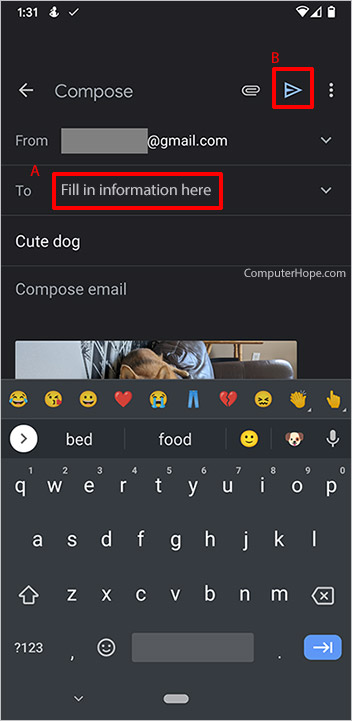
- A new e-mail message is opened, with the picture attached and displayed in the e-mail body. Enter the e-mail address you want to send the message to (A), the e-mail subject, and the text you want to include in the e-mail body.
- Tap the Send icon (B) at the upper-right corner of the Compose screen to send the e-mail.